You finish a client call with three things to do. Before you can write them down properly, the next meeting starts. By the end of the afternoon, your calendar shows where your time went, but the decisions and follow-up work are scattered across messages, documents, and your memory.
A professional planner needs to help with the work around appointments: preparing for a conversation, remembering what was agreed, and making room to deliver what you promised.
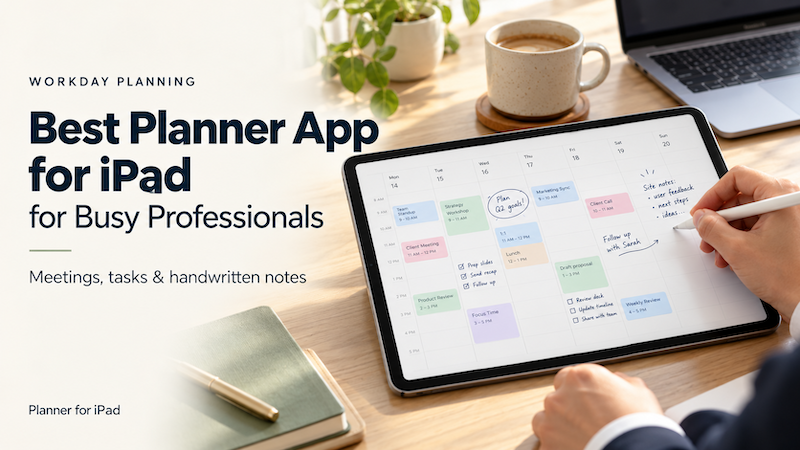
For people who prefer handwriting, the best planner app for iPad is one that connects those decisions with the schedule they already use. Planner for iPad is a strong option if you want calendar events, Apple Reminders integration, and Apple Pencil handwriting within your planning routine.
Here is what to look for—and how to put it to work during a typical workday.
What Makes a Planner Useful for Busy Professionals?
A long feature list does not necessarily make a planner useful on a busy Tuesday. A better test is whether it helps you answer practical questions quickly.
| Question | What to look for |
|---|---|
| What have I already committed to? | Calendar events visible while planning |
| What needs to happen before my next meeting? | Space to write preparation tasks beside your schedule |
| What did I promise to deliver? | A simple way to capture actions and deadlines |
| Can I take on another request? | A weekly view of existing commitments |
| What should I work on now? | A readable daily plan with clear priorities |
The right choice depends on how you work. If your main need is assigning work across a team, a shared project management tool may be more suitable. If you want to think through your own schedule by hand, a dedicated iPad planner deserves a closer look.
Why Planner for iPad Fits a Handwritten Workday
Planner for iPad combines a calendar-based planner with direct Apple Pencil handwriting. It offers daily, weekly, and monthly views and can display schedules from other calendars, including Google Calendar.
That combination gives you room to add your own thinking around appointments. You can write a preparation note, mark an important deadline, or sketch a rough plan without turning each thought into a formal event.
The app also integrates Apple Reminders, bringing tasks into the planning process. Your calendar holds appointments, your reminders hold actions, and handwriting helps you work out how to fit them together.
These are different kinds of information. Keeping them visible during planning makes it easier to make a realistic commitment.
Start the Morning with the Work Behind the Meetings
Imagine that your day contains a 10:00 client call, a 1:30 team meeting, and a 4:00 review. At first glance, the calendar looks manageable.
Now add the work each appointment creates.
The client call needs a revised estimate. The team meeting needs a decision on two options. The review requires a draft that someone can actually read.
Before choosing your tasks for the day, ask one question about each meeting:
What needs to be ready when this starts?
Write a short answer on your planning page:
- Client call: check the revised delivery date.
- Team meeting: compare the two proposals.
- Review: finish the opening section and list unresolved questions.
This turns the calendar into a starting point for action. It also exposes preparation you might otherwise leave until the last minute.
Choose the most consequential preparation first. If the morning is already crowded, a polished internal update may need to wait while you finish the estimate a client is expecting.
Use Handwriting to Make Decisions Visible
Handwritten planning is particularly useful for thoughts that are still taking shape.
You might know that you need to contact a supplier, but only after a colleague confirms the quantity. You might want to draft a proposal today, with the timing dependent on a meeting ending promptly.
A short annotation can express that uncertainty:
- “After quantity confirmed.”
- “Aim for first draft, not final version.”
- “If call runs late, do tomorrow morning.”
- “Need 45 minutes without interruptions.”
With Apple Pencil, you can circle the most important outcome or draw a simple connection between related notes. Keep the meaning consistent enough that you can read it at a glance.
There is no need to decorate every page or develop an elaborate set of symbols. The purpose is to make a decision easier to see when the day gets busy.
A useful planning note should help your future self act. “Proposal” is easy to overlook. “Draft pricing section before Thursday’s call” tells you what to do and why it matters.
During Meetings, Capture Decisions and Next Actions
A planner can hold brief meeting notes without becoming a complete transcript.
Try recording three things:
- Decision: What was agreed?
- Action: What needs to happen next, and who will do it?
- Date: When should it happen, or when will you check again?
For example:
Decision: Use the shorter launch schedule.
Action: I will send a revised timeline to Maya.
Date: Send it by Wednesday afternoon.
This is more useful for planning than a page of discussion with no clear outcome.
Write a brief summary on the day’s planning page. If a meeting needs extensive records, keep those in your usual document system and use the planner for the actions that affect your schedule.
After the meeting, put any action you must reliably track into your task system. A handwritten note gives context, but you still need to decide how you will remember the commitment later.
Bring Apple Reminders into Your Daily Review
Requests arrive throughout the day. You do not always have time to decide immediately when to do them.
Use Apple Reminders to capture those actions, then review them when you plan. Planner for iPad’s Reminders integration supports this connection between your task list and your handwritten schedule.
Be selective about what you bring into today’s plan. A task may be important without belonging in the next available gap.
Consider these three examples:
| Task | Planning decision |
|---|---|
| Send a document promised during today’s call | Give it a place before the promised delivery time |
| Compare software options for next month | Reserve a suitable work session later |
| Ask a colleague one factual question | Handle it during a short administrative window |
This review is also a chance to improve vague tasks. Change “budget” to “check the three revised supplier quotes.” A clear next action is easier to estimate and easier to begin.
For more on this workflow, read Best iPad Planner with Apple Reminders Sync.
Check the Week Before Accepting More Work
A free hour tomorrow does not necessarily mean you have capacity for a new commitment.
You may need that hour to prepare for Friday, finish an existing deliverable, or deal with work that has already slipped.
Before agreeing to a deadline, look at the weekly view and consider the full job:
- How much preparation does it need?
- Does someone else need time to review it?
- Which existing commitment would move?
- Is there room if one part takes longer than expected?
Suppose someone asks for a proposal by Thursday. Writing it may take two hours, but you also need information from a colleague and approval from a manager. The deadline depends on all three steps.
Use your handwritten plan to make those dependencies explicit before you say yes.
A monthly view adds another check: a deadline next week may coincide with travel, a reporting period, or several other deliveries. Moving between views helps you judge the request at the right scale.
Keep Personal Commitments in the Capacity Calculation
Professional planning becomes less realistic when it ignores the rest of your day.
A medical appointment, school pickup, or an evening commitment affects the time available for work. You do not need to share those details with colleagues to account for them in your own planning.
When you display relevant calendars in your planner, you can consider those boundaries alongside work appointments. Calendar availability depends on how your accounts are configured on the iPad, so confirm that the schedules you need are available.
Then plan the transition time too. A meeting ending at 5:00 does not leave a full hour of work if you need to leave at 5:15.
This is especially useful for freelancers, consultants, and people working flexible hours, where the working day may have less obvious boundaries.
Finish with a Brief Handover to Tomorrow
Before you close the planner, leave enough information to restart without reconstructing the day.
A useful end-of-day note might say:
Estimate sent. Waiting for delivery confirmation. Tomorrow: finish the pricing table, then send the draft for review.
Check that promises made during meetings have become clear actions. Review unfinished work and decide whether it still belongs tomorrow.
If the same task keeps moving forward, investigate the reason. It may need a smaller first step, information from another person, or a more realistic deadline.
You do not need a perfect record of everything you did. You need a clear starting point for the next work session.
Choose a Planner That Helps You Follow Through
The best planner app for a busy professional should make it easier to connect appointments with preparation, decisions, and delivery.
Planner for iPad is especially worth considering if you already use digital calendars but prefer to work through your plans with Apple Pencil. Its calendar views, handwriting, and Reminders integration support a practical personal planning routine.
Start with one workday. Review the meetings, write what needs to be ready, and choose the actions you can reasonably complete. At the end of the day, leave yourself a clear next step.