A to-do list tells you what needs to be done.
It does not tell you when you will do it.
That difference becomes important when your list contains ten tasks, your calendar contains four meetings, and the day still has only a limited number of usable hours.
Time blocking helps solve this problem by assigning important work to specific periods of the day. Instead of repeatedly looking at a long list and deciding what to do next, you create a visual plan for how your time will be used.
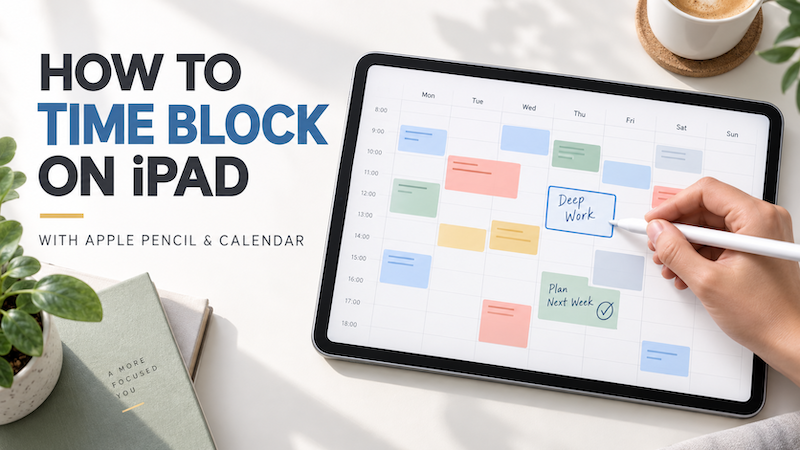
On an iPad, time blocking can be especially flexible. Your calendar provides the fixed structure of the day, while Apple Pencil gives you room to write tasks, draw blocks, move ideas, and adjust the plan without turning every intention into a formal calendar event.
This guide explains how to time block on iPad and how to combine calendar events, Apple Reminders, and handwritten planning with Planner for iPad.
What Is Time Blocking?
Time blocking is a planning method in which you divide the day into periods and decide what kind of work belongs in each one.
A simple time-blocked day might look like this:
- 8:30–9:00: Review email and prepare for the day
- 9:00–11:00: Work on the main project
- 11:00–11:30: Team meeting
- 11:30–12:00: Follow-up tasks
- 1:00–2:00: Administrative work
- 2:00–3:30: Client work
- 3:30–4:00: Buffer time
- 4:00–4:30: Plan tomorrow
The goal is not to control every minute.
The goal is to make sure that important work has somewhere to happen.
Without time blocking, a task such as “finish presentation” may remain on your list all day. You intend to work on it whenever you find time, but meetings, messages, and smaller tasks gradually consume every available opening.
With time blocking, you decide in advance that the presentation will receive a protected period from 9:00 to 11:00.
That decision makes the plan more realistic—and reveals immediately when the day does not contain enough time for everything you hoped to complete.
Why a To-Do List Alone Is Not Enough
To-do lists are excellent for capturing tasks. They help prevent commitments, ideas, errands, and deadlines from being forgotten.
However, a list does not show duration.
These tasks may appear as similar lines:
- Reply to an email
- Prepare the quarterly report
- Book a restaurant
- Review a contract
- Buy printer ink
But they do not require the same amount of time or attention.
Replying to an email might take five minutes. Preparing a report could take three uninterrupted hours. Reviewing a contract may require a quiet period when you can concentrate.
A list also does not show what is already on your calendar.
You may choose five important tasks in the morning without noticing that meetings occupy most of the afternoon. By the end of the day, the unfinished tasks feel like a failure—even though the original plan was never possible.
Time blocking brings tasks and time together.
Instead of asking only, “What do I need to do?” you also ask:
- How long will this take?
- When can I realistically do it?
- Does it require uninterrupted focus?
- What should happen before or after it?
- What will I postpone to make room?
These questions turn a collection of intentions into a plan.
Why Time Blocking Works Well on iPad
There are several ways to create time blocks.
You can add every task to a digital calendar. You can draw a schedule in a paper notebook. You can also use a PDF planner with Apple Pencil.
Each method has advantages, but it can also create friction.
If you put every task in your calendar, the calendar may become crowded with temporary plans. Moving a flexible task can feel like rescheduling an appointment, and small changes may require editing several calendar events.
A paper notebook gives you more freedom, but it cannot automatically display meetings added from your phone or changes made to a shared work calendar.
A static PDF planner provides a paper-like experience on iPad, but your actual calendar events usually need to be copied manually. If a meeting changes, the handwritten version can quickly become outdated.
A calendar-connected handwritten planner offers another approach:
- Calendar events provide the current schedule.
- Reminders store tasks and deadlines.
- Apple Pencil lets you plan visually around them.
You keep the reliability of digital information without giving up the flexibility of handwriting.
Start with Fixed Calendar Events
The easiest way to begin time blocking is to start with the things you cannot move.
Open your daily or weekly planner and look at the events already scheduled.
These may include:
- Meetings
- Classes
- Medical appointments
- School pickups
- Client calls
- Travel
- Reservations
- Recurring commitments
These events form the skeleton of the day.
For example:
- 9:30–10:00: Team meeting
- 12:30–1:30: Lunch appointment
- 3:00–4:00: Client call
- 5:00: School pickup
Now look at the spaces between those events.
The day does not contain one large open period. It contains several windows with different lengths and different levels of usefulness.
You might have:
- 8:30–9:30: One hour
- 10:00–12:30: Two and a half hours
- 1:30–3:00: One and a half hours
- 4:00–4:40: Forty minutes after allowing for travel
Those are the periods you can actually plan.
This is more practical than creating an ideal schedule first and trying to fit real appointments into it later.
Planner for iPad can display calendar events directly on planner pages, allowing you to use your existing schedule as the starting point for handwritten time blocking.
Choose One to Three Priorities
The next step is not to place every item from your to-do list into the available spaces.
First, choose the work that matters most.
A useful daily structure is:
- One main priority
- One or two supporting tasks
- A small group of quick tasks
Your main priority should receive the best block of time available.
For example:
Main priority
- Complete the first draft of a project proposal
Supporting tasks
- Prepare questions for the client call
- Review next week’s schedule
Quick tasks
- Confirm an appointment
- Reply to the supplier
- Order printer ink
If you have a two-hour period in the morning when you usually concentrate well, reserve it for the proposal. Do not give that time to email simply because email is the easiest task to begin.
The smaller tasks can be grouped into a shorter administrative block later in the day.
Time blocking is not only about finding time for tasks. It is also about matching the right task to the right kind of time.
Estimate How Long Tasks Will Take
Time blocking becomes useful when you make at least a rough estimate of duration.
Without an estimate, “work on presentation” can be placed inside a 30-minute opening even though the task requires two hours.
You do not need to predict duration perfectly. Start with broad categories:
- Quick: 5–15 minutes
- Short: 15–30 minutes
- Medium: 30–60 minutes
- Focused: 60–120 minutes
- Extended: More than two hours
If a task is too large to estimate, divide it into a smaller action.
Instead of:
- Work on website
Write:
- Review homepage copy
- Select three screenshots
- Draft pricing section
- Test the contact form
Smaller actions are easier to place into realistic blocks.
They also give the day a clear stopping point. “Work on website” could continue indefinitely, while “draft the pricing section” can be completed.
Match Tasks to the Shape of the Day
Not every free hour is equally valuable.
An uninterrupted hour in the morning may be suitable for writing, design, studying, or problem-solving.
An hour divided into several small gaps may be better for email, phone calls, scheduling, expenses, and other administrative work.
When reviewing your day, identify different types of space:
Focus blocks
Long, uninterrupted periods for work that requires concentration.
Examples:
- Writing
- Studying
- Designing
- Programming
- Preparing a presentation
- Strategic planning
Administrative blocks
Periods for smaller tasks that can be completed together.
Examples:
- Scheduling
- Invoices
- Forms
- Phone calls
- File organization
Preparation blocks
Time reserved before an event.
Examples:
- Review notes before a meeting
- Gather documents before an appointment
- Prepare equipment before filming
- Read an agenda before a call
Recovery and buffer blocks
Open space between demanding activities.
Examples:
- Travel time
- Lunch
- A short walk
- Clearing notes after a meeting
- Handling unexpected work
This prevents you from treating every blank space as an invitation to add more work.
Use Apple Pencil for Flexible Time Blocks
A digital calendar generally expects every block to have a title, start time, end time, and other structured information.
Handwriting does not require that level of certainty.
With Apple Pencil, you can draw a rough box around a period, write a task beside it, add an arrow, or leave a question mark when the timing is still uncertain.
You might use a simple visual system:
- A box for protected focus time
- A circle for the most important task
- A star for a deadline
- An arrow for a movable task
- A line through completed work
- A different color for personal time
- A shaded area for buffer time
The system does not need to be decorative.
Its purpose is to help you understand the day quickly.
Handwriting is particularly useful when plans change. If a meeting runs late, you can cross out a block, draw an arrow, and move the task to a later opening without formally editing multiple calendar events.
The calendar remains the source of truth for appointments. Your handwriting shows your current intention.
Leave Buffer Time Between Blocks
A plan that uses every available minute is unlikely to survive the day.
Meetings run long. Travel takes more time than expected. A task reveals an additional problem. Someone calls. Your concentration changes.
Buffer time gives the schedule room to absorb these disruptions.
You could leave:
- 10–15 minutes after meetings
- 30 minutes between major focus blocks
- One unassigned period in the afternoon
- A larger open block at the end of the week
Buffer time is not wasted time.
If nothing unexpected happens, you can use it for quick tasks, preparation, rest, or finishing work that took longer than expected.
If something does happen, the entire schedule does not need to be rebuilt.
A useful rule is to avoid assigning tasks to 100 percent of your available time. A plan with some empty space is often more productive than a full plan that immediately falls behind.
Combine Calendar, Reminders, and Handwriting
Time blocking becomes easier when each tool has a clear role.
Use the calendar for commitments
Calendar events are best for things that happen at a particular time.
Examples:
- 10:00 team meeting
- 1:30 dentist appointment
- 4:00 client call
- 6:30 dinner reservation
Use Apple Reminders for tasks
Reminders are best for actions you need to remember or complete by a deadline.
Examples:
- Send the meeting agenda
- Bring an insurance card
- Submit the application
- Buy groceries
- Renew a subscription
Use handwriting for decisions
Your planner is where you decide how the day should work.
Examples:
- Draft the agenda between 8:30 and 9:00
- Stop at the store after the appointment
- Protect the morning for focused work
- Move the report review to Thursday
- Do not schedule anything else after 4:00
This division prevents the calendar from becoming a database of every possible task.
It also prevents your planner from becoming a second copy of information that already exists elsewhere.
For a more detailed workflow, see Best iPad Planner with Apple Reminders Sync: Turn To-Dos into a Handwritten Daily Plan.
Use Weekly Time Blocking Before Daily Time Blocking
Daily planning answers the question:
“What should I do today?”
Weekly planning answers a larger question:
“Where will the important work fit this week?”
Before Monday begins, look at the entire week.
Identify:
- Days already filled with meetings
- Major deadlines
- Long periods of open time
- Personal and family commitments
- Tasks that require preparation
- Work that must happen before another task can begin
- Days that need more flexibility or rest
Then assign broad blocks to the week.
For example:
- Monday morning: Project planning
- Tuesday afternoon: Client work
- Wednesday morning: Writing
- Thursday afternoon: Administrative work
- Friday morning: Review and unfinished tasks
You can refine these blocks each morning.
This two-level system keeps daily plans connected to larger priorities. Without weekly planning, urgent tasks can consume each day while important projects are repeatedly postponed.
The weekly planner guide explains how calendar events and handwritten plans can work together across an entire week.
What to Do When the Day Changes
Time blocking should create clarity, not rigidity.
When an unexpected task appears, do not immediately place it on top of the existing plan.
Ask:
- Does this need to happen today?
- Is it more important than the task already scheduled?
- How long will it take?
- Can it fit inside a buffer block?
- What will be moved if I accept it?
If something new takes one hour, the day has not gained an additional hour.
Another task must become shorter, move elsewhere, or be removed.
Apple Pencil makes this tradeoff visible. You can cross out a block, move it with an arrow, and see exactly what changed.
At the end of the day, review incomplete blocks and choose one action:
- Complete the task
- Reschedule it
- Return it to the general task list
- Divide it into a smaller action
- Delete it
Do not automatically move every unfinished task to tomorrow. Repeatedly copying the same task creates clutter without solving the reason it was not completed.
Common Time-Blocking Mistakes
Time blocking can become frustrating when the schedule is too detailed or unrealistic.
Filling every minute
A completely full schedule leaves no room for delays, transitions, or unexpected work.
Underestimating tasks
A 90-minute task cannot fit inside a 30-minute opening simply because that is the only time available.
Treating every block as fixed
Some blocks need protection. Others should remain movable. Mark the difference visually.
Ignoring energy
Do not reserve your most demanding work for the part of the day when you usually have the least concentration.
Planning from the task list before checking the calendar
Always review fixed commitments first. The calendar determines how much usable time the day contains.
Turning every small task into a calendar event
Grouping email, calls, and other short actions into one administrative block often creates a cleaner and more flexible schedule.
Refusing to revise the plan
A time-blocked schedule is a working plan, not a contract. Adjust it when reality changes.
A Simple 10-Minute Time-Blocking Routine
You do not need an elaborate setup.
Try this short routine at the beginning of the day.
Minutes 1–2: Review the calendar
Look at meetings, appointments, travel, and fixed commitments.
Minutes 3–4: Check reminders and deadlines
Identify tasks that need attention today, including preparation required before scheduled events.
Minutes 5–6: Choose priorities
Select one main task, one or two supporting tasks, and a few quick actions.
Minutes 7–8: Create the blocks
Place tasks into realistic openings. Reserve your best available period for the most important work.
Minute 9: Add buffer time
Check that the plan contains room for transitions and unexpected work.
Minute 10: Remove something
If the day looks too full, postpone or delete a lower-priority task.
This final step matters.
A useful plan is not a list of everything you would like to accomplish. It is a decision about what can realistically fit into one day.
How Planner for iPad Supports Time Blocking
Planner for iPad combines the structure of a digital calendar with the flexibility of Apple Pencil handwriting.
Calendar events can appear directly on planner pages. If Google Calendar or Outlook is connected to the calendar system on your iPad, those events can also be included alongside Apple Calendar events.
You can then write time blocks, priorities, notes, and changes around the schedule that already exists.
Planner for iPad also works with Apple Reminders, helping you see tasks alongside calendar events and handwritten plans.
This creates a practical planning surface:
- Calendar events show what is already fixed.
- Reminders show what needs to be completed.
- Handwriting shows how you intend to use the available time.
Daily views help you decide what to do next. Weekly views reveal where larger blocks of work can fit. Monthly and yearly views provide broader context for deadlines, projects, and busy periods.
You do not need to copy your calendar into a static PDF or choose between digital scheduling and handwriting. Both can exist in the same planner.
For more on combining scheduled events with handwritten planning, see Best Daily Planner App for iPad with Apple Pencil: Plan Your Day Around Your Calendar.
A Better Plan for the Time You Actually Have
Time blocking is not about making every day perfectly efficient.
It is about seeing the difference between the time you imagine you have and the time that is actually available.
Your calendar shows the commitments that already exist. Your task list shows the work waiting for attention. Your handwritten planner helps you make choices between them.
On iPad, this system can remain both structured and flexible.
You can protect time for important work without turning every task into a rigid calendar event. You can respond to changes without rewriting your entire schedule. Most importantly, you can give meaningful work a visible place in the day before smaller demands consume it.
Start tomorrow with one block.
Review your calendar, choose your most important task, and reserve a realistic period for it. Leave some empty space around the plan and adjust it as the day changes.
A useful time-blocked day is not one that happens exactly as expected.
It is one that helps you keep deciding what matters.