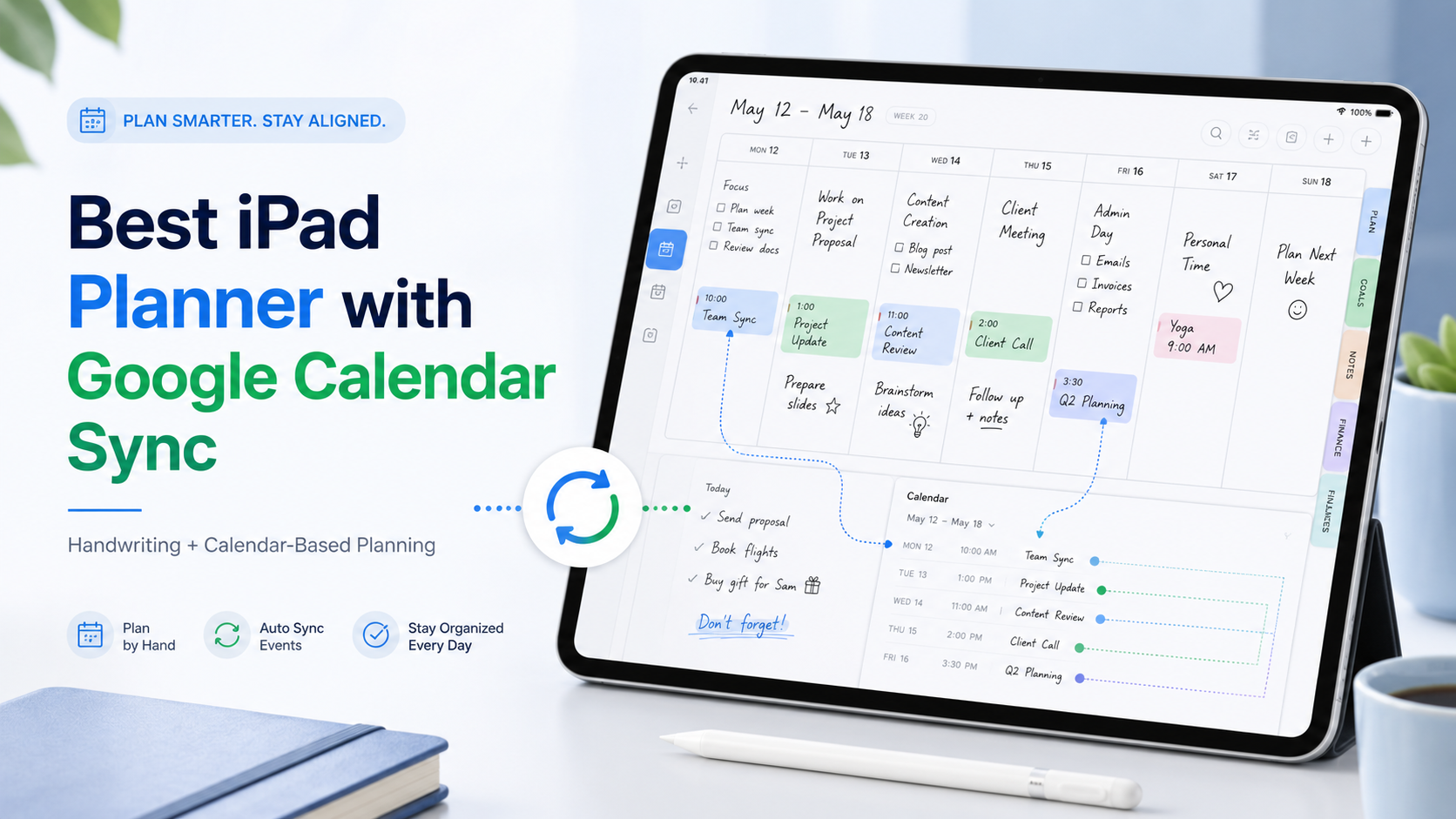
Finding a good iPad planner is easy.
Finding an iPad planner that works well with Google Calendar is much harder.
There are hundreds of beautiful digital planners for iPad. Many of them look like paper planners. Some are sold as PDF templates for GoodNotes, Notability, or other note-taking apps. They can be great if all you want is a pretty place to write.
But if you already use Google Calendar for meetings, classes, appointments, deadlines, or family schedules, a static PDF planner can quickly become frustrating.
You do not want to copy your Google Calendar events into your planner by hand every week.
You do not want to switch back and forth between your calendar app and your planner.
You want your schedule and your handwritten planning space to live together.
That is exactly why choosing the right iPad planner matters.
What Makes a Good iPad Planner with Google Calendar Sync?
A good iPad planner with Google Calendar support should do three things well.
First, it should show your calendar events clearly.
If you already use Google Calendar, your events should appear inside your planner so you can plan around them. Meetings, classes, appointments, deadlines, and recurring events should be visible without extra copying.
Second, it should support handwriting.
One of the biggest reasons people use an iPad planner is Apple Pencil. Typing into a calendar app is useful, but handwriting helps many people think more naturally. You can circle important tasks, sketch ideas, cross things out, and plan your day visually.
Third, it should feel simple.
A planner should not become another complicated productivity system. The best planner is the one you actually open every day.
Why PDF Planners Often Fall Short
PDF planners are popular because they look beautiful.
You can buy a digital planner template, import it into GoodNotes or another note-taking app, and start writing with Apple Pencil. For many people, that is enough.
But PDF planners have one major limitation:
They are static.
A PDF planner does not really know what your schedule is. It does not automatically display your Google Calendar events. If you have a meeting at 2 PM, a class on Thursday, or a dentist appointment next week, you usually have to write it into the planner yourself.
That creates a problem.
Your real schedule lives in Google Calendar.
Your handwritten plans live in your PDF planner.
Now you have two systems to maintain.
That may work for a few days, but it often breaks down over time.
The more events you have, the more annoying it becomes.
Why Google Calendar Matters for iPad Planning
Google Calendar is where many people already keep their real schedule.
Students use it for classes, exams, and assignment deadlines.
Professionals use it for meetings, calls, travel, and project timelines.
Parents use it for school events, family appointments, and shared schedules.
Freelancers use it for client work, deadlines, and availability.
So when your iPad planner does not connect to your calendar, your planning system becomes disconnected from your real life.
A planner with Google Calendar support helps solve this.
Instead of starting from a blank page every day, you can see what is already scheduled. Then you can write around it.
For example:
- You can see your meetings before planning your work blocks.
- You can notice a busy afternoon before adding more tasks.
- You can write personal notes next to scheduled events.
- You can plan your week while seeing your existing commitments.
- You can avoid overbooking yourself.
This is the difference between a planner that looks nice and a planner that actually helps.
The Best iPad Planner with Google Calendar Sync: Planner for iPad
If you want an iPad planner that combines handwriting, Apple Pencil, and calendar-based planning, Planner for iPad is one of the best options to consider.
Planner for iPad is a digital planner app designed specifically for iPad and Apple Pencil. It gives you the feeling of a paper planner, but with the convenience of a calendar-aware app.
Instead of using a static PDF template, you can plan inside an app that displays your calendar events directly in your planner.
This makes it especially useful if you already rely on Google Calendar.
How Google Calendar Works with Planner for iPad
Planner for iPad works with your calendar through the iPad calendar system.
That means if your Google Calendar is connected to your iPad, your Google Calendar events can appear inside Planner for iPad.
In practice, the setup looks like this:
- Add your Google account to your iPad.
- Enable Calendar syncing in your iPad settings.
- Open Planner for iPad.
- Your calendar events can appear inside your planner views.
This allows you to see your Google Calendar events while planning with Apple Pencil.
It is important to understand one thing:
Planner for iPad displays your calendar events, but it does not turn every handwritten note into a Google Calendar event.
That is actually a good thing for many users.
Your calendar stays clean.
Your planner stays flexible.
Your handwritten notes remain personal.
You can use Google Calendar for fixed events and Planner for iPad for thinking, writing, prioritizing, and planning.
Why Read-Only Calendar Display Can Be Better
Some people think a planner should automatically convert handwriting into calendar events.
That sounds useful, but in real life it can become messy.
Not everything you write in a planner belongs in your calendar.
You might write:
- “Prepare for meeting”
- “Think about new project”
- “Call Mom?”
- “Maybe go to the gym”
- “Finish draft”
- “Focus on design”
- “Don’t forget invoice”
These are not always calendar events. Some are notes. Some are tasks. Some are reminders. Some are vague thoughts.
If every handwritten note became a calendar event, your Google Calendar could quickly become cluttered.
Planner for iPad takes a calmer approach.
Your real calendar events appear in your planner, so you can see your schedule. Then you can write freely around them.
This keeps your calendar structured and your planner flexible.
Planner for iPad vs GoodNotes PDF Planner
GoodNotes is excellent for note-taking and PDF annotation. Many people use it with digital planner templates, and that can work well for simple handwriting-based planning.
But if your main requirement is Google Calendar visibility, a PDF planner has limitations.
GoodNotes PDF Planner:
- Beautiful template options
- Great handwriting experience
- Flexible page layouts
- Good for journaling and freeform notes
- Usually does not show live Google Calendar events
- Requires manual copying of your schedule
Planner for iPad:
- Built specifically for planning
- Designed for Apple Pencil
- Displays calendar events inside the planner
- Works well with Google Calendar via iPad calendar sync
- Better for people who want handwriting plus schedule visibility
- Less dependent on static PDF templates
If you mainly want a decorative notebook, a PDF planner may be enough.
If you want your real schedule and handwritten planner in the same place, Planner for iPad is a better fit.
Who Should Use Planner for iPad?
Planner for iPad is especially useful for people who want a planner that feels natural but still works with their digital calendar.
It is a good fit for:
- Students who use Google Calendar for classes and deadlines
- Professionals who plan around meetings
- Freelancers who manage client schedules
- Teachers who want to organize lessons and appointments
- Parents who manage family calendars
- Apple Pencil users who prefer handwriting
- People who like paper planners but need digital calendar visibility
- Anyone tired of copying Google Calendar events into a PDF planner
It is also a good choice for people who do not want a complicated productivity app.
You do not need to build a database.
You do not need to design a dashboard.
You do not need to manage a complex system.
You can simply open your planner, see your schedule, and write.
Why Handwriting Still Matters
Google Calendar is great for storing events.
But it is not always great for thinking.
A calendar tells you what is scheduled. A planner helps you decide what matters.
That is why handwriting is still powerful.
When you write by hand, you slow down. You notice what is realistic. You make decisions. You connect your schedule with your intentions.
For example, seeing “Team Meeting at 10:00” in your calendar is useful.
But writing “prepare slides before meeting” next to it is planning.
Seeing “Exam on Friday” is useful.
But writing “review chapters 4–6 on Wednesday” is planning.
Seeing “Doctor appointment at 3:00” is useful.
But writing “leave home by 2:20” is planning.
Planner for iPad works well because it brings these two modes together: digital calendar structure and handwritten thinking.
How to Set Up Google Calendar on iPad
To use Google Calendar with an iPad planner, make sure your Google account is connected to your iPad.
Here is the general process:
- Open the Settings app on your iPad.
- Go to Calendar.
- Tap Accounts.
- Add your Google account if it is not already added.
- Make sure Calendar sync is turned on.
- Open your iPad Calendar app and confirm that your Google Calendar events appear.
- Open Planner for iPad and use it with your calendar events visible.
Once your Google Calendar is available on your iPad, Planner for iPad can use the calendar information for planning.
The Best Workflow: Calendar for Events, Planner for Thinking
The most practical workflow is not to replace Google Calendar.
It is to use Google Calendar and Planner for iPad together.
Use Google Calendar for:
- Meetings
- Appointments
- Classes
- Shared events
- Recurring schedules
- Time-specific commitments
Use Planner for iPad for:
- Daily planning
- Weekly planning
- Handwritten notes
- Priorities
- Task planning
- Reflection
- Ideas
- Personal reminders
- Visual organization
This gives you the best of both worlds.
Your calendar remains reliable.
Your planner remains flexible.
Your iPad becomes your central planning space.
Final Thoughts
The best iPad planner with Google Calendar sync is not just the one with the prettiest templates.
It is the one that helps you plan around your real schedule.
PDF planners can be beautiful, but they often require too much manual work. Traditional calendar apps are useful, but they can feel too rigid. Complex productivity apps can be powerful, but they often become another thing to manage.
Planner for iPad offers a better balance.
It lets you plan by hand with Apple Pencil while seeing your calendar events inside your planner. If you already use Google Calendar, this makes daily and weekly planning much easier.
You can keep your schedule in Google Calendar and use Planner for iPad as your handwritten planning space.
For many iPad users, that is exactly what a digital planner should be.
Download Planner for iPad
If you want an iPad planner that works with Apple Pencil and helps you plan around your Google Calendar schedule, try Planner for iPad.