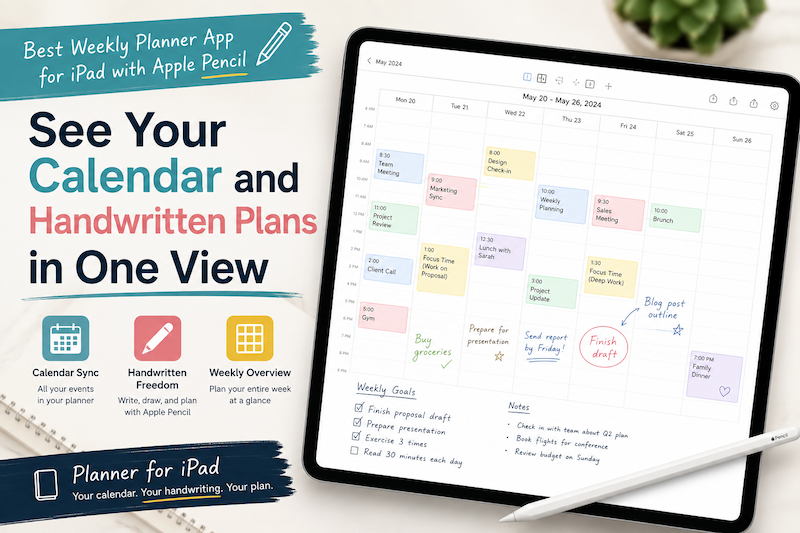
Planning an entire week is difficult when your schedule and your thoughts live in different places.
Your meetings may be stored in Apple Calendar. Work events may come from Google Calendar or Outlook. Tasks may be scattered across Apple Reminders, email, and handwritten notes.
Then, when it is time to plan the week, you have to bring everything together manually.
You open your calendar, check Monday’s appointments, switch to a digital planner, and copy them across. You repeat the process for Tuesday, Wednesday, and the rest of the week. When a meeting changes, the handwritten copy is already out of date.
A good weekly planner app for iPad should remove that duplication.
It should let you see your existing calendar events while still giving you space to write, think, prioritize, and make changes with Apple Pencil.
That is the advantage of using a planner designed specifically for both calendar-based scheduling and handwriting.
Why the Weekly View Matters
Daily planning is useful when you need to focus on what happens next.
However, a daily page can hide the larger shape of your schedule.
You may plan a productive Monday without noticing that Tuesday and Wednesday are already filled with meetings. You may accept a new appointment on Thursday without realizing that it removes the only open block you had for an important project.
A weekly planner helps you see these problems before they happen.
In one view, you can check:
- Which days are already crowded
- Where you still have open time
- Which deadlines are approaching
- Whether important work has a place in the schedule
- How work, personal, and family commitments overlap
- When you may need rest or extra flexibility
The weekly view sits between the broad perspective of a monthly calendar and the detail of a daily planner.
A monthly view tells you what is coming.
A daily view helps you act.
A weekly view helps you decide how the different parts of your life will fit together.
The Problem with Using a Calendar Alone
Calendar apps are excellent at storing structured events.
They can tell you that a meeting begins at 10:00 AM, a dentist appointment starts at 3:30 PM, or a project deadline falls on Friday.
What they do not always provide is a comfortable place to think around those events.
You may want to write:
- Prepare three questions before the meeting
- Call the client afterward
- Move this task if the morning runs late
- Bring the documents from home
- Use the open afternoon for focused work
- Do not schedule anything else on Thursday
These notes do not always belong inside the formal calendar event.
Some are temporary. Some are personal. Some are incomplete thoughts that only need to make sense to you.
Handwriting is useful because it gives you a flexible layer around the fixed schedule.
Your calendar can continue to manage official events and notifications. Your handwritten weekly plan can show how you intend to respond to them.
The Problem with PDF Weekly Planners
Many people begin digital planning by purchasing a PDF planner and opening it in an app such as Goodnotes or Notability.
This approach can work well when customization is the main priority. PDF planners are available in countless colors, themes, and layouts.
However, a PDF is still a static document.
It does not automatically know what is stored in your calendar.
That creates the double-entry problem:
- Open the calendar app.
- Check the schedule.
- Return to the PDF planner.
- Write each event manually.
- Update the handwritten copy whenever the schedule changes.
The process may feel satisfying at first, especially when setting up a beautiful weekly spread. Over time, however, copying the same information can become a chore.
There is also a risk that your planner and calendar will disagree.
The calendar says the meeting was moved to 2:00 PM, but the planner still says 1:00 PM. The appointment was canceled, but it remains written on the page. A new event was added from your phone, but it has not been copied into the planner.
A dedicated weekly planner app can avoid much of this work by displaying calendar information directly on the page.
What to Look for in a Weekly Planner App for iPad
Not every app described as a “planner” offers the same kind of experience.
Some are primarily task managers. Some are note-taking apps. Others are calendars that allow a small amount of drawing or annotation.
For people who want a paper-planner experience on iPad, the following features matter most.
A Clear Weekly Layout
You should be able to understand the shape of the week without opening every day individually.
The best layout depends on your schedule.
A vertical weekly view is useful when time and appointments are important. A horizontal layout may work better when you want more writing space for each day.
The app should also make it easy to move between weekly, daily, and monthly views.
Apple Pencil Handwriting
Apple Pencil support should feel like a core part of the app, not an extra annotation feature.
You should be able to write directly beside your events, circle important items, create arrows, cross out completed tasks, and add notes wherever they make sense.
The goal is not simply to reproduce a typed task list in handwriting.
The goal is to preserve the freedom of paper planning.
Calendar Integration
Your existing calendar events should appear inside the planner.
Ideally, the app should work with the calendar accounts already connected to your iPad. This can include iCloud, Google Calendar, Outlook, work calendars, school calendars, and shared family calendars.
This lets your calendar remain the source of truth for scheduled events while your planner becomes the place where you think and write around them.
Enough Space for Unscheduled Work
A weekly planner should show more than appointments.
Much of the work that matters does not begin as a calendar event.
Writing a proposal, preparing lessons, studying, organizing the house, reviewing finances, and developing a creative project may all require time without having a fixed appointment.
A useful weekly layout gives you space to turn these intentions into a visible plan.
Fast Setup
A planner should not become a project of its own.
Templates, decorative elements, and customization can be enjoyable, but you should not need to spend an hour building a weekly page before you can plan.
The most practical system is often the one you can open and use immediately.
Why Planner for iPad Works as a Weekly Planner
Planner for iPad is designed specifically for people who want to combine calendar information with Apple Pencil handwriting.
Instead of importing a static PDF, you open a dedicated planner with daily, weekly, and monthly views.
Calendar events can appear directly on the planner page. You can then write around them with Apple Pencil.
This creates a simple division of labor:
- Your calendar stores fixed events.
- Apple Reminders stores tasks you do not want to forget.
- Your handwritten planner helps you decide how the week should work.
If Google Calendar or Outlook is connected to the calendar system on your iPad, those events can also be displayed in Planner for iPad.
This is particularly useful when different parts of your life use different calendar services.
You might have:
- Outlook Calendar for work
- Google Calendar for a shared family schedule
- Apple Calendar for personal appointments
- A separate calendar for school, volunteering, or a side project
Rather than checking each calendar separately, you can bring the relevant events into one weekly planning view.
For a more detailed workflow, see Best iPad Planner for Multiple Calendars: How to Combine Work, Personal, and Family Schedules.
A Simple Weekly Planning Routine
A weekly planning routine does not need to be elaborate.
Fifteen to twenty minutes is often enough to create a useful plan.
Step 1: Review the Fixed Schedule
Open the weekly view and look at the events already on your calendar.
Do not start by adding more tasks.
First, understand how much time is genuinely available.
Look for:
- Meeting-heavy days
- Travel time
- Appointments that require preparation
- Early starts or late finishes
- Personal and family commitments
- Large open blocks
- Days that need extra breathing room
This protects you from planning an imaginary week with more available time than you actually have.
Step 2: Choose Three Weekly Priorities
Write down the two or three outcomes that matter most.
These should be results, not broad categories.
Instead of writing:
- Marketing
- School
- Admin
Write:
- Finish the landing page draft
- Complete chapters four and five
- Send the tax documents
A short priority list makes it easier to decide what should occupy the remaining space.
Step 3: Place Important Work into Open Time
Look at the gaps between fixed events.
Decide where your priorities can realistically fit.
You do not need to turn every task into a formal calendar event. You can use Apple Pencil to write directly inside an open block, draw an arrow toward a possible time, or add a note in the margin.
For tasks that require protected time, you may prefer a more structured approach. The guide Best iPad Planner for Time Blocking: How to Plan Your Day Visually with Apple Pencil explains how to build focused work blocks around your existing schedule.
Step 4: Add Small Tasks Where They Fit
Once the important work has a place, add the smaller tasks.
These might include:
- Replying to an email
- Making a phone call
- Ordering supplies
- Returning a library book
- Preparing documents
- Reviewing notes before a meeting
Group small tasks together when possible.
A handful of ten-minute tasks scattered throughout the week can create more mental clutter than one clearly labeled administrative block.
Step 5: Leave Some Space Empty
A weekly plan should not use every available minute.
Events will move. Tasks will take longer than expected. New requests will appear. Energy levels will change.
Empty space is not wasted space.
It is what allows the plan to survive contact with the real week.
Combining Apple Reminders with Your Weekly Plan
Apple Reminders is useful for capturing tasks quickly.
You can add a task from your iPhone, use Siri, create shared lists, and assign due dates when needed.
However, a reminder tells you what needs to be done. It does not always tell you when the work will happen.
A useful workflow is:
- Capture tasks in Apple Reminders during the week.
- Review the relevant reminders when planning.
- Choose which tasks matter now.
- Write those tasks into realistic spaces on the weekly page.
- Leave lower-priority reminders in the list for later.
This prevents the weekly planner from becoming a copy of an enormous task list.
For a complete explanation, read Best iPad Planner with Apple Reminders Sync: Turn To-Dos into a Handwritten Daily Plan.
How to Keep the Weekly Plan Useful
The purpose of a weekly planner is not to predict the future perfectly.
It is to make the next several days easier to understand.
A few simple habits can keep the plan useful.
Update the Plan When Something Important Changes
Because calendar events remain connected to your digital schedule, formal changes do not need to be copied repeatedly.
You may still want to update the handwritten layer.
Cross out a task that no longer matters. Draw an arrow to a new day. Add a note about why a priority changed.
The page becomes a record of both the original plan and the decisions you made during the week.
Check the Weekly View Each Morning
You do not need to rebuild the week every day.
Open the weekly page, check what has changed, and then move to the daily view when you need more detail.
The weekly view provides context. The daily view provides focus.
Review the Week Before Planning the Next One
At the end of the week, look at what happened.
Which days were overloaded? Which tasks moved repeatedly? Where did unexpected work appear? Which open blocks were genuinely useful?
This information improves the next plan.
The article How to Do a Weekly Review on iPad: A Simple System That Actually Works provides a straightforward weekly review process.
Who Benefits Most from a Handwritten Weekly Planner?
A calendar-connected weekly planner can work for many different routines.
Professionals
You can see meetings from your work calendar and use the surrounding space for preparation notes, follow-ups, and focused work.
Students
Classes and deadlines can remain in the calendar while study plans, reading assignments, and handwritten notes sit beside them.
Teachers
You can combine lessons, meetings, school events, grading blocks, and personal commitments in one weekly view.
Parents and Families
Shared family events can appear alongside personal plans, household tasks, and reminders.
Freelancers and Creatives
You can see client appointments without losing the flexible space needed for project work, ideas, sketches, and changing priorities.
People Managing Multiple Roles
The weekly view is especially useful when your days cannot be separated neatly into “work” and “personal.”
Seeing everything together can reveal conflicts that separate calendars and task lists often hide.
Frequently Asked Questions
Can I use Google Calendar with an iPad weekly planner?
Yes. Planner for iPad can display calendar events available through the calendar system on your iPad. If your Google account is connected and calendar syncing is enabled, its events can appear in the planner.
Can I write directly on the weekly calendar with Apple Pencil?
Yes. Planner for iPad allows you to write directly on calendar-based planner pages with Apple Pencil. You can add notes, priorities, marks, arrows, and other handwritten information around your schedule.
Does handwriting create new calendar events?
Handwritten notes remain part of your planner rather than automatically becoming structured calendar events.
This separation keeps the workflow simple. Use your calendar for events that require a time, location, invitation, or notification. Use handwriting for flexible planning and personal notes.
Is a dedicated planner app better than a PDF planner?
It depends on what you value.
A PDF planner may be better when decorative customization and complete control over the page design are your main priorities.
A dedicated planner app is usually more practical when you want your real calendar events to appear automatically and stay current.
Do I need to pay before trying Planner for iPad?
Planner for iPad is free to download from the App Store and includes in-app purchases. You can install it and see whether the workflow suits the way you plan.
See Your Schedule and Your Thinking Together
The best weekly planner is not necessarily the one with the most templates, automation, or productivity features.
It is the one that gives you a clear view of the week and makes it easy to decide what to do next.
A normal calendar shows your fixed commitments.
A paper-style planner gives you room to think.
Planner for iPad brings those two experiences together. Your calendar events can appear in the weekly view, while Apple Pencil gives you the freedom to write priorities, notes, plans, and changes around them.
Instead of copying your schedule into a separate planner, you can open the week and start planning from the schedule you already have.
Your calendar shows what is fixed.
Your handwriting shows how you intend to use the time around it.
Meta description:
Looking for the best weekly planner app for iPad? See calendar events and handwritten plans together using Apple Pencil and Planner for iPad.