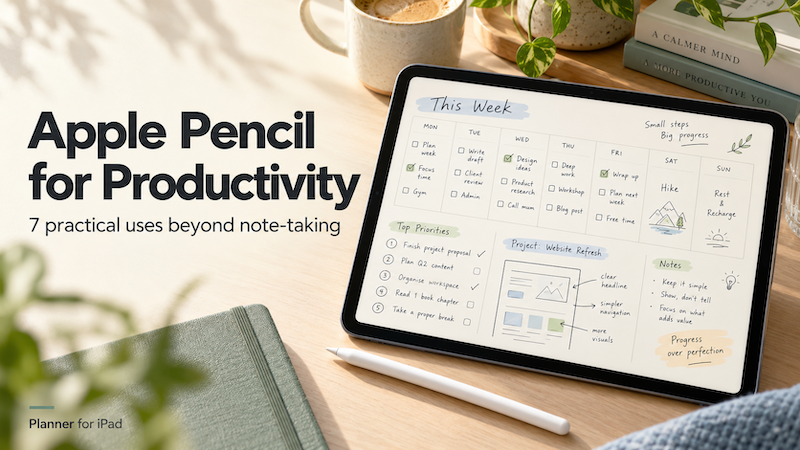
You bought an Apple Pencil to do more with your iPad. You have taken notes, highlighted a few documents, and perhaps tried drawing. But when a busy week arrives, your Pencil often stays on the side of the tablet while you return to the same scattered lists and calendar tabs.
Using Apple Pencil for productivity can be as simple as opening your schedule and writing down what you need to do around it. You can sketch a project, prepare for a conversation, or decide which tasks deserve the limited time available today.
You do not need artistic skills, elaborate templates, or pages that look ready for social media. A few words, boxes, and arrows are enough.
Here are seven practical ways to make Apple Pencil part of your everyday work and personal planning.
1. Plan Your Week Around Your Actual Calendar
A list of things you hope to do can look reasonable until you put it next to your appointments.
Monday has two calls. Tuesday includes a school event. Wednesday is already mostly meetings. Suddenly, the five large tasks you wanted to finish need a more realistic home.
Open a weekly view and look at your existing commitments first. Then use Apple Pencil to add the work and personal plans that need to fit around them.
Try writing:
- One main outcome for the week.
- A short priority beside each working day.
- Preparation needed before an appointment.
- Time for errands, travel, or recovery after a busy period.
For example, write “Prepare three questions” near Tuesday’s client call and “Draft proposal” in a suitable opening on Wednesday.
In Planner for iPad, you can see calendar events on your planner pages and add handwriting around your schedule. This gives you a place to consider both your appointments and the work they create.
Try it today: Open the coming week and choose three outcomes. Give each one a realistic day before adding anything else.
2. Turn a To-Do List into Handwritten Time Blocks
“Work on presentation” can sit on a task list all day without getting any closer to completion.
Use Apple Pencil to give it a specific place in the day. Draw a simple box beside an available period and write a concrete action inside it:
9:00–10:00 — Draft the opening five slides.
The size of the block prompts a useful question: can this action fit into the time you have?
If the answer is no, reduce the task or choose a longer opening. Leave space for transitions and interruptions rather than filling every available minute.
You can use a small handwritten convention:
- A box for focused work.
- A circle for the day’s main priority.
- An arrow when you decide to reschedule something.
These marks help you read the plan. They are marks you draw yourself, rather than automatic scheduling controls. If a commitment needs an alert or an invitation, keep a corresponding event or reminder in the appropriate app.
Try it today: Choose one task you have been postponing. Define a 30-minute first step and write it beside an actual opening in your schedule.
For a more detailed routine, read How to Time Block on iPad with Apple Pencil and Calendar.
3. Prepare for Meetings Before You Start Taking Notes
Apple Pencil is useful before a meeting begins, when you still have time to decide what the conversation should accomplish.
Beside the meeting in your planner, write three short headings:
- Outcome: What decision or result do I need?
- Questions: What do I need to ask?
- Bring: What should I review or have ready?
For a website review, your preparation might be:
Outcome: Agree on the homepage direction.
Questions: Who approves the final copy? Is the launch date fixed?
Bring: Two layout options and the current draft.
After the meeting, add the next action and who owns it. If you promised to send revised copy on Thursday, record that commitment where you manage deadlines and reserve time to do the work.
Keeping detailed minutes in a separate note is fine. Your planner only needs enough context to help you prepare and follow through.
Try it today: Find your next meeting and write its intended outcome in one sentence.
4. Sketch a Project into Smaller, Schedulable Steps
Some projects are difficult to plan as a flat checklist. You need to see how the parts connect.
Use Apple Pencil to draw a few boxes for the major pieces. Connect anything that depends on something else.
For a small product launch, you might sketch:
- Product page: copy, images, pricing.
- Announcement: email, social posts, screenshots.
- Checks: purchase flow, links, contact details.
Draw an arrow from “Final screenshots” to “Announcement email” if the email cannot be finished until the images are ready.
Then pick the next action from the sketch and put it into your daily or weekly plan. “Launch product” becomes “Write the first draft of the product page on Tuesday morning.”
The sketch can remain rough. Its purpose is to reveal the next step and any dependency that could hold you up.
Try it today: Choose one project that feels too large. Draw its three main parts, then schedule one action from the first part.
5. Turn Document Review into a Clear Action Plan
Highlighting a document can help you notice information, but you still need to decide what to do with it.
When reviewing a PDF, draft, or study document in an app that supports Apple Pencil annotation, add short action labels in the margin:
- “Ask about this figure.”
- “Check source.”
- “Revise introduction.”
- “Discuss at Friday review.”
After reading, scan those annotations and transfer the actions that matter into your planning system. Keep the marked document as the reference; use your planner to decide when the follow-up will happen.
This works for studying, too. A difficult section might become “Work through two examples on Thursday” rather than another highlighted paragraph you intend to revisit someday.
Try it today: Open one document you have already reviewed. Find a single annotation that needs action and give it a place in your week.
6. Keep Track of Work That Is Waiting on Someone Else
Some unfinished tasks cannot move forward until another person replies.
Use a small handwritten “Waiting For” area in your weekly planner for the pending items that affect your plans:
W — Client: approve homepage draft. Check Thursday.
W — Supplier: revised estimate. Needed before ordering.
Apple Pencil lets you underline a dependency or draw a connection to the work that follows. For example, “Book printer after estimate” explains why a reply matters.
Choose a date to check each important item. Use a dated reminder if you need an alert; a handwritten note alone will not notify you. When a response arrives, update the list and plan any new work it creates.
Try it today: Write down two replies you are waiting for, along with the next date you will check them.
For a complete example, see How to Manage Follow-Ups on iPad.
7. Review the Week and Change One Thing
Your planner can also help you understand how the week actually went.
At the end of the week, look back over your pages and add a few handwritten observations:
- What moved forward?
- What kept getting postponed?
- Where did you underestimate the time needed?
- What should change next week?
Keep the observations specific. “Be more productive” gives you little to act on. “Leave 20 minutes after client calls for follow-up” gives you a practical adjustment.
When a task keeps moving from day to day, decide whether to break it down, ask for help, schedule a proper block, or remove it.
Finish by writing one change on next week’s page so that your reflection affects the plan you will actually use.
Try it today: Review the last five working days and write one sentence beginning, “Next week, I will…”
A Simple Apple Pencil Productivity Setup
Start with the tools you need for one repeatable routine:
| Tool | Its role |
|---|---|
| Your calendar | Confirmed appointments and time-specific commitments |
| A handwritten planner | Priorities, preparation, flexible plans, and weekly context |
| A task or reminders app | Actions that need tracking or alerts |
| A notes or document app | Detailed reference material, sketches, and annotations |
You do not need to use every workflow immediately. Start by checking your calendar each morning, writing one main priority, and choosing when to work on it.
If you prefer handwriting, Planner for iPad provides daily, weekly, and monthly pages for this routine. You can use Apple Pencil to add plans and notes while keeping your schedule in view, without first importing a PDF planner.
For the calendar workflows described here, handwritten notes remain handwriting. Writing a time beside a task does not automatically turn it into a calendar event or create a notification.
Frequently Asked Questions
Is Apple Pencil useful for productivity if I do not draw?
Yes. You can use it to write priorities, draw time blocks, prepare questions, annotate documents, and map out projects. Ordinary handwriting and a few simple shapes are enough.
Do I need a PDF planner to plan with Apple Pencil?
No. A PDF planner in an annotation app is one option. A dedicated handwriting planner such as Planner for iPad is another. Choose according to how you want to view your schedule, navigate dates, and organize your pages.
Can handwriting replace calendar events and reminders?
You can keep a handwritten plan, but it does not automatically provide alerts, invitations, or structured deadlines. Keep those commitments in your calendar or reminders app and use handwriting to work out what needs to happen around them.
What is the easiest Apple Pencil productivity habit to start with?
Open today’s schedule, write one priority, and choose an available period to work on it. At the end of the day, check what happened and adjust tomorrow’s plan.
Put Your Apple Pencil to Work Today
Open your next weekly page. Check the appointments already there, write down the outcomes you want, and give one important task a realistic place in the week.
Download Planner for iPad to start combining Apple Pencil handwriting with calendar-based planning.