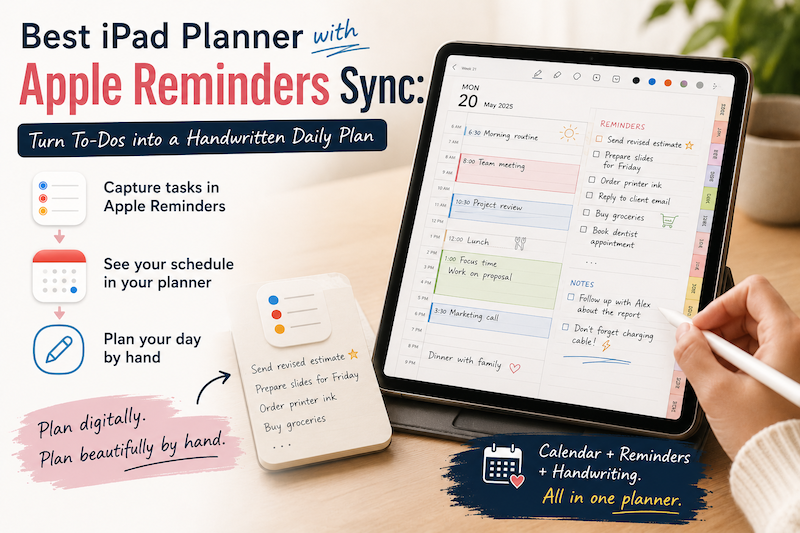
Apple Reminders is excellent at capturing tasks.
You can add something the moment you think of it, organize it into a list, assign a due date, and receive a notification later. The problem is that collecting tasks and planning your day are not quite the same thing.
A reminder such as “prepare presentation” tells you what needs to be done. It does not tell you when you will do it, how long it might take, or how it fits around meetings, appointments, errands, and everything else already on your calendar.
That is where a handwritten iPad planner can help.
By combining Apple Reminders with a planner designed for Apple Pencil, you can keep the speed and reliability of a digital to-do list while still planning visually by hand.
In this guide, we will look at how to turn a growing list of reminders into a realistic daily plan—and why Planner for iPad is particularly useful for people who want their reminders, calendar events, and handwritten notes in one place.
Apple Reminders and a Planner Solve Different Problems
Apple Reminders and a handwritten planner may appear to do the same job. Both can contain tasks, deadlines, and lists.
In practice, they are best at different parts of the planning process.
Apple Reminders is ideal for capturing and remembering.
A handwritten planner is ideal for deciding and arranging.
You might use Apple Reminders to record:
- Call the dentist
- Submit the monthly report
- Buy groceries
- Renew a subscription
- Prepare slides for Friday
- Reply to an important email
These tasks can be entered quickly without stopping to build a full plan.
Later, when you open your planner, you can look at your actual schedule and decide:
- Which tasks matter today?
- What can fit between appointments?
- Which task requires uninterrupted time?
- What should be postponed?
- What can be completed in ten minutes?
- What must happen before another task can begin?
This distinction matters because a to-do list can grow almost indefinitely. A day cannot.
Your planner is where an unlimited list meets the limited number of hours you actually have.
Why To-Do Lists Become Overwhelming
A digital task manager makes it easy to add another item. That is one of its greatest strengths, but it can also become a weakness.
Every request, idea, household chore, work assignment, and vague intention can end up in the same system.
Before long, you may have dozens of reminders competing for attention.
The problem is not necessarily that you have too much to do. The problem is that the list does not show the shape of your day.
A list may contain:
- A two-minute phone call
- A three-hour writing task
- Something due next week
- Something that can only be done after a meeting
- Something you would like to do eventually
- Something that must be completed today
When all of these appear as equal lines in a list, it becomes difficult to tell what is realistic.
A visual planner adds context. It lets you see a task beside the time available for it.
Instead of asking, “What is still on my list?” you begin asking, “What can I reasonably complete today?”
That small change can make planning feel much calmer.
Why Apple Reminders Works Well as a Capture Tool
Apple Reminders is built into the Apple ecosystem and can sync through iCloud across compatible Apple devices.
That means you can capture a task on your iPhone while you are away from your desk, then review it later on your iPad. You can also add notes, URLs, priorities, dates, times, repeating schedules, and subtasks to individual reminders.
The key is to make capturing tasks as easy as possible.
When a task appears, record it before you forget it. Do not worry yet about designing the perfect schedule.
For example:
- Add “send revised estimate” while leaving a meeting.
- Add “order printer ink” when you notice supplies are running low.
- Add “prepare questions for interview” while commuting.
- Add “book hotel” when a travel date is confirmed.
Apple Reminders becomes your inbox.
Your planner becomes the place where you process that inbox.
This separation prevents your planning pages from becoming crowded with every unfinished thought while ensuring that important tasks do not disappear.
Scheduled Reminders and Calendar Events Are Not the Same
A calendar event usually represents something that happens at a specific time.
Examples include:
- A 10:00 a.m. meeting
- A doctor’s appointment
- A flight
- A class
- A dinner reservation
- A scheduled phone call
A reminder represents something you need to complete.
Examples include:
- Prepare the meeting notes
- Bring an insurance card
- Download the boarding pass
- Finish the assigned reading
- Buy a birthday gift
Some reminders have deadlines, but that does not necessarily mean the work should be performed at the deadline.
“Submit report by 5:00 p.m.” may require two hours of work earlier in the day. If you only look at the due time, you may realize too late that no time was reserved for completing it.
Apple has brought scheduled reminders closer to the calendar experience. In iOS 18 and later, scheduled reminders can appear alongside events in Apple Calendar, and users can create reminders from the Calendar app.
That makes deadlines easier to see. However, you still need to decide when the actual work will happen.
A handwritten planning layer helps you make that decision.
How Planner for iPad Brings Tasks and Time Together
Planner for iPad is a digital planner built specifically for iPad and Apple Pencil.
Unlike a static PDF planner, it can display calendar information directly on planner pages. Planner for iPad also integrates Apple Reminders, allowing tasks and calendar events to appear alongside the space where you write your plans.
The result is a useful division of labor:
- Calendar events show what is already fixed.
- Apple Reminders show what still needs to be done.
- Handwriting lets you decide how to use the available time.
You do not need to copy every meeting from Apple Calendar into a PDF planner. You also do not need to keep switching between a planner page and a separate task list just to remember what is due.
You can look at the week as a whole, see the commitments already in place, and write around them with Apple Pencil.
The app includes monthly, weekly, and daily views and allows handwriting directly on the calendar.
A Simple Apple Reminders and iPad Planner Workflow
A useful planning system does not need to be complicated.
The following workflow separates capturing, reviewing, scheduling, and completing tasks.
Step 1: Capture Tasks in Apple Reminders
During the day, add tasks to Apple Reminders as soon as they appear.
At this stage, keep the wording simple and actionable.
Instead of:
- Website
- Taxes
- Presentation
Write:
- Review website homepage copy
- Send tax documents to accountant
- Draft the first five presentation slides
A task should describe an action you can recognize later.
You do not need to decide immediately when every task will happen. The goal is simply to prevent it from being forgotten.
Step 2: Add Dates Only When They Are Useful
Not every task needs a due date.
If everything is marked as due today, the date stops providing useful information. You end up with an overdue list that grows every morning.
Use dates for tasks that genuinely need attention by a certain day.
For example:
- Submit registration by July 30
- Cancel subscription before renewal
- Send agenda before Monday’s meeting
- Return library book on Friday
Tasks without a true deadline can remain in a general list until you choose to work on them.
A reminder date should help you make a decision—not create artificial urgency.
Step 3: Review Your Calendar Before Choosing Tasks
Before selecting today’s tasks, look at your fixed schedule.
A day with no meetings may support a large creative project. A day divided by appointments may be better suited to short administrative tasks.
Open your weekly or daily planner view and identify:
- Fixed meetings and appointments
- Travel time
- Meals and breaks
- Family responsibilities
- Existing deadlines
- Uninterrupted blocks of time
Planner for iPad can display calendar events directly on the page, so you can plan around the schedule that already exists instead of rewriting it manually.
Only after you understand the day’s available space should you decide which reminders belong in it.
Step 4: Choose a Small Number of Priority Tasks
Do not copy your entire Reminders list into your daily plan.
Choose a manageable number of tasks that would make the day feel successful.
A simple structure is:
One important task
This is the task that requires the most concentration or has the greatest consequence.
Two supporting tasks
These are useful but smaller actions that move work or personal responsibilities forward.
A few quick tasks
These are calls, messages, confirmations, purchases, or administrative actions that can fit into short gaps.
For example:
Important
- Complete first draft of client proposal
Supporting
- Review next week’s schedule
- Prepare notes for team meeting
Quick
- Confirm dentist appointment
- Reply to supplier
- Order replacement cable
Writing these by hand creates a deliberate shortlist. You are no longer reacting to the full task database. You are defining what today is for.
Step 5: Assign Tasks to Realistic Time Windows
A daily plan becomes more useful when tasks are connected to time.
You do not need to create a minute-by-minute schedule. Even a rough placement helps.
For example:
- 8:30–9:00: Email and quick tasks
- 9:00–11:00: Draft proposal
- 1:00–1:30: Prepare meeting notes
- After 4:00: Order supplies and confirm appointments
The important point is to consider duration.
“Work on proposal” sounds manageable until you realize it needs three uninterrupted hours and your calendar only contains a 45-minute opening.
By placing the task visually beside your existing events, you can notice the conflict before the day begins.
Handwriting also makes it easy to use arrows, boxes, highlights, and margin notes to show flexibility without turning every task into a formal calendar event.
Step 6: Keep Tasks Flexible, but Protect Important Work
Not every handwritten task needs to be treated as a fixed appointment.
Some tasks can move freely through the day. Others need protected time.
Use a visual distinction between them.
For example:
- Draw a box around protected focus time.
- Use a star beside the day’s most important task.
- Place quick tasks in the margin.
- Use arrows to move unfinished work.
- Highlight tasks connected to a deadline.
- Cross out completed work by hand.
This is where handwriting adds something that a standard task list often lacks.
You can represent uncertainty.
A task can be important without having an exact start time. A plan can contain structure without pretending that the day will unfold perfectly.
Step 7: Review Unfinished Tasks at the End of the Day
An unfinished task should not automatically be copied to tomorrow.
Ask why it was not completed.
Was there not enough time?
Was the task too vague?
Was it less important than expected?
Did another task need to happen first?
Is it still worth doing?
Then choose one of four actions:
- Complete it now
- Reschedule it
- Return it to the general Reminders list
- Delete it
Repeatedly carrying a task forward without making a decision creates visual clutter and guilt.
A short end-of-day review keeps both your planner and Reminders list trustworthy.
Use Reminders for Recurring Responsibilities
Apple Reminders is especially useful for tasks that repeat.
Examples include:
- Submit a weekly report
- Take medication
- Review finances every Friday
- Change an air filter every three months
- Prepare for a recurring meeting
- Pay a monthly invoice
The reminder system handles recurrence, while your planner helps you respond to the task within the context of that particular day.
This matters because the same recurring task may need to happen at different times each week.
A weekly review might fit on Friday morning one week and Friday afternoon the next. The recurrence stays digital and reliable, while the execution remains flexible.
Use Lists to Separate Different Areas of Life
A single Reminders list can become difficult to review.
You may find it useful to separate tasks into broad areas such as:
- Work
- Personal
- Home
- Shopping
- Someday
- Waiting for
- Projects
Avoid creating so many lists that capturing a task becomes slow.
The goal is not to build a perfect filing system. The goal is to make relevant tasks easier to find during planning.
When preparing your workday, review the work list. When planning the weekend, check personal, home, and shopping tasks.
Your handwritten planner can then combine selected tasks from several lists into one realistic view of the day.
Do Not Turn Every Task into a Calendar Event
Time blocking can be helpful, but filling your calendar with every small task can make the schedule difficult to read.
Calendar events work best for commitments and protected blocks of time.
Reminders work best for actions that need to be remembered.
Handwritten notes work best for flexible decisions, priorities, and context.
For example:
Calendar
- 10:00 team meeting
- 2:00 dentist appointment
- 4:30 school pickup
Reminders
- Send meeting agenda
- Bring insurance card
- Buy groceries
Handwritten plan
- Draft agenda after breakfast
- Stop at grocery store after appointment
- Use the 1:00–1:30 gap for email
Each tool has a clear role. Together, they create a system that is detailed without becoming rigid.
Why a PDF Planner Is Less Convenient for This Workflow
A PDF planner can offer beautiful layouts and extensive customization.
However, it remains a static document.
Your calendar events do not automatically move when a meeting changes. New reminders do not automatically appear. If your schedule is updated, you may need to erase, rewrite, or switch between apps to compare the latest information.
Planner for iPad was designed to combine a handwritten planning surface with live calendar information. Calendar events and Apple Reminders can appear beside handwritten notes, reducing the need to transcribe information between systems.
This is particularly useful when your schedule changes frequently.
Your handwritten notes remain personal and flexible, while the connected information stays current.
A Practical Morning Planning Routine
Here is a simple ten-minute routine you can use each morning.
Minute 1–2: Look at the Day
Review calendar events, appointments, and fixed commitments.
Minute 3–4: Review Apple Reminders
Look for tasks due today, overdue items, and anything relevant to current projects.
Minute 5–6: Choose Priorities
Select one important task, two supporting tasks, and a few quick actions.
Minute 7–8: Place the Work
Write tasks into realistic spaces around your calendar events.
Minute 9: Add Context
Write notes such as what to bring, who to contact, or what must happen first.
Minute 10: Remove Something
If the day looks too full, postpone or delete a lower-priority task.
That final step is important.
A good daily plan is not a record of everything you hope to do. It is a decision about what you will not try to do today.
The Best System Is One You Can Trust
A planning system should answer three questions:
- What have I committed to?
- What needs my attention?
- What am I choosing to do today?
Apple Calendar can hold your commitments.
Apple Reminders can hold the tasks you do not want to forget.
A handwritten iPad planner can help you decide what belongs in the limited space between them.
With Planner for iPad, calendar events, Apple Reminders, and Apple Pencil handwriting can work together on the same planning surface.
You keep the convenience of capturing tasks digitally, without giving up the clarity and satisfaction of planning by hand.
The goal is not to complete every reminder.
The goal is to turn the right reminders into a day you can actually follow.
Meta description:
Discover how to combine Apple Reminders with a handwritten iPad planner. Turn your digital to-do list into a realistic daily plan using Apple Pencil and Planner for iPad.