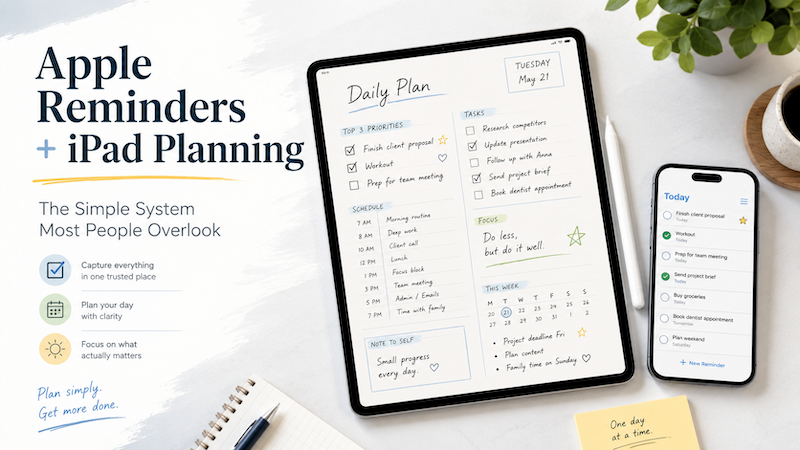
Apple Reminders is one of the most underrated productivity tools on the iPad.
It is simple, fast, already installed, and works naturally across iPhone, iPad, Mac, Apple Watch, and Siri. You can capture a task the moment it appears in your head. You can set dates, repeat tasks, organize lists, and get notifications.
And yet, for many people, Apple Reminders alone is not enough.
The problem is not that Apple Reminders is bad. The problem is that a reminder is not the same thing as a plan.
A reminder tells you what needs to be done.
A planner helps you decide how your day should actually work.
That is where a simple combination can be surprisingly powerful:
Apple Reminders for capturing tasks. Planner for iPad for thinking, organizing, and planning your day.
Planner for iPad gives you a handwritten planning space that works beautifully with Apple Pencil, while still letting you see your schedule and structure your day visually.
Apple Reminders Is Better Than People Think
Many people ignore Apple Reminders because it feels too simple.
But that simplicity is exactly why it works.
You can use it for:
- quick tasks
- shopping lists
- recurring routines
- deadlines
- location-based reminders
- shared lists
- Siri capture
- small things you do not want to forget
For example:
“Remind me to send the invoice tomorrow morning.”
“Remind me to buy coffee when I leave work.”
“Remind me every Friday to review next week’s schedule.”
This kind of quick capture is where Apple Reminders shines.
You do not need to open a complex project management app. You do not need to choose a workspace, tag, status, priority, and five custom fields just to remember to buy printer paper.
You just capture the task and move on.
That is a good thing.
Why To-Do Apps Often Become Another Thing to Manage
Many productivity systems fail because they become too heavy.
At first, a new to-do app feels exciting. You create projects, tags, boards, sections, priorities, filters, and recurring workflows.
Then something strange happens.
You start spending more time managing the system than doing the work.
Your to-do list grows longer. Your inbox fills up. Your “Today” view becomes unrealistic. You move unfinished tasks from one day to the next, again and again.
The app is technically working.
But your day still feels messy.
That is because a task list is not a complete planning system.
A task list can tell you what exists.
It cannot always help you decide what matters today, what can wait, what fits between meetings, or what kind of day you actually want to have.
For that, you need space to think.
The Problem: Tasks and Time Live in Different Places
Most people plan their lives across several different places.
Your meetings are in a calendar.
Your tasks are in a to-do list.
Your notes are in a notes app.
Your rough ideas are in your head.
Your actual day happens somewhere in between all of them.
This creates a common problem: you may know what you need to do, but you still do not know how the day should unfold.
For example, Apple Reminders may show:
- reply to client
- prepare presentation
- buy groceries
- call dentist
- review contract
- renew subscription
- clean desk
Each task is clear enough by itself.
But when should you do them?
Which ones are actually important today?
Which ones require focus?
Which ones can be done quickly between meetings?
Which ones should be moved to another day?
This is the point where a simple list starts to feel flat.
You need to turn tasks into a plan.
A Better Setup: Apple Reminders + Planner for iPad
A practical system does not need to be complicated.
Use Apple Reminders as your capture tool.
Use Planner for iPad as your planning space.
The difference is simple:
Apple Reminders is where tasks are captured. Planner for iPad is where tasks become a day.
This setup works because each tool does what it is best at.
Apple Reminders is fast, lightweight, and reliable. It is perfect for catching tasks before you forget them.
Planner for iPad gives you a visual, handwritten space where you can slow down and decide how your time should be used.
Instead of trying to make one app do everything, you let each app play its natural role.
What Belongs in Apple Reminders
Apple Reminders is best for things that need to be remembered clearly.
Use it for tasks like:
- errands
- recurring chores
- quick captures
- deadlines
- bills
- shopping items
- small admin tasks
- things you want Siri to catch
- tasks that need notifications
For example:
- renew passport
- submit expenses
- water plants every Monday
- buy milk
- call the clinic
- send files to the designer
- check subscription renewal date
These are concrete actions.
They are easy to capture.
They may need a notification.
They do not necessarily need deep thinking the moment you create them.
Apple Reminders is great for storing these tasks until you are ready to process them.
What Belongs in Planner for iPad
Planner for iPad is better for the human side of planning.
Use it for:
- daily planning
- weekly priorities
- time blocking
- handwritten notes
- meeting preparation
- project thinking
- rough ideas
- reflection
- deciding what actually matters today
This is where you can ask better questions:
- What kind of day is this?
- What are the top three things I need to move forward?
- What can realistically fit into the available time?
- Which tasks are small enough to batch together?
- Which task needs my best focus?
- What should I not do today?
A planner is not just a place to copy your to-do list.
It is a place to make decisions.
That is why handwriting can be so useful. Writing by hand naturally slows you down. It makes planning feel less like sorting data and more like thinking through your day.
Why Handwriting Changes the Way You Handle Tasks
Digital task managers are efficient.
Sometimes too efficient.
It is very easy to add twenty tasks to a list without thinking about whether they are realistic. It is easy to drag tasks around, postpone them, duplicate them, and create a giant list that quietly becomes stressful.
Handwriting works differently.
When you write a task by hand, even digitally with Apple Pencil, there is a small amount of friction.
That friction is useful.
It forces you to ask:
Is this worth writing down for today?
If the answer is no, maybe it belongs in Apple Reminders for later.
If the answer is yes, it earns a place in your actual plan.
This simple distinction can make your day feel much calmer.
Apple Reminders can hold everything.
Your planner should not.
Your planner should show the shape of the day you are actually choosing.
How to Plan a Day Using Apple Reminders and Planner for iPad
Here is a simple daily workflow.
1. Capture Everything in Apple Reminders
During the day, put tasks into Apple Reminders as soon as they appear.
Do not overthink them.
Use Siri, your iPhone, your iPad, or your Mac. The goal is simply to get the task out of your head.
Examples:
- “Remind me to email Sarah tomorrow.”
- “Remind me to check the report this afternoon.”
- “Add printer ink to shopping list.”
- “Remind me every Sunday to plan the week.”
Apple Reminders is your inbox.
It does not need to be beautiful. It needs to be reliable.
2. Review Your Reminders Before Planning
At the beginning of the day, open Apple Reminders and look at what is due today.
Do not automatically copy everything into your planner.
Instead, review the list and decide what deserves attention.
Ask:
- Is this actually necessary today?
- Is this quick?
- Is this important?
- Does this require focus?
- Can this be postponed?
- Can this be deleted?
This is where you move from collecting tasks to making choices.
3. Open Planner for iPad and Look at Your Day
Next, open Planner for iPad.
Look at your schedule, your available space, and the shape of the day.
Do you have meetings?
Do you have open focus time?
Do you have errands?
Is the day already crowded?
A task list does not always show this clearly. A planner does.
When you can see your day visually, it becomes much easier to avoid overplanning.
4. Choose Your Main Priorities
Pick a small number of tasks that truly matter today.
For many people, three is enough.
Write them by hand in your planner.
For example:
- finish proposal draft
- reply to client feedback
- prepare tomorrow’s meeting notes
These are your anchor tasks.
If the day becomes chaotic, these are the things you come back to.
5. Add Smaller Tasks Around the Edges
Next, take a few smaller reminders and place them where they fit.
For example:
- call dentist after lunch
- buy groceries on the way home
- send receipt before 5 PM
This is where Planner for iPad becomes useful. You are not just looking at a list. You are placing tasks into the actual rhythm of your day.
Some tasks belong in focus time.
Some belong between meetings.
Some belong after work.
Some do not belong today at all.
6. Leave Some Space
This may be the most important step.
Do not fill every blank area of your planner.
Real days are messy. Things run late. You get tired. New tasks appear. A simple job takes longer than expected.
A good planner should not make your day look more perfect than it really is.
Leave white space.
A little empty space is not wasted.
It is what keeps the plan usable.
7. Keep Apple Reminders as the Safety Net
You do not need to rewrite every reminder into Planner for iPad.
That would create extra work.
Instead, let Apple Reminders continue to hold the details.
Planner for iPad should contain the tasks you are actively choosing to deal with today.
Apple Reminders can keep the rest.
This way, your planner stays clean, while your reminders remain complete.
Why This Is Better Than Building a Huge Productivity System
There are many complex productivity methods.
Some people love them.
But many people do not need a huge system.
They need something simple enough to use every day.
Apple Reminders + Planner for iPad works because it avoids two common problems.
First, it avoids the problem of relying only on memory.
Your tasks are captured safely in Apple Reminders.
Second, it avoids the problem of living entirely inside a task list.
Your day is planned visually and thoughtfully in Planner for iPad.
You get both reliability and flexibility.
That is a nice combination.
Who This Setup Is Best For
This system is especially useful if you:
- already use Apple Reminders
- like planning with Apple Pencil
- feel overwhelmed by long to-do lists
- want a more visual way to plan your day
- use your iPad for work, study, or personal planning
- dislike complicated productivity apps
- want your calendar, tasks, and notes to feel less scattered
It is also a good fit for people who do not want to abandon Apple’s built-in apps.
You do not need to replace everything.
You can keep using Apple Reminders.
You can keep using your calendar.
Planner for iPad simply gives you a better place to bring the day together.
A Simple Example
Imagine your Apple Reminders list for today looks like this:
- send invoice
- prepare meeting agenda
- call dentist
- buy coffee beans
- review project notes
- reply to Alex
- update budget sheet
- book train ticket
That list is useful.
But it is not yet a plan.
In Planner for iPad, you might turn it into something like this:
Morning:
- prepare meeting agenda
- review project notes
After lunch:
- reply to Alex
- send invoice
Late afternoon:
- update budget sheet
- book train ticket
Errands:
- call dentist
- buy coffee beans
Now the tasks have shape.
You can see what kind of day you are building.
That is the difference between remembering and planning.
Final Thoughts
Apple Reminders is a great place to capture what you need to do.
But it should not have to carry the whole weight of planning your life.
A reminder is useful because it helps you avoid forgetting.
A planner is useful because it helps you decide.
By combining Apple Reminders with Planner for iPad, you can create a simple system that feels both digital and human.
Capture tasks quickly.
Review them calmly.
Write down what matters.
Give your day a shape.
That is often all a good planning system needs to do.