A traditional weekly planner usually assumes that life follows a predictable pattern.
Work starts in the morning. Lunch happens around noon. Personal time begins in the evening. Weekends are free.
For shift workers, that structure often makes little sense.
Your workweek may begin on a Saturday. A “morning” routine might happen at 4:00 p.m. You may work two night shifts, have one recovery day, and then switch back to an early schedule. Even when your shifts are already stored in a calendar, it can still be difficult to see where sleep, errands, meals, exercise, family time, and basic recovery are supposed to fit.
That is why the best iPad planner for shift workers needs to do more than display a standard Monday-to-Friday schedule.
It should help you plan your life around a changing work pattern.
Why Ordinary Planners Often Fail Shift Workers
Most planners are built around repetition.
The same work hours appear each weekday. Morning routines happen in the morning. Evening tasks happen in the evening. Weekly goals are divided across five workdays and a two-day weekend.
Rotating schedules break all of these assumptions.
A nurse might work three 12-hour shifts followed by several days off. A hospitality worker may receive a different schedule every week. A factory employee might alternate between day and night shifts. Emergency workers, security staff, flight crews, retail employees, and care workers may all have similarly irregular routines.
The problem is not simply remembering when work begins.
The real planning questions are things like:
- When should I sleep before a night shift?
- Which day is realistic for grocery shopping?
- When can I schedule an appointment?
- Should this day off be used for errands or recovery?
- When will I have enough energy for exercise?
- Which evenings can I spend with family or friends?
- What needs to be prepared before several consecutive shifts?
A basic calendar can show your shifts, but it does not always give you enough space to think through these questions.
A handwritten planner gives you that thinking space. The difficulty is keeping it updated when your work schedule changes.
This is where an iPad planner with calendar integration becomes especially useful.
The Best System Uses Both a Calendar and a Planner
Shift workers do not necessarily need to replace their existing calendar app.
In fact, the simplest system is often to give the calendar and planner different jobs.
Use your calendar for confirmed information:
- Work shifts
- Training sessions
- Medical appointments
- School events
- Important deadlines
- Fixed social plans
Use your planner for flexible decisions:
- Sleep plans
- Meal preparation
- Shopping
- Exercise
- Household tasks
- Recovery time
- Personal priorities
- Notes about energy or mood
This separation matters.
Your work schedule may be fixed, but the rest of your day is not. A calendar tells you what must happen. A planner helps you decide what can realistically happen around it.
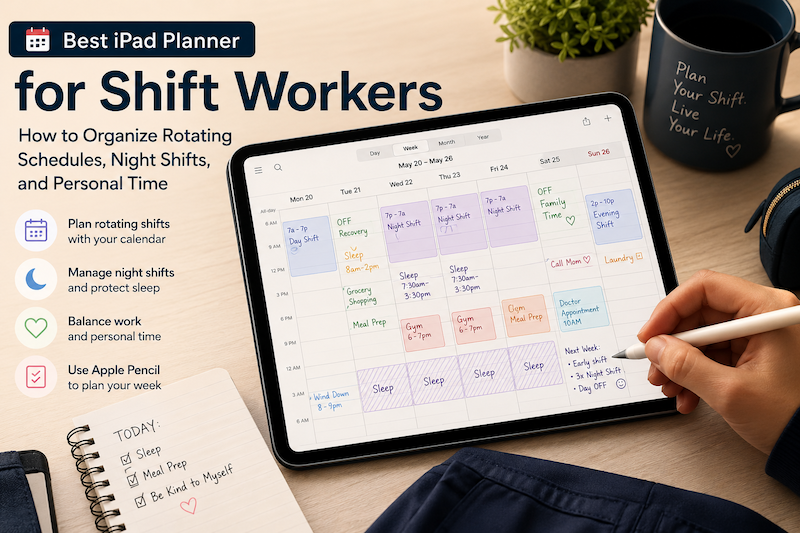
With Planner for iPad, events from calendars connected to your iPad can appear inside your planner pages. You can then use Apple Pencil to write your personal plans around those events.
You do not have to manually copy every shift into a separate PDF planner. When a calendar event changes, the calendar layer remains connected to your actual schedule, while your handwritten notes remain your own flexible planning space.
Step 1: Put Every Confirmed Shift in Your Calendar
Start by entering your shifts into Apple Calendar, Google Calendar, Outlook, or whichever calendar service you already use.
Include the actual working hours rather than simply marking the entire day as “Work.”
For example:
- 7:00 a.m.–7:30 p.m. — Day shift
- 7:00 p.m.–7:30 a.m. — Night shift
- 2:00 p.m.–10:00 p.m. — Evening shift
You may also want to include commuting time, especially when a shift starts very early or ends late at night.
Consider using separate calendar colors for:
- Day shifts
- Night shifts
- On-call periods
- Training
- Overtime
- Personal appointments
The purpose is not to create a beautiful color-coded system for its own sake. It is to make the shape of the week understandable at a glance.
When your shifts are visible inside your iPad planner, you can immediately see which days have limited capacity and which days have more room.
For help connecting Google Calendar, see Best iPad Planner with Google Calendar Sync.
Step 2: Plan Sleep Before Planning Productivity
For people with regular office hours, sleep may remain mostly invisible in a planner.
For shift workers, it often needs to become part of the schedule.
This is especially important around night shifts and schedule transitions.
Suppose you work from 7:00 p.m. to 7:00 a.m. Your planner should not treat the hours before and after that shift as ordinary free time. Those hours may need to include:
- A pre-shift nap
- Travel time
- A proper meal
- Time to wind down after work
- Uninterrupted daytime sleep
- A slower recovery period after waking
Write these blocks into the planner before adding optional tasks.
This prevents a common planning mistake: looking at an apparently empty afternoon and assuming it is available, even though that time is necessary for sleep.
The goal is not to optimize every hour. It is to protect the hours that make the rest of the schedule possible.
Step 3: Separate Workdays, Recovery Days, and Real Days Off
Not every day without a shift is truly a free day.
After several night shifts, the first day off may mainly be a recovery day. After switching from nights back to mornings, part of the day may be spent adjusting your sleep schedule. A day between two long shifts may have very little usable personal time.
It helps to distinguish between three types of days.
Workdays
Keep expectations low and focus on essentials.
Your handwritten plan might contain only:
- One important personal task
- Meal preparation
- A short household task
- Something that helps you recover
Recovery days
Avoid filling the page simply because there is no work event.
Use these days for sleep, low-pressure errands, simple meals, and activities that do not require a large amount of energy.
Genuine days off
These are the days when larger tasks, appointments, hobbies, social plans, or longer projects may be realistic.
Making this distinction can prevent the frustrating feeling that every day off has somehow been “wasted.” Recovery is not unused time. It is part of managing an irregular schedule.
Step 4: Use the Weekly View to Understand Capacity
A weekly planner is particularly useful for rotating schedules because it shows contrast.
You can see a demanding 12-hour shift next to a lighter day. You can see that a night shift technically occupies two calendar dates. You can identify where several shifts create a period with almost no personal capacity.
Instead of beginning with a long weekly to-do list, look at the shape of the week first.
Ask:
- Which days are already full?
- Which day is best for appointments?
- Where do I need to protect sleep?
- When should food be prepared?
- Which tasks can wait until a genuine day off?
- Is there enough recovery time between shifts?
Then use Apple Pencil to add only what fits.
This is a more realistic form of time blocking. You are not trying to turn every empty space into productive time. You are using the visual schedule to avoid promising more than the week can hold.
Step 5: Create a Small Pre-Shift Checklist
Rotating shifts can make routines harder to remember because the same preparation does not always happen at the same time of day.
A short handwritten checklist can reduce that mental load.
For example:
- Pack food and water
- Charge phone and headphones
- Prepare uniform
- Check transportation
- Bring medication
- Review tomorrow’s shift
- Set sleep alarms
- Prepare breakfast for after work
You can write the checklist directly beside the shift or place it in the open space before work.
Keep it short. A checklist that is too detailed becomes another task to manage.
The aim is to stop repeatedly asking yourself, “What am I forgetting?”
Step 6: Batch Tasks Around Your Shift Pattern
A regular daily routine may not work well when your schedule changes every few days.
Batching can be more practical.
Instead of planning to shop, cook, clean, and exercise at the same time every day, identify the best point in each shift cycle.
For example:
Before several consecutive shifts
- Buy groceries
- Prepare simple meals
- Wash work clothes
- Refill anything you need for work
- Complete important errands
During the shift block
- Do only essential household tasks
- Use prepared food
- Protect sleep
- Keep personal goals deliberately small
After the final shift
- Rest
- Review the next few days
- Reset your sleep gradually
- Avoid scheduling too much immediately
On a full day off
- Handle appointments
- Work on larger personal projects
- Spend time with family or friends
- Prepare for the next shift block
This approach works better than expecting every calendar day to contain the same balanced routine.
Step 7: Plan Personal Time as Deliberately as Work
When shifts change each week, personal time can become whatever remains after work, sleep, and errands.
Often, very little remains.
That is why personal time sometimes needs to be written into the planner before smaller tasks fill the page.
This does not have to mean scheduling an ambitious activity. It could be:
- Dinner with your partner
- A quiet morning after a run of night shifts
- Reading for thirty minutes
- Calling a friend
- Taking a walk
- Watching a film
- Spending time on a hobby
- Doing absolutely nothing for a while
Writing these plans by hand can make them feel more intentional without turning them into rigid calendar obligations.
For a broader approach to protecting different areas of your life, read Best iPad Planner for Work-Life Balance.
Why Not Just Use a Shift Calendar App?
Shift calendar apps can be extremely useful.
They are often designed to record repeating shift patterns, calculate work hours, display upcoming rotations, and share schedules. If your main problem is tracking when you work, a dedicated shift app may be enough.
But tracking shifts and planning your life are not quite the same thing.
A shift app may tell you that you are working Tuesday night. It may not help you think through when to sleep, what to prepare, which errands are realistic, or how to use the following recovery day.
A handwritten iPad planner adds a flexible layer around the fixed schedule.
You can circle a difficult transition, write a reminder beside a night shift, move a low-priority task to another day, or leave a recovery day intentionally empty. These small decisions are difficult to express in a rigid scheduling system.
The two types of apps do not have to compete.
You can keep using a shift calendar or your employer’s scheduling system for work information, sync the relevant events with your calendar, and use Planner for iPad for the rest of your life.
Why Planner for iPad Works Well for Rotating Schedules
Planner for iPad combines the structure of a digital calendar with the flexibility of handwriting.
Its monthly, weekly, and daily views let you examine your schedule at different levels.
The monthly view helps you understand the larger rotation. You can see blocks of night shifts, weekends on duty, longer breaks, and schedule transitions.
The weekly view helps you compare your available time from one day to the next.
The daily view gives you room to think through a demanding shift, create a preparation checklist, or make a more detailed recovery plan.
Because calendar events can appear inside the planner, you do not need to choose between an up-to-date digital schedule and the freedom of Apple Pencil handwriting.
You can keep confirmed shifts in the calendar and use handwriting for everything that remains flexible.
That combination is particularly useful when no two weeks look the same.
A Simple Weekly Planning Routine for Shift Workers
You do not need a complicated planning ritual.
At the beginning of each week—or whenever your new schedule is released—try this process:
- Confirm that every shift appears in your calendar.
- Open the weekly view and look at the overall shape of the schedule.
- Mark the sleep periods that need to be protected.
- Identify workdays, recovery days, and genuine days off.
- Choose the best time for groceries and meal preparation.
- Add appointments and essential errands.
- Write one realistic personal priority for each demanding day.
- Protect at least one period of personal or recovery time.
- Leave some space empty for changes.
The final step matters.
Shift work is unpredictable. Overtime happens. A colleague calls in sick. A difficult shift requires more recovery than expected. Plans made at the beginning of the week may need to change.
An effective planner should make those changes easy rather than making you feel that you have failed.
Build Your Life Around the Schedule You Actually Have
Shift workers are often given planning advice designed for people with regular office hours.
Wake up at the same time every morning. Follow the same daily routine. Use Sunday as a weekly reset. Complete important work before noon.
Some of that advice may be useful. Much of it assumes a life you may not have.
A better planner does not force an irregular schedule into a conventional template.
It begins with the shifts that are actually on your calendar. It protects sleep and recovery. It helps you see the difference between empty time and usable time. It gives personal plans a place beside work obligations.
Most importantly, it remains flexible when the schedule changes.
Download Planner for iPad on the App Store and create a planning system that works around your shifts—not someone else’s idea of a normal week.