Last updated: April 2026
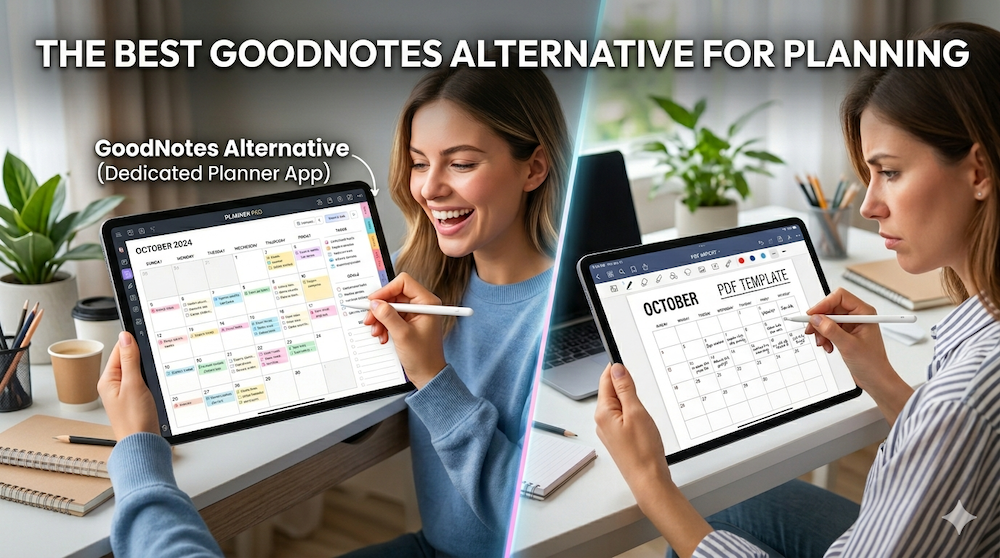
If you’ve ever searched for “GoodNotes alternative for planning,” you’ve probably already tried the GoodNotes + PDF planner template combination — and discovered that it doesn’t quite work the way you hoped.
Maybe your hyperlinks broke after a year. Maybe importing a new template every December feels like a tax on your productivity. Maybe you finally realized you’ve been paying for stickers and sticker packs and yet another planner PDF, only to scroll through twelve months of layouts that don’t sync with anything you actually use.
GoodNotes is an excellent note-taking app. But planning is a different problem, and most “GoodNotes alternatives” articles miss this distinction entirely — they list more note-taking apps (Notability, Noteshelf, Notewise, OneNote) and call it a day.
This guide takes a different angle: if your goal is planning — managing your calendar, tracking your week, and writing on dates that actually mean something — you don’t need another note-taking app. You need a dedicated planner.
Disclosure: I’m the developer of Planner for iPad, one of the apps mentioned below. I’ve tried to keep the comparisons honest, but you should know my bias up front. I’ve also included alternatives that aren’t mine.
Why GoodNotes Falls Short for Planning
GoodNotes was built for note-taking. To turn it into a planner, you have to bolt three things onto it:
- A PDF planner template (free or paid, often $10–$40)
- A sticker pack (another $5–$30)
- A mental model for navigating between months that don’t actually know what date it is
This stack works, sort of. But it has structural weaknesses that no template can fix:
1. Your “calendar” doesn’t know what a calendar is
A PDF planner is a static image of a calendar. The squares labeled “Monday” don’t know that Monday is October 6, 2026. They don’t know you have a 3pm meeting. They don’t know that next week is a holiday.
This means every event you have on Apple Calendar or Google Calendar has to be manually copied into your PDF. Twice, if you want it in both the weekly and monthly view. Forever.
2. Templates lock you in for a year — or expire
Most digital planner PDFs are dated. December 31 arrives, and you either buy next year’s template, hope the seller releases an update, or migrate everything by hand. Undated templates exist, but you lose the structure that made the planner useful in the first place.
3. Hyperlinks break in subtle ways
Anyone who has used a hyperlinked PDF planner knows the feeling: you tap “March,” it takes you to October. You tap a date, nothing happens. The PDF was authored in one app, exported, re-imported into GoodNotes, and somewhere in that pipeline the links got confused.
4. You’re paying twice (and sometimes three times)
GoodNotes itself is a paid app. The planner PDF is a separate purchase. Sticker packs are separate again. The total can easily exceed $50/year — for what is, fundamentally, a static document with handwriting on top.
5. No widgets, no Lock Screen, no system integration
Because the “planner” is a PDF inside a note-taking app, it can’t put your today’s schedule on your Home Screen. It can’t show you your next event from the Lock Screen. It can’t do anything outside the four walls of GoodNotes.
What “GoodNotes Alternative for Planning” Actually Means
Before listing options, let’s separate the two main approaches:
Approach A: Switch to a different note-taking app and keep using PDFs.
This is what most “GoodNotes alternative” articles recommend — Notability, Noteshelf, Notewise, CollaNote. You’ll get a slightly different writing feel, maybe better pricing, but you’ll inherit every structural problem above. If your complaint about GoodNotes is “the writing feels laggy” or “it costs too much,” this approach is fine. If your complaint is “planning in GoodNotes is awkward,” it won’t help.
Approach B: Use a dedicated planner app.
A dedicated planner app is built around dates, calendars, and weeks — not pages. The calendar inside it is a real calendar, connected to your existing Apple or Google Calendar. You write directly on dates. Next year arrives automatically. Stickers and templates are part of the app, not a separate marketplace.
If your goal is planning, Approach B is what you want.
Dedicated Planner Apps Worth Trying
Here are the apps in this category, with honest notes on what each does well.
1. Planner for iPad
Best for: People migrating from a paper planner (especially hobonichi / techo style) who want Apple Pencil writing on a real calendar.
Planner for iPad is a native iPadOS app — not a PDF, not a template. It displays your Apple Calendar and Google Calendar events directly on its weekly and monthly pages (read-only display; you continue to edit events in your existing calendar app), and you write on top of those dates with Apple Pencil. Stamps, masking tape, and refill templates are built in.
- Price: Free to download; optional cloud storage subscription
- Calendar sync: Apple Calendar and Google Calendar events display in the app (read-only)
- Apple Pencil: First-class support
- Templates: Built-in stamp shop and refill templates
- iPhone: Companion viewer app
- Requires: iPadOS 17 or later
If you’ve used a paper planner and felt that GoodNotes + PDF was a downgrade in feel, Planner for iPad is the closest digital equivalent to opening a hobonichi.
Get Planner for iPad on the App Store →
2. Pencil Planner & Calendar Pro
Best for: People who want to edit calendar events directly inside the planner.
Pencil Planner is the closest competitor to Planner for iPad in concept. The main difference is that Pencil Planner lets you create and edit calendar events from within the app, while Planner for iPad keeps calendar editing in your system calendar app and focuses on writing.
If two-way calendar editing matters to you and you don’t mind a slightly different writing feel, Pencil Planner is worth a look.
3. Structured
Best for: Time-blocking on iPhone first, iPad second.
Structured is a beautifully designed timeline planner that visualizes your day as a vertical bar of blocks. It pulls in calendar events and lets you add tasks between them. It’s not handwriting-focused — if you want Apple Pencil planning, this isn’t it — but it’s an excellent typed-input planner that works across iPhone and iPad.
4. Zinnia
Best for: Creative journalers who treat planning as a craft.
Zinnia leans into the bullet-journal aesthetic with stickers, washi tape, and freeform pages. It’s closer to a digital scrapbook than a calendar, and that’s the appeal. If your relationship with planning is more expressive than logistical, Zinnia is worth trying — though you’ll lose the calendar-sync convenience that makes dedicated planners efficient.
Quick Comparison: GoodNotes + PDF vs. Dedicated Planner
| GoodNotes + PDF planner | Dedicated planner app (e.g. Planner for iPad) | |
|---|---|---|
| Calendar sync | Manual copying | Automatic display |
| Year transitions | Buy or migrate annually | Continuous |
| Hyperlinks | PDF-dependent, can break | Native, always work |
| Stickers / templates | Separate purchases | Built into the app |
| Apple Pencil writing | Excellent | Excellent |
| Cost over 3 years | $50–$150+ | Free to ~$30 |
| Best for | Note-taking, PDF annotation | Planning, calendar-driven days |
How to Decide
A few diagnostic questions:
Do you spend more time writing notes or managing dates?
If notes — stay with GoodNotes (or try Notability or Noteful for a different writing feel). If dates — switch to a dedicated planner.
Do you want your calendar events to appear automatically?
PDF planners can’t do this. Dedicated planner apps can.
Are you tired of buying a new PDF every December?
This is the single biggest signal that you’ve outgrown the GoodNotes + PDF stack.
Do you miss the feel of a paper planner?
Planner for iPad and Pencil Planner are the two apps that replicate that feel most faithfully on iPad.
The Honest Tradeoff
Dedicated planner apps are less flexible than GoodNotes. You can’t paste a PDF lecture into Planner for iPad and annotate it. You can’t build a custom Zettelkasten-style note system. They’re planners, not notebooks.
If you need both — and many people do — the realistic answer is to use both: GoodNotes for notes, and a dedicated planner app for planning. Trying to do planning inside GoodNotes is like trying to do spreadsheets inside Word. It works, but it’s not what either tool is for.
Try It Yourself
The fastest way to know if a dedicated planner app is right for you is to install one and write on tomorrow’s date. If it feels more natural than scrolling through a PDF to find the same square, you have your answer.
Planner for iPad is free to download — no template purchases, no sticker packs required to get started. If you’ve been frustrated with the GoodNotes + PDF approach, it’s worth the five minutes.
Have feedback or a feature you’d like to see? Get in touch via the App Store page.