Planning a project is easy when it is still just an idea.
You feel excited.
You can see the result in your head.
You know what you want to make, finish, launch, study, organize, or change.
But then real life appears.
Meetings.
Appointments.
Emails.
Family schedules.
Deadlines.
Small tasks that somehow eat the whole day.
This is why project planning often fails. Not because the goal is bad, but because the goal never becomes a realistic weekly plan.
If you want to use your iPad for project planning, the best system is not always the most complicated one. For many people, the best iPad planner for project planning is one that helps you connect three things:
Your big goal.
Your real calendar.
Your next handwritten action plan.
That is where an Apple Pencil planner can be especially useful.
Why Project Planning Gets Complicated
Many project management tools are built for teams.
They have boards, databases, statuses, automations, assignments, dashboards, and notifications. These can be useful if you are managing a large team or coordinating many people.
But for personal project planning, they can quickly become too much.
You may spend more time organizing the project than actually working on it. You may create beautiful task lists that you never open again. You may build a complicated system that looks productive but does not help you decide what to do this week.
A personal project planner should answer simple questions:
What am I trying to finish?
What matters this month?
What can I realistically do this week?
When will I actually work on it?
What is the next step?
You do not always need a complex project management system to answer those questions.
Sometimes, you need a clear page, your real schedule, and a pencil.
The Problem with Using Only a Calendar
A calendar is useful for fixed events.
It tells you when your meetings are.
It shows appointments, classes, deadlines, calls, and other time-specific commitments.
But a calendar is not always the best place to think through a project.
A project is not just a list of events. It includes ideas, rough notes, decisions, questions, priorities, and unfinished thoughts.
For example, if your project is “launch a new website,” your calendar might show:
- Design review on Tuesday
- Content deadline on Friday
- Launch meeting next week
But the real planning happens around those events:
- What pages still need writing?
- What can be postponed?
- What should be finished before the meeting?
- What is the most important task this week?
- Where is the project stuck?
A normal calendar can show time, but it does not always give you enough space to think.
That is why combining a calendar with handwriting can work so well.
Why Apple Pencil Works Well for Project Planning
Project planning is not always linear.
You may start with one idea, draw an arrow to another, circle something important, cross out a task, write a question in the margin, or sketch a rough timeline.
Typing is clean, but sometimes too clean.
Handwriting lets your plan stay flexible while it is still forming. You can write messy notes, connect ideas visually, mark priorities, and change your mind without turning every thought into a formal task.
This is especially helpful for project planning because big goals are usually unclear at the beginning.
You may not know every step yet.
You may not know how long everything will take.
You may need to explore the project before you can organize it.
An iPad planner with Apple Pencil gives you a place to think on the page, not just manage a list.
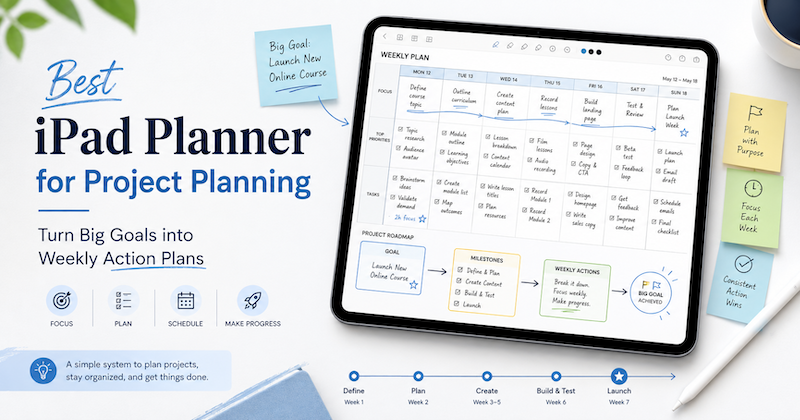
A Simple Project Planning Method for iPad
Here is a simple workflow you can use with an iPad planner.
The goal is to move from a big goal to a weekly action plan without making the system too heavy.
1. Start with the Big Goal
First, write the project goal in one sentence.
Do not make it too vague.
Instead of:
“Work on marketing”
Write:
“Prepare and publish three blog articles for the new product launch.”
Instead of:
“Get organized”
Write:
“Create a weekly planning system I can use every Monday morning.”
Instead of:
“Study more”
Write:
“Finish chapters 1–5 and review notes before the exam.”
A clear goal makes the rest of the planning easier.
On your iPad, write the goal at the top of the page. You can underline it, circle it, or place it in a box. The point is to make the project visible.
2. Break the Goal into Milestones
Next, divide the project into several milestones.
Milestones are not tiny tasks. They are larger checkpoints that show progress.
For example, if your project is launching a website, your milestones might be:
- Decide site structure
- Write homepage copy
- Prepare product screenshots
- Set up analytics
- Review mobile layout
- Publish the site
If your project is writing a report, your milestones might be:
- Collect source materials
- Create outline
- Write first draft
- Edit structure
- Proofread final version
- Submit
This step is useful because it turns the project from one intimidating goal into a sequence of smaller outcomes.
With Apple Pencil, you can write these milestones as a list, a timeline, or a simple visual map.
3. Choose This Week’s Focus
Once you have milestones, choose what matters this week.
This is where many planning systems fail.
They let you list everything, but they do not force you to choose.
A good weekly project plan should be honest. You probably cannot move every part of the project forward at the same time.
Ask:
What would make the biggest difference this week?
What is blocking the rest of the project?
What deadline is coming soon?
What can realistically fit into my schedule?
Then choose one to three weekly priorities.
For example:
- Finish homepage draft
- Prepare screenshots
- Review launch checklist
This is simple, but powerful.
You are no longer staring at the whole project. You are deciding what this week is for.
4. Connect the Plan with Your Real Calendar
A weekly plan only works if it fits your actual week.
This is why an iPad planner with calendar visibility is so useful.
With Planner for iPad, your calendar events can appear directly on your planner pages. That means you can see your meetings, appointments, classes, and other scheduled events while planning with Apple Pencil.
This helps you avoid a common mistake: planning as if your week is empty.
Look at your calendar first.
If Monday is full of meetings, do not plan deep project work there.
If Wednesday morning is open, protect it for your most important task.
If Friday has a deadline, leave buffer time on Thursday.
Your calendar gives the week structure.
Your handwriting gives the week intention.
This combination is especially useful for project planning because projects need both.
5. Turn Weekly Priorities into Action Blocks
After choosing your weekly focus, turn each priority into a few action blocks.
For example, instead of writing:
“Work on website”
Write:
- Draft hero section
- Choose three screenshots
- Review pricing page
- Send test link to teammate
Instead of:
“Prepare presentation”
Write:
- Outline slides
- Add examples
- Create final slide
- Practice once
This makes your plan much easier to act on.
You do not need to schedule every tiny task perfectly. But you should know what the next visible action is.
On your iPad planner, you can write these actions next to the day you want to work on them. You can draw arrows, move them mentally as your week changes, or circle the one task that matters most.
6. Use Daily Pages for Execution
Weekly planning gives you direction.
Daily planning helps you execute.
At the start of each day, look at your weekly project priorities and ask:
What is the one project task I can move forward today?
Then write it clearly on your daily page.
For example:
“9:30–10:30: Draft homepage intro”
“After lunch: Review project notes”
“Before meeting: Write 3 questions”
“Evening: Clean up outline”
This keeps the project connected to your actual day.
The goal is not to fill every hour. The goal is to make progress visible.
If your day changes, you can adjust the page by hand. Cross something out. Move it to tomorrow. Add a note. Circle the task that still matters.
A digital planner does not have to be rigid. It can be flexible like paper, but easier to carry, update, and reuse.
7. Review at the End of the Week
At the end of the week, take a few minutes to review the project.
Ask:
What moved forward?
What did not happen?
Was the plan too ambitious?
What should I continue next week?
What is the next milestone?
This review is important because projects rarely go exactly as planned.
Maybe a task took longer than expected.
Maybe your schedule changed.
Maybe the project became clearer after you started.
Maybe one milestone is no longer necessary.
A weekly review helps you adjust without feeling like the plan failed.
You can simply write a short note:
“Homepage draft finished. Screenshots still missing. Next week: prepare visuals and review mobile layout.”
That one note can make next week’s planning much easier.
Planner for iPad vs Project Management Apps
So should you use an iPad planner or a project management app?
The answer depends on the project.
A project management app is useful when you need:
- Team assignments
- Shared task boards
- Status tracking
- Automation
- Many dependencies
- Collaboration across multiple people
An iPad planner is useful when you need:
- A quiet place to think
- A visual weekly plan
- Handwritten notes
- Calendar awareness
- Flexible priorities
- A simpler way to decide what to do next
For many personal projects, freelance projects, school projects, creative work, and solo business tasks, an iPad planner may be enough.
You can still use other tools when needed. But your planner can become the place where you decide what actually matters this week.
Why Planner for iPad Works Well for Project Planning
Planner for iPad is designed for people who want the natural feeling of handwriting with the convenience of a digital planner.
It works well for project planning because it gives you space to think by hand while still staying connected to your schedule.
You can use it to:
- Plan weekly project priorities
- Write daily action steps
- See calendar events while planning
- Use Apple Pencil for notes, arrows, circles, and sketches
- Break large goals into smaller steps
- Review progress at the end of the week
- Keep your planning flexible instead of overly mechanical
This makes it especially helpful if you do not want your project planning system to become another project.
You can simply open your planner, look at your week, and decide what comes next.
A Simple Weekly Project Planning Template
Here is a simple structure you can use:
Project Goal:
Write one clear sentence.
Current Milestone:
Choose the milestone you are working toward now.
This Week’s Priorities:
Pick one to three important outcomes.
Action Steps:
Break each priority into small visible actions.
Calendar Check:
Look at your real schedule and decide when the work can happen.
Daily Focus:
Choose one project task each day.
Weekly Review:
Write what changed, what moved forward, and what comes next.
You can create this on a blank note page, a weekly planner page, or directly beside your calendar view.
The format matters less than the habit.
Final Thoughts
Project planning is not about writing a perfect plan.
It is about turning a big goal into something you can actually do this week.
A good iPad planner helps you slow down, see your time clearly, and choose the next step. With Apple Pencil, you can think freely. With calendar visibility, you can stay realistic. With weekly planning, you can keep the project moving without drowning in details.
If your current project planning system feels too complicated, try making it simpler.
Start with the goal.
Choose the milestone.
Pick this week’s priorities.
Write the next action by hand.
Then place it inside your real schedule.
That is often enough to move a big project forward.
Download Planner for iPad
If you want an iPad planner that combines Apple Pencil, handwriting, and calendar-based planning, try Planner for iPad.
It gives you a flexible place to plan projects, organize your week, and turn big goals into realistic action plans.
Instead of managing everything in a complicated productivity system, you can write, think, and plan directly on your iPad.