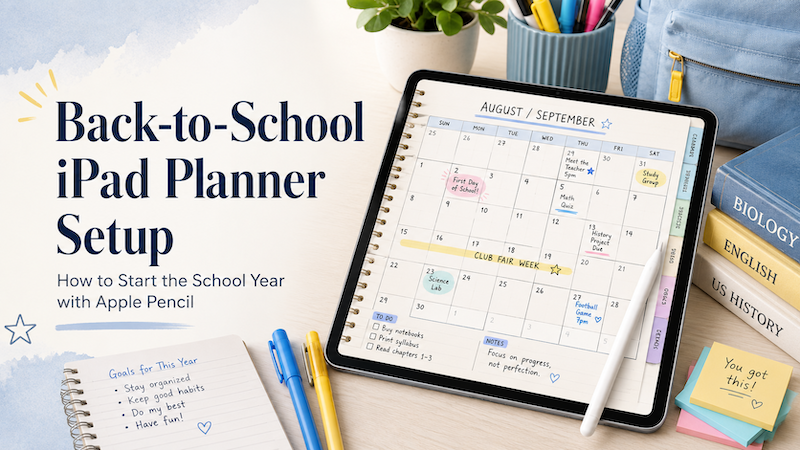
Back-to-school season is exciting, but it can also become messy very quickly.
New classes. New schedules. New assignments. New routines. New school events. Maybe a new commute, a new study rhythm, or a new family calendar to manage.
At the beginning of the school year, planning matters more than usual because everything is still unstable. You do not yet know which days will feel busy, which classes will require more work, which assignments will take longer than expected, or where your free time actually exists.
That is why a simple iPad planner setup can make a big difference.
With an iPad, Apple Pencil, and the right planner app, you can create a flexible back-to-school planning system that combines the structure of a calendar with the freedom of handwriting.
Instead of trying to manage everything in separate places, you can use your iPad as one central planning space for classes, homework, study time, school events, personal plans, and quick handwritten notes.
In this guide, we will walk through a practical back-to-school iPad planner setup you can use before the first week begins.
Why back-to-school planning needs a different setup
Normal planning is usually about managing an existing routine.
Back-to-school planning is different.
At the start of a school year, you are not only planning tasks. You are building the routine itself.
You need to figure out:
- When classes happen
- When assignments are usually due
- Which days are overloaded
- When you can study
- When you need breaks
- How school events affect family schedules
- Which tasks belong in a calendar
- Which tasks are better as handwritten notes
A normal calendar app can help with fixed events, such as classes, meetings, club activities, and appointments.
But school life also includes many flexible tasks.
Reading chapters, preparing for exams, reviewing notes, organizing handouts, packing bags, signing forms, planning meals, commuting, and remembering small personal tasks do not always fit neatly into a calendar.
That is where an iPad planner becomes useful.
It gives you space to see your schedule and think around it.
Step 1: Add fixed events first
The first thing to add to your back-to-school planner is your fixed schedule.
These are the events that already have a time and date.
For students, this may include:
- Classes
- Lab sessions
- Exams
- Club activities
- Part-time work shifts
- Tutoring
- Sports practice
- School events
For parents, this may include:
- School drop-off and pickup
- Parent-teacher meetings
- Sports games
- Music lessons
- Doctor appointments
- Family events
- Work meetings
For teachers, this may include:
- Class periods
- Staff meetings
- Office hours
- Lesson blocks
- Grading time
- School events
- Parent meetings
The goal is not to make your planner beautiful yet.
The goal is to make your real week visible.
Once the fixed schedule is in place, you can start planning around it more realistically. You may realize that Monday is already too full for a long study session, or that Wednesday afternoon is the best time to prepare for the next exam.
If you use Google Calendar, Apple Calendar, or Outlook Calendar, it is helpful to connect those calendars to your iPad first. Then you can use an iPad planner that works with calendar events instead of copying everything manually.
Related reading:
- Best iPad Planner with Apple Calendar Sync
- Best iPad Planner with Google Calendar Sync
- Best iPad Planner with Outlook Calendar Sync
Step 2: Create a weekly school overview
Once your fixed events are visible, create a simple weekly overview.
This is where Apple Pencil becomes especially useful.
A weekly planner page is not only a schedule. It is a thinking space.
You can circle busy days, draw arrows, write notes in the margins, highlight deadlines, and mark areas where you need more preparation.
A simple weekly setup might include:
- Main classes or school events
- Assignment deadlines
- Exam dates
- Study blocks
- Personal appointments
- Family plans
- One or two weekly priorities
Do not overcomplicate it.
The first week of school is not the time to create a perfect color-coded productivity system with twenty symbols and six categories.
Start with a simple question:
What do I need to notice this week?
That may be a deadline, a difficult class, a long commute, an early morning, or a day that already looks too crowded.
A good weekly planner helps you see the shape of the week before you are inside it.
Step 3: Use Apple Pencil for flexible tasks
A calendar is good for events.
Apple Pencil is good for everything that is still changing.
That is the heart of a good iPad planner setup.
Many school-related tasks are not fixed enough to belong in a calendar. For example:
- Read chapter 3
- Review biology notes
- Ask teacher about assignment
- Prepare slides
- Buy supplies
- Pack gym clothes
- Print form
- Email group project members
- Choose essay topic
- Rewrite introduction
These are real tasks, but they often move around.
If you put every small task into a calendar app, your schedule can become crowded and stressful. If you keep them only in your head, you forget them.
Writing them by hand gives you a middle ground.
You can place tasks near the day they belong to, move them later if needed, cross them out when finished, or add a quick note beside them.
This is one reason many people still like paper planners. Handwriting is flexible.
An iPad planner keeps that feeling, but gives you the advantage of a digital workspace.
Step 4: Set up a daily page for the first week
The first week of school usually deserves more detail than a normal week.
There are many small things to remember:
- Where to go
- What to bring
- Which classroom to find
- Which forms to submit
- Which apps or websites to check
- Which books or materials are needed
- Which schedule changes are still uncertain
For the first week, a daily page can be very useful.
A simple daily page might include three sections:
Today’s schedule
Write or view the main events of the day.
This helps you see the structure of the day before adding tasks.
Must do
Choose only the most important tasks.
For example:
- Submit registration form
- Buy textbook
- Review syllabus
- Charge iPad
- Prepare tomorrow’s bag
Notes
Use this area freely.
Write reminders, questions, room numbers, teacher names, locker information, pickup details, or anything that does not need to become a formal task.
This keeps your daily planner useful without turning it into a complicated task manager.
Step 5: Plan study time around real life
One of the most common planning mistakes is creating a study schedule that looks good but does not match reality.
For example:
Study every day from 7:00 to 9:00.
That sounds organized.
But what if you have sports practice on Tuesday? What if Wednesday has a long commute? What if Thursday evening is already full? What if Monday is exhausting?
A better system is to look at your actual week first, then place study time into open spaces.
You might write:
- Monday: Review class notes for 30 minutes
- Tuesday: No heavy study after practice
- Wednesday: Work on essay outline
- Thursday: Practice math problems
- Friday: Light review only
- Saturday: Long study block in the morning
This is where visual planning is helpful.
When you can see calendar events and handwritten study plans on the same page, your plan becomes more honest.
You are not planning an imaginary perfect week.
You are planning the week you actually have.
For a deeper workflow, read:
Step 6: Create a simple assignment system
Assignments are easy to lose because they come from many places.
They may appear in:
- Syllabi
- Classroom apps
- Emails
- Handouts
- Verbal instructions
- Group chats
- School portals
- Notebooks
A back-to-school planner should give you one place to collect them.
You do not need to write every detail. Just capture enough information to act.
A useful assignment note includes:
- Class name
- Assignment title
- Due date
- First action
For example:
History essay — due Friday — choose topic by Tuesday
This is better than simply writing:
Essay
The first version tells you what to do next.
For big assignments, break them into smaller steps:
- Choose topic
- Find sources
- Read sources
- Create outline
- Write first draft
- Edit draft
- Submit final version
Then place those steps across multiple days.
This helps prevent the classic school-year problem: realizing too late that a “small” assignment was actually a project.
Step 7: Keep school, personal life, and family plans visible
Back-to-school planning is not only for students.
Parents and teachers also need a better system during this season.
For parents, school events often collide with work, errands, meals, appointments, and family routines.
For teachers, school planning often includes lessons, meetings, grading, classroom preparation, communication, and personal time.
The difficult part is not simply remembering events.
The difficult part is seeing how everything affects everything else.
If a school event is on Thursday evening, dinner may need to be simpler. If an exam is on Friday, Wednesday night may need to be protected for study. If a teacher has a heavy grading week, personal plans may need more breathing room.
An iPad planner works well here because it gives you a visual space to combine different parts of life.
You can use calendar events for the fixed structure, then use Apple Pencil to write the human details around them.
Related reading:
- Best iPad Planner for Parents
- Best iPad Planner for Students
- How Teachers Actually Use iPad Planners
Step 8: Do not make the setup too beautiful too early
This may sound strange, but the best back-to-school planner setup is usually not the prettiest one.
At least not at first.
The first goal is clarity.
You want to know:
- What is happening this week?
- What must be done?
- What can wait?
- Where is the week too crowded?
- Where is there room to study or rest?
- What did I forget to prepare?
Stickers, colors, icons, and decoration can make planning more enjoyable. But if the system becomes too decorative too early, it can turn into another task.
Start plain.
Then add visual details only when they help.
For example:
- Use one highlight color for deadlines
- Use one symbol for exams
- Use one symbol for family events
- Use one sticker for important reminders
- Use one weekly review area
A planner should reduce stress, not become homework.
Step 9: Review and reset at the end of the week
The first week of school will teach you things your plan could not predict.
Maybe one class requires more reading than expected.
Maybe your commute is longer than you thought.
Maybe your child’s school schedule has more events than planned.
Maybe one day of the week is clearly overloaded.
That is why a weekly review is important.
At the end of the week, ask:
- What worked?
- What was too complicated?
- What did I forget?
- Which day felt overloaded?
- Which tasks kept moving?
- What should change next week?
You do not need a long reflection.
A few handwritten notes are enough.
The goal is to adjust your system before the school year becomes too busy.
Why Planner for iPad works well for back-to-school planning
A good back-to-school planner should not force you to choose between digital calendars and handwriting.
You need both.
Digital calendars are useful for fixed events. Handwriting is useful for flexible thinking.
Planner for iPad is designed for people who want to plan with Apple Pencil while seeing calendar events inside their planner.
That makes it useful for the school year because your schedule and your handwritten planning can live together.
You can use Planner for iPad to:
- See calendar events on planner pages
- Write by hand with Apple Pencil
- Plan daily, weekly, and monthly routines
- Add study notes and reminders
- Organize school events visually
- Keep flexible tasks separate from fixed calendar events
- Use your iPad as a central planning space
This is especially helpful during back-to-school season, when your routine is still forming and your planner needs to stay flexible.
A simple back-to-school iPad planner setup
If you want a simple setup, start with this:
Monthly page
Use this for:
- School start dates
- Holidays
- Exams
- Major deadlines
- School events
- Family plans
Weekly page
Use this for:
- Class schedule
- Assignment deadlines
- Study blocks
- Weekly priorities
- Sports or club activities
- Work or family commitments
Daily page
Use this for:
- Today’s schedule
- Must-do tasks
- Quick reminders
- Notes from school
- Questions to ask
- Things to prepare for tomorrow
Review area
Use this for:
- What worked this week
- What needs to move
- What felt stressful
- What to change next week
That is enough.
You can always make it more detailed later.
Final thoughts
Back-to-school planning does not need to be complicated.
The best setup is the one that helps you see your real week clearly.
Start with fixed events. Add flexible tasks by hand. Use Apple Pencil for quick notes, study plans, reminders, and adjustments. Review your week before it becomes too crowded.
A good iPad planner should feel less like another productivity system and more like a calm place to think.
With Planner for iPad, you can combine your calendar schedule with handwritten planning, so your iPad becomes more than a device for schoolwork.
It becomes the place where the school year starts to feel manageable.
Download Planner for iPad
If you want an iPad planner that works with Apple Pencil and helps you organize the school year around your real calendar, try Planner for iPad.
It is a simple way to turn your iPad into a handwritten planner for classes, study time, family schedules, school events, and everyday planning.