Teaching rarely fits neatly into a normal calendar.
Your timetable may look predictable from a distance, but the actual work happens between the scheduled blocks. A lesson at 10:00 also requires preparation before class, notes afterward, materials to print, assignments to review, and follow-up for the students who need extra help.
Then there are staff meetings, parent conferences, school events, professional development days, grading deadlines, emails, and administrative tasks.
And somewhere beyond all of that, you still have a personal life.
That is why the best iPad planner for teachers should do more than show a timetable. It should help you see the work surrounding each lesson, decide what deserves your attention, and protect the parts of the week that do not belong to school.
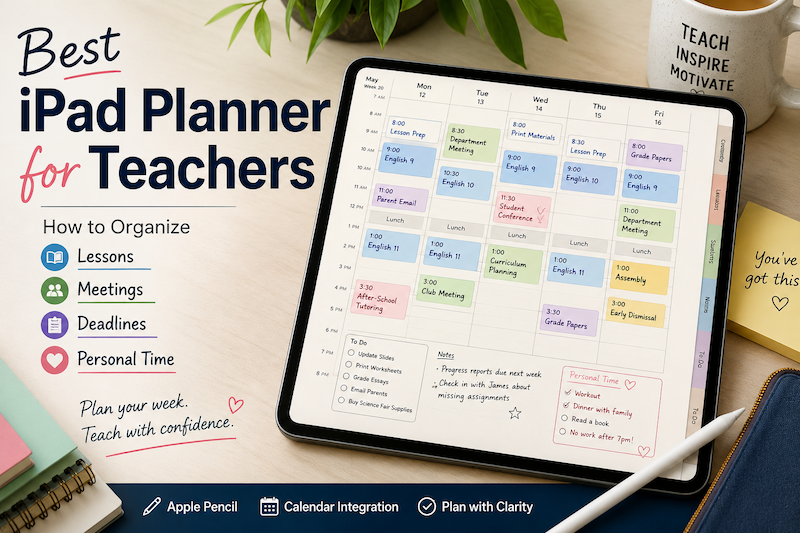
Here is a practical way to organize your teaching week with an iPad, Apple Pencil, and a planner that combines calendar events with handwritten planning.
Why a calendar alone is not enough for teachers
Calendar apps are good at storing fixed events.
They can show:
- Class periods
- Staff meetings
- Parent conferences
- School events
- Professional development days
- Appointments
- Personal commitments
But much of a teacher’s workload is not a fixed event.
“Prepare Monday’s lesson” does not necessarily happen at one specific time. Neither does grading a set of papers, revising a worksheet, contacting a parent, or checking whether the projector in Room 204 has finally been repaired.
These tasks move around depending on what happens during the day.
A lesson may take longer than expected. A meeting may create three new tasks. A student conversation may change what you need to prepare for tomorrow. A planning period may disappear because someone needs help.
A useful teacher planner therefore needs two layers:
- A reliable calendar layer for events that already have a time
- A flexible handwritten layer for everything that must happen around them
The calendar tells you what is scheduled. The planner helps you decide how to handle it.
What teachers should look for in an iPad planner
There are many beautiful digital teacher planners available as PDF templates. Some include lesson-plan pages, seating charts, gradebooks, attendance records, and classroom forms.
Those can be useful, especially when you want a highly structured academic planner.
However, a static PDF does not automatically know when a staff meeting has moved or when a new school event has appeared on your calendar. You may end up copying the same information from your school calendar into your planner every week.
For daily and weekly planning, teachers may benefit more from an iPad planner that offers:
- Apple Pencil handwriting
- Daily, weekly, and monthly views
- Calendar events displayed on planner pages
- Enough open space for flexible notes
- Easy movement between dates
- Simple visual markers such as stamps or symbols
- A way to view both school and personal commitments
- PDF export or backup options
The goal is not to replace every tool your school uses.
Your learning management system can continue to hold assignments. Your gradebook can continue to hold grades. Your school calendar can remain the official source for meetings and events.
Your iPad planner becomes the place where you look at all of those obligations and decide what you personally need to do next.
Step 1: Build the calendar layer first
Start with the parts of your week that cannot easily move.
Add or connect calendars for:
- Your teaching timetable
- Staff meetings
- School events
- Parent conferences
- Assessment dates
- Professional development
- Personal appointments
- Family commitments
Use separate calendar colors when possible. You do not need a complicated color system. Three broad categories are usually enough:
- Teaching
- Administration
- Personal
This gives your week a visible structure before you write anything by hand.
It also reveals problems early. You may notice that a grading deadline falls in the same week as parent conferences, or that a personal appointment has been scheduled immediately after a demanding school day.
A good planner should help you see the collision before you are standing in the middle of it.
Step 2: Use the weekly page as your command center
The weekly view is often the most useful planning surface for teachers.
A monthly calendar is excellent for seeing major dates. A daily page is helpful when one day becomes especially busy. But the weekly page is where lessons, preparation, meetings, deadlines, and personal time can be considered together.
At the beginning or end of each week, write down:
- The three most important teaching outcomes
- Lessons that still require preparation
- Materials that must be created or printed
- Grading that must be completed
- Students who need follow-up
- Meetings that require preparation
- Personal commitments that must be protected
Try not to fill every empty space.
An empty planning period is not necessarily free time. It may become preparation time, recovery time, or the only chance you have to deal with something unexpected.
A weekly plan should give direction without pretending that a school week will unfold exactly as expected.
Step 3: Plan lessons around outcomes, not scripts
It is easy to over-plan lessons.
You begin by writing a learning objective. Twenty minutes later, you are documenting every activity, transition, question, worksheet, example, and possible student response.
Detailed lesson plans are sometimes necessary, but they are not always useful on a daily planner page.
For routine planning, try recording only four things:
Goal: What should students understand or be able to do?
Opening: How will the lesson begin?
Core activity: What will students spend most of the lesson doing?
Check: How will you know whether they understood?
For example:
Goal: Identify the main argument in a nonfiction text
Opening: Compare two headlines
Core: Annotate the article in pairs
Check: One-sentence summary before leaving
This is usually enough to remind you what the lesson is trying to accomplish without turning your planner into another administrative document.
Keep detailed unit plans, curriculum documents, and resources in the tools designed for them. Use the planner for the version you need while moving through the actual week.
Step 4: Separate preparation from delivery
One reason teaching workloads feel invisible is that the calendar shows the lesson but not the preparation.
A 45-minute class may require another 30 minutes of work somewhere else in the week.
On your weekly page, mark preparation tasks separately from the lesson itself:
- Review last lesson’s exit tickets
- Prepare slides
- Print source material
- Test the classroom activity
- Upload the assignment
- Check equipment
- Adapt materials for specific students
Place these tasks before the relevant lesson, not beside the final deadline.
“Prepare Thursday’s lesson” written on Thursday morning is not a plan. It is an alarm.
Working backward helps you distribute preparation across the week and prevents every task from collecting on the evening before it is needed.
Step 5: Turn meetings into action items
Staff meetings have a strange ability to continue long after they have technically ended.
You leave with a page of notes, several decisions, two follow-up tasks, and one vague responsibility that nobody quite assigned but somehow belongs to you.
Before a meeting, write a small section containing:
- Questions to ask
- Information you need
- Decisions that must be made
During the meeting, take brief handwritten notes rather than trying to transcribe everything.
Afterward, circle or mark anything that requires action. Then move those actions onto the relevant day or week.
For example:
Ask office about field-trip forms
Send revised reading list by Wednesday
Speak with Year 8 team before Friday
Update parents after timetable confirmation
The important step is not taking better meeting notes. It is separating information from action.
A page full of notes feels productive, but only the extracted actions change what happens next.
Step 6: Plan deadlines backward
Teachers often manage two kinds of deadlines:
- Deadlines given to students
- Deadlines given to teachers
Both create additional work before and after the date shown on the calendar.
Suppose student projects are due on October 16. Your real sequence may be:
- October 2: Explain the project
- October 6: Confirm topics
- October 9: Check progress
- October 13: Remind students about missing work
- October 16: Collect submissions
- October 19: Begin grading
- October 23: Return feedback
The due date is only one point in a longer process.
Write the final deadline on your monthly page, then work backward and place the preparation and follow-up steps on weekly pages.
The same method works for report cards, parent conferences, observations, school performances, field trips, and curriculum reviews.
A distant deadline becomes much less intimidating once it has been converted into several small, visible actions.
Step 7: Create a simple symbol system
Teachers need to capture information quickly.
You may have only a minute between classes, so your visual system should not require a legend containing twelve colors and seventeen icons.
Choose a few symbols that you can recognize immediately:
- Star: Must happen today
- Arrow: Move to another day
- Circle: Student follow-up
- Triangle: Preparation required
- Exclamation mark: Deadline or urgent issue
- House: Personal commitment
You can draw these symbols with Apple Pencil or use stamps if your planner supports them.
The meaning matters more than the appearance. A symbol system is useful because it lets you scan a crowded weekly page without rereading every note.
Step 8: Keep a running “small tasks” area
Not every task deserves its own scheduled time.
Teachers accumulate dozens of tiny actions:
- Reply to one email
- Find a missing book
- Replace a marker
- Ask about a room change
- Upload one document
- Confirm a student’s absence
- Print three extra copies
If you schedule every small action individually, your calendar becomes unreadable.
Instead, keep a small running list on the side of your weekly page. Complete these tasks during short gaps, or process several of them together during one administrative block.
This protects your main schedule while preventing minor responsibilities from disappearing.
Step 9: Protect personal time visibly
Personal time should not be whatever remains after school has taken everything else.
Put personal commitments on the same weekly view as your work commitments:
- Exercise
- Dinner with family
- Medical appointments
- Reading
- Hobbies
- Sleep
- A completely unplanned evening
This does not mean every minute of your private life needs to be optimized. Quite the opposite.
Writing personal time into the week makes it visible as something real rather than an optional reward you receive only after finishing an impossible amount of work.
You may also find it useful to define a stopping point.
For example:
No schoolwork after 7:30 p.m.
Friday evening stays empty
One weekend day without grading
These boundaries will not always survive the busiest parts of the year. But a boundary written down is still easier to defend than one that exists only as a vague intention.
Step 10: Use a five-minute shutdown routine
At the end of the school day, take five minutes to close the loop.
Ask yourself:
- What was completed?
- What did not happen?
- What needs to move?
- What must be prepared for tomorrow?
- Is there anything I am trying to remember instead of writing down?
Cross out completed items. Move unfinished tasks deliberately. Add tomorrow’s most important preparation.
Do not simply leave yesterday’s unfinished list behind and begin a new one. That creates the feeling that tasks are multiplying somewhere outside your control.
A short shutdown routine gives the day an ending.
It also makes it easier to leave school without carrying the entire unfinished week around in your head.
A practical weekly planning routine for teachers
Your planning system does not need to become another project.
A simple routine might look like this:
Friday afternoon: close the current week
Review unfinished tasks, record anything that must continue, and clear notes that no longer matter.
Sunday evening or Monday morning: preview the week
Look at lessons, meetings, deadlines, and personal commitments. Choose the week’s main priorities.
Each morning: identify the day’s essentials
Mark the tasks that genuinely need to happen today. Keep the list realistic.
After meetings: extract actions
Move follow-up tasks from meeting notes to the appropriate day.
At the end of each day: reset tomorrow
Move unfinished tasks intentionally and prepare the first step for the next morning.
The whole system should require minutes, not hours.
A planner is supposed to reduce the effort required to understand your week. When maintaining the planner becomes a second job, the system is too complicated.
How Planner for iPad fits into a teacher’s workflow
Planner for iPad is designed for people who want to combine digital calendar structure with handwritten planning.
Calendar events can appear directly on daily, weekly, and monthly planner pages, while Apple Pencil can be used for lesson notes, preparation tasks, reminders, symbols, and personal plans. The calendar remains the source of fixed events, while handwritten notes stay in the planner as a flexible planning layer. hers, this means a staff meeting or school event does not need to be copied manually onto every planning page. You can see the scheduled event and write your own preparation or follow-up notes around it.
Planner for iPad is not intended to replace a gradebook, learning management system, attendance system, or full curriculum-planning platform.
That limitation can actually make the workflow clearer.
Use specialist school systems for official records. Use your calendar for events. Use Planner for iPad as the personal surface where you decide how lessons, meetings, deadlines, and the rest of your life will fit into a real week.
Final thoughts
The best iPad planner for teachers is not necessarily the one with the most elaborate classroom templates.
It is the one you can open on a busy Wednesday afternoon and immediately understand:
- What is happening next
- What still needs preparation
- Which deadline is approaching
- What can wait
- When the workday ends
Teaching will always involve interruptions, changing priorities, and work that cannot be predicted perfectly.
Your planner does not need to eliminate that uncertainty.
It only needs to give you a reliable place to return to when the week changes.
By combining calendar events with handwritten planning, an iPad can become more than a place to store lesson materials. It can become the place where your teaching responsibilities and personal life finally appear on the same page.
Planner for iPad is available on the App Store for teachers who want the structure of a digital calendar and the flexibility of planning by hand with Apple Pencil.