Meetings rarely end when the meeting ends.
You leave with notes, decisions, follow-ups, small tasks, vague promises, and maybe one or two things you really should not forget.
The problem is that most meeting workflows split everything apart.
Your meeting time lives in your calendar.
Your notes live in a notes app.
Your follow-up tasks live somewhere else.
Your real thoughts may still be scattered across the margins of a notebook.
That is why an iPad planner can be surprisingly useful for meeting notes.
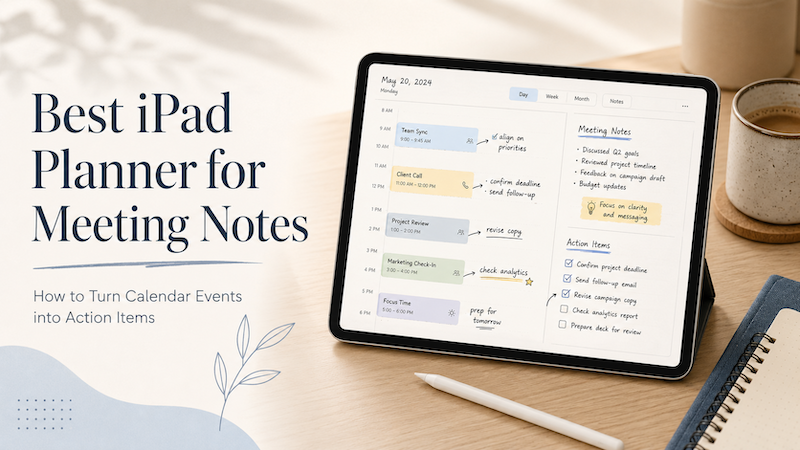
Instead of treating meetings as isolated calendar blocks, you can use your planner as the place where your schedule, handwritten notes, and action items come together.
If you already use Apple Calendar, Google Calendar, or Outlook for your schedule, Planner for iPad gives you a simple way to see your calendar events and write around them with Apple Pencil.
The problem with normal meeting notes
Most people do not have a meeting notes problem.
They have a connection problem.
It is easy enough to write notes during a meeting. The hard part is connecting those notes to the actual event, the people involved, the date, and the follow-up work that comes afterward.
A typical meeting workflow looks like this:
You check your calendar to see when the meeting starts.
You open a notes app to write things down.
You later create tasks in a task manager.
Then you try to remember which notes belonged to which meeting.
That works for a while, but it creates friction.
The calendar knows when the meeting happened, but not what was discussed.
The notes app contains what was discussed, but not always where it fits in your day.
The task app may contain the follow-up, but not the context behind it.
A good meeting notes workflow should keep those things closer together.
Why your calendar alone is not enough
Calendar apps are excellent at telling you when something happens.
They show the time, title, location, attendees, and sometimes a video call link. That is useful. But a calendar event is usually too small and too structured to capture what actually happens in a meeting.
A real meeting is messy.
Someone mentions a deadline.
Someone changes the priority.
Someone says, “Let’s revisit this next week.”
Someone gives you a task that is not quite a task yet.
You notice something that matters, but does not belong in the official agenda.
Those details are hard to capture inside a normal calendar app.
This is where a planner-style workflow helps. A planner is not just a schedule. It is a thinking space.
With an iPad planner, your meeting can remain visible as part of your day, while your notes, arrows, highlights, and follow-up items live around it.
Why a notes app alone is not enough
Notes apps are great for writing.
But they often become a pile of disconnected documents.
You might create a note called “Project Meeting” or “Client Call,” but after a few weeks, you may have five notes with similar names. Some are useful. Some are unfinished. Some contain tasks you already completed. Some contain tasks you forgot.
The problem is not the notes app itself. The problem is that meeting notes need time context.
When did this meeting happen?
Was it before or after the deadline changed?
What else was happening that week?
Did this follow-up come from Monday’s meeting or Thursday’s check-in?
A planner solves this by keeping notes close to the day they belong to.
You do not have to build a complex filing system. You can simply open the date, look at the meeting, and write what matters.
A better workflow: calendar event → notes → action items
A useful meeting workflow has three stages.
First, the meeting appears in your calendar.
Second, you write notes during or after the meeting.
Third, you turn the important parts into action items.
That sounds simple, but the key is keeping the three stages connected.
Planner for iPad is useful here because it gives you a calendar-based planning space that still feels like handwriting on paper. You can see your real schedule, then use Apple Pencil to add notes, marks, and follow-ups.
If you are new to this kind of workflow, you may also want to read Best iPad Planner with Google Calendar Sync or Best iPad Planner for Time Blocking. Both are useful starting points if you want to plan around real calendar events instead of manually copying your schedule into a PDF planner.
Before the meeting: prepare the page
The best meeting notes often start before the meeting begins.
Open your planner and look at the day’s schedule. Find the meeting in your calendar view. Then give yourself a small preparation area around it.
You can write:
What is the purpose of this meeting?
What do I need to ask?
What decision do we need to make?
What information should I bring?
What would make this meeting successful?
This does not need to be formal. In fact, it is often better if it is not.
A few handwritten prompts can be enough to make the meeting more focused.
For example:
“Confirm launch date”
“Ask about budget”
“Need decision on design direction”
“Follow up with Sarah after meeting”
“Do not leave without next step”
This is where handwriting helps. You can write quickly, circle something, underline a question, or leave space for the answer.
A typed note often feels like a document. A handwritten planner page feels more like a working surface.
During the meeting: capture decisions, not everything
One mistake people make with meeting notes is trying to write everything down.
That usually does not work.
If you try to capture every sentence, you may miss the actual meaning of the meeting. The goal is not to create a transcript. The goal is to capture what matters.
During the meeting, focus on four things:
Decisions
Open questions
Action items
Important context
A decision is something the group agreed on.
For example:
“Use version B for the landing page.”
“Move launch to next Friday.”
“Keep pricing unchanged for now.”
An open question is something that still needs an answer.
For example:
“Need to confirm App Store review timeline.”
“Who owns onboarding copy?”
“Can we support this before release?”
An action item is something someone needs to do.
For example:
“Send updated screenshots.”
“Check analytics.”
“Draft support response.”
“Prepare next week’s agenda.”
Important context is anything that explains why the decision was made.
For example:
“Support volume increased after latest update.”
“Users are confused by current wording.”
“Team wants simpler version first.”
With Apple Pencil, you can use simple marks to make these stand out.
A checkbox for tasks.
A star for important decisions.
A question mark for unresolved issues.
An arrow for follow-up items.
A circle around anything that needs attention later.
This is faster than building a perfect system. And honestly, perfect systems are where productivity goes to become furniture.
After the meeting: turn notes into action items
The most important part of meeting notes happens after the meeting.
This is when you turn rough notes into action.
Take two or three minutes after the meeting and scan the page. Look for anything that requires movement.
Then rewrite the actual next actions clearly.
Not:
“Website?”
“Talk to team”
“Maybe update copy”
“Launch stuff”
But:
“Review website headline by Wednesday.”
“Ask team whether onboarding screen needs revision.”
“Update App Store description draft.”
“Send launch checklist to everyone.”
A good action item should be specific enough that your future self knows what to do.
In Planner for iPad, you can write these follow-ups directly on the day’s page, weekly page, or wherever you plan your next work session. The point is not to trap everything inside the meeting note. The point is to move the next action into your actual planning space.
That is the difference between notes and planning.
Notes record what happened.
Planning decides what happens next.
Use a simple meeting notes template
You do not need a complicated template to take better meeting notes.
A simple structure is enough:
Meeting title
Goal
Notes
Decisions
Action items
Follow-up date
For example:
Meeting: Product check-in
Goal: Decide next release priority
Notes:
- Users are asking for simpler onboarding
- Current settings screen may be too crowded
- Need to reduce support confusion
Decisions:
- Improve onboarding before adding new feature
- Keep next update small
Action items:
- Draft new onboarding text
- Prepare screenshots
- Check support emails for common questions
Follow-up:
- Review again next Monday
That is enough.
The best meeting notes template is the one you will actually use. If it takes too long to maintain, it will slowly become decorative. Beautiful, perhaps, but spiritually doomed.
Why handwriting works well for meeting notes
Typing is clean. Handwriting is flexible.
In meetings, flexibility matters.
You may need to draw a quick diagram.
You may need to connect two ideas with an arrow.
You may need to write a question in the margin.
You may need to circle one word because it suddenly became important.
Handwriting lets your notes stay messy in a useful way.
This is especially helpful when a meeting is still in the thinking stage. Not every idea is ready to become a formal task. Not every comment deserves a polished note. Sometimes you just need to capture the shape of the conversation.
That is why an Apple Pencil planner can feel more natural than a traditional task app.
You are not forced to decide immediately whether something is a task, note, project, reminder, or document. You can write first, then organize later.
Use your calendar as the anchor
The best thing about calendar-based planning is that the meeting already has a place.
You do not need to invent a system for where the notes belong. The date and time already give them context.
If the meeting happened on Tuesday morning, your notes belong near Tuesday morning.
If the follow-up is due Friday, it belongs on Friday.
If the decision affects next week, it belongs somewhere in next week’s planning.
This is where Planner for iPad becomes more useful than a plain notebook or static PDF planner.
A paper planner feels good, but your calendar events have to be copied manually. A PDF planner can look beautiful, but it usually does not know what is actually on your schedule.
Planner for iPad is designed for people who want the calm feeling of handwriting with the convenience of real calendar-based planning.
You can download Planner for iPad on the App Store and use it to plan around your actual meetings, appointments, and daily schedule.
A practical meeting notes workflow for Planner for iPad
Here is a simple workflow you can try.
Before the meeting:
Open the day view. Find the meeting. Write the goal and any questions you need to ask.
During the meeting:
Write only what matters. Mark decisions, questions, and tasks as they appear.
Immediately after:
Review the page. Convert rough notes into clear action items.
Later that day:
Move important follow-ups into your weekly plan or next work session.
End of week:
Review meeting-related action items and check what still needs attention.
This keeps your meeting notes from becoming a graveyard of good intentions.
Meeting notes for work, school, and personal planning
This workflow is not only for business meetings.
Students can use it for seminars, advisor meetings, group projects, or office hours.
Teachers can use it for parent meetings, staff meetings, lesson planning, or student support notes.
Freelancers can use it for client calls, project reviews, estimates, and revisions.
Parents can use it for school meetings, appointments, family planning, and activity schedules.
Anyone who has meetings also has follow-ups. The format changes, but the problem is the same: something happens at a specific time, and you need to remember what to do next.
An iPad planner gives that process a home.
The best meeting notes system is the one you review
Writing notes is only half the system.
Reviewing them is the other half.
At the end of the day, take a moment to scan your meeting notes. Look for:
Unchecked boxes
Open questions
Names of people you need to contact
Dates mentioned during the meeting
Decisions that affect your schedule
Tasks that should move to another day
This review does not need to take long.
The goal is simply to prevent useful notes from disappearing into the page.
A planner works best when it becomes part of your rhythm: morning planning, meeting notes, end-of-day review, weekly reset.
If you want to build that broader planning habit, you may also like Best iPad Planner for Time Blocking, which explains how to plan your day visually with Apple Pencil.
Final thoughts: turn meetings into movement
A meeting is not valuable because it happened.
It is valuable if it creates clarity.
What did we decide?
What changed?
Who needs to do what?
What happens next?
That is why meeting notes should not stay separate from your planner.
When your calendar events, handwritten notes, and action items live close together, it becomes much easier to move from discussion to action.
Planner for iPad gives you a simple way to do that. You can see your schedule, write by hand, mark important decisions, and turn meeting notes into follow-up actions without building a complicated productivity system.
If your meetings already live in Apple Calendar, Google Calendar, or Outlook, try planning around them with Apple Pencil.
Download Planner for iPad on the App Store and turn your meeting calendar into a handwritten action plan.
Meta description
Looking for the best iPad planner for meeting notes? Learn how to turn calendar events into handwritten notes, decisions, and action items with Apple Pencil and Planner for iPad.
Suggested tags
iPad Planner / Meeting Notes / Apple Pencil / Productivity / Calendar Sync / Planner for iPad / Action Items