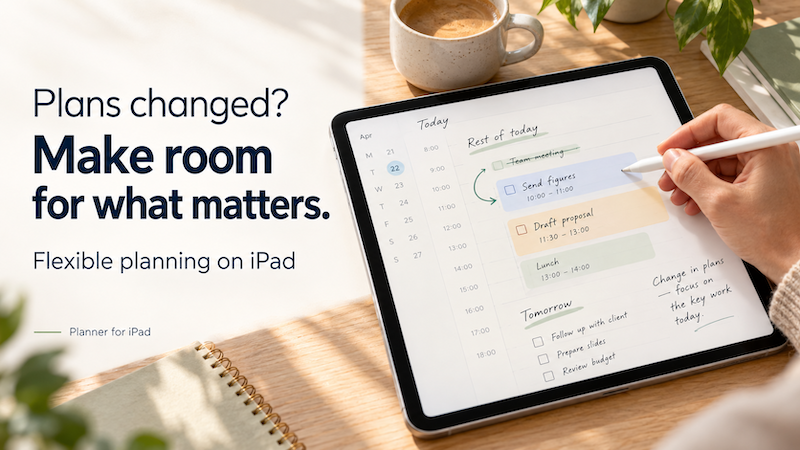
You planned to finish a proposal before lunch. Then a meeting ran over, a client needed an answer, and the hour you had reserved disappeared.
By 2 p.m., your planner still describes a day that is no longer possible.
The temptation is to squeeze everything into the afternoon, work later, or stop looking at the plan altogether. A more useful response is to update it while there is still time to make a few good choices.
If this happens regularly, flexibility deserves a place on your list of requirements for an iPad planner. You need to see your actual commitments, reconsider unfinished work, and write a realistic next step.
This guide walks through a practical way to do that with an iPad and Apple Pencil, using Planner for iPad as the planning space.
What Makes an iPad Planner Useful When Plans Change?
For flexible planning, look for three things: a clear schedule, room for handwritten decisions, and a way to look beyond today.
A clear schedule shows which hours are still available. Handwriting gives you space to cross out an obsolete task, circle a priority, or explain why something needs to move. A weekly view helps you check whether tomorrow actually has room for the work you are postponing.
Planner for iPad brings calendar-based planning and Apple Pencil handwriting together, with daily, weekly, and monthly views. It gives you a place to make these decisions around the appointments already on your schedule.
The replanning still comes from you. Calendar events and handwritten notes serve different purposes: an updated appointment does not automatically reorganize the tasks you wrote around it. When the schedule changes, review the handwriting too.
Start with the Time You Have Left
When you fall behind, the unfinished list can become the only thing you see. Before rearranging it, look at the clock and your remaining commitments.
Suppose it is 2 p.m. You have a call from 3:00 to 3:30 and need to finish work at 5:00. That leaves two and a half hours outside the call. Some of that time may also be needed for preparation, a break, and dealing with the call’s outcome.
Write down a realistic amount of usable time. That is the capacity your revised plan needs to fit.
Keep your finishing time visible as well. Otherwise, postponing a task can quietly turn into postponing dinner, sleep, or a personal commitment.
Give Each Unfinished Task a Decision
Read through the remaining tasks and decide what should happen to each one. A few handwritten labels are enough:
| Decision | When to use it | Example |
|---|---|---|
| Today | A consequence or commitment makes it important now | Send the figures needed for tomorrow’s meeting |
| Later | It matters, and another time is workable | Review next week’s newsletter draft |
| Drop | It no longer needs doing | Cancel a comparison after the decision has been made |
| Clarify | You need information before scheduling the work | Ask which version of a document needs approval |
An unfinished task needs a decision before it needs another date.
For a task that belongs today, ask what makes it time-sensitive. For a task that can wait, check the week before choosing its new place. For something unclear, write the question that would let you move forward.
You can write these labels beside the original entries. There is no need to rebuild the whole page.
Make the Next Step Small Enough to Fit
Sometimes a task remains important but its original scope no longer fits.
“Finish proposal” might need two uninterrupted hours. “Draft the scope and list the pricing questions” might fit into forty minutes and make tomorrow’s work easier to begin.
Use a concrete stopping point. “Work on proposal” leaves you deciding what counts as enough while you are already under time pressure. “Write the three deliverables and send the pricing question” tells you exactly what to do next.
If someone else is expecting the complete proposal, reducing your internal task does not change that promise. Contact them early if the deadline needs to change, and agree on what you will deliver.
An Example: Replanning a Disrupted Afternoon
Imagine your morning plan contained four tasks:
- Finish a client proposal.
- Send figures for tomorrow’s meeting.
- Review a newsletter draft.
- Compare two software tools.
At 2 p.m., all four are unfinished. You also have the 3 p.m. call and a 5 p.m. finish.
After reviewing the consequences and available time, your updated plan might look like this:
| Time | Revised plan |
|---|---|
| 2:00–2:10 | Check commitments and communicate any delivery change |
| 2:10–2:50 | Draft the proposal scope and identify pricing questions |
| 2:50–3:00 | Prepare for the call |
| 3:00–3:30 | Scheduled call |
| 3:30–3:45 | Break and capture call follow-ups |
| 3:45–4:15 | Check and send the meeting figures |
| 4:15–4:45 | Answer urgent follow-ups; keep remaining time available |
| 4:45–5:00 | Record progress and choose tomorrow’s starting point |
The newsletter review goes into an available slot later in the week. The software comparison is dropped if the tool decision has already been made. The remaining proposal work gets a separate block after checking tomorrow’s commitments.
This version gives the afternoon a workable shape. It also makes the tradeoffs visible: some work will finish today, some will wait, and one task may disappear entirely.
Use Apple Pencil to Leave a Clear Updated Plan
Handwriting is useful during replanning because the changes can be quick and informal.
Circle the one task you want to protect. Cross out an item that no longer matters. Write a smaller next step beside a task that was too broad. Add a brief destination such as “Thursday afternoon” to work you are moving.
Keep your marks understandable. After several revisions, a page covered in arrows can become difficult to use. If that happens, write a short “Rest of today” list in an open area and refer to it for the remaining hours.
You can also leave a small explanation where it will help later: “Client call added—newsletter moved.” That gives you context when reviewing the week.
The goal is a page you can act on immediately. It does not need to look untouched.
Check Tomorrow Before Moving Work There
Tomorrow often seems spacious because you have not looked at it closely yet.
Open the weekly view and check the appointments, deadlines, and work already planned. If you add a substantial task, decide what room it will use. You may need to move another task, reduce the scope, or discuss a deadline.
Repeated postponement is especially useful information. If the same item keeps returning, ask why:
- Is the next action unclear?
- Does it need more time than you are allowing?
- Are you waiting for someone?
- Is it still worth doing?
Give the task a fresh decision instead of carrying the same vague wording forward again.
Leave a Starting Point for the Next Day
Before finishing, record enough detail to resume important work without reconstructing it.
For the proposal, that might be: “Scope drafted. Need pricing answer from Alex. Next: estimate implementation hours.”
Then choose a realistic first action for tomorrow, taking its calendar into account. On a meeting-heavy morning, that action may be a short clarification message rather than a large writing session.
This takes only a few lines and gives unfinished work a clear place to continue.
When Disruption Becomes the Normal Pattern
A quick reset is useful for an unexpected afternoon. If you need one every day, review the original plan as well.
Look back over several days. Are calls regularly running longer than expected? Is preparation time missing? Does support work consume a predictable part of the afternoon? Are you scheduling focused work in gaps that are too short?
Use those observations when planning the next week. Allow more time for recurring demands and leave some capacity unassigned. If commitments consistently exceed the time available, a scheduling adjustment may need to be accompanied by a conversation about workload or deadlines.
Your revised pages can help you see what needs to change.
Build a Plan You Can Keep Using
For people who prefer handwriting and plan around calendar appointments, Planner for iPad is a useful option for flexible planning. You can see the schedule, write your decisions with Apple Pencil, and check the wider week before moving work to another day.
The next time your morning plan becomes unrealistic, open the planner again. Check the time left, decide what still matters, and write a smaller plan that fits.
You can make the remaining hours useful without completing everything you intended at breakfast.
Download Planner for iPad on the App Store
Free to download, with in-app purchases available.