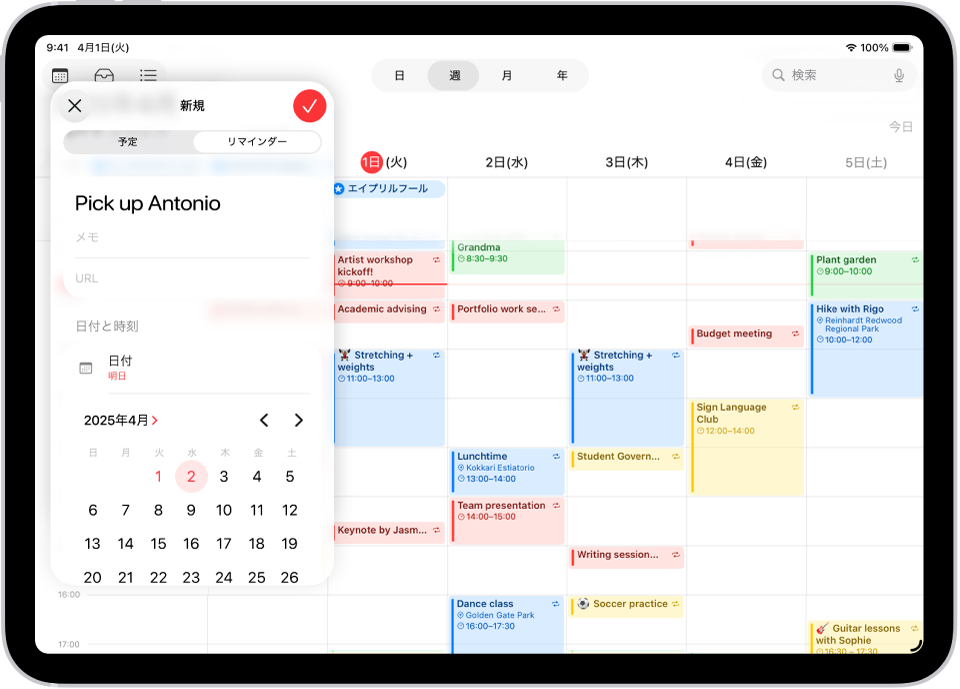
Your calendar shows what’s scheduled. It doesn’t show what you’re going to do about it. Here’s how to bridge that gap on iPad — without leaving the Apple ecosystem.
There’s a quiet problem with Apple Calendar that almost no one talks about.
It’s beautiful. It syncs across every Apple device you own. It handles invites, reminders, time zones, recurring events, and shared family calendars without breaking a sweat. For most people, it’s the default — the calendar app you never had to choose, because it was already there.
And yet, if you actually look at how people use it, something strange happens. Apple Calendar becomes a kind of museum. You walk in, observe what’s on display — a 10am meeting, a dentist appointment, a birthday next Thursday — and walk out. You don’t do anything in it. You just check it.
That’s not planning. That’s just looking.
Real planning is the work that happens around your calendar events. It’s deciding what you’ll actually do in the gap between your 11am call and your 2pm review. It’s writing down the three things that have to happen before Friday. It’s drawing an arrow from “investor email” to “wait until after the deck is done.” None of that fits inside a calendar event, and Apple Calendar was never built to hold it.
This is where most productivity advice breaks down. People tell you to switch to Notion, or build elaborate Fantastical workflows, or migrate everything to Google Calendar with seventeen color-coded sub-calendars. But you don’t actually want to leave Apple Calendar. You just want it to do more.
Here’s how to make that happen on iPad — using your existing calendar, your Apple Pencil, and a planning surface designed to sit alongside it.
Why Apple Calendar alone isn’t enough
Apple Calendar is excellent at one job: showing you what’s already scheduled. Events go in, events come out, and the system keeps them synced wherever you look.
But planning isn’t about events. Planning is about everything events leave out.
Think about your last truly productive day. The calendar entries probably weren’t the point. The point was the focused two hours between meetings where you actually wrote the proposal. The point was deciding, on Monday morning, that Wednesday’s deadline meant Tuesday had to be a deep-work day. The point was crossing things off a list that didn’t exist inside any calendar app.
A calendar can hold appointments. It can’t hold intention.
This is the gap that frustrates so many iPad users. They have Apple Calendar set up perfectly. They’ve color-coded their work and personal events. They’ve connected their family calendar. And they still feel disorganized — because the calendar is doing exactly what calendars do, and nothing more.
The fix isn’t to replace Apple Calendar. The fix is to give it a planning surface.
What “planning surface” actually means
Imagine your calendar wasn’t trapped inside its own app. Imagine you could see your week’s events laid out — but next to them, on the same page, you had room to write. To draw arrows. To list the three priorities that matter most this week. To sketch out a project timeline by hand.
That’s a planning surface. It’s the empty space around your calendar where the actual thinking happens.
Paper planners have always understood this. The reason people still buy leather-bound weekly planners in 2026 isn’t nostalgia — it’s that those planners give you a structured surface to write next to the time grid. The calendar is part of the page, not the whole page.
What’s been missing from iPad is the same idea, executed natively. Not a PDF template you load into a note-taking app. Not a third-party calendar that copies events into a separate database. Just a planning canvas that shows your real Apple Calendar events, in real time, with room to write around them.
How to set this up on iPad
Here’s the setup that actually works. It assumes you already use Apple Calendar (which you almost certainly do, even if you don’t realize it — iPhone events default there).
Step 1: Make sure Apple Calendar is your source of truth.
Open the Calendar app on your iPad. Check that all the calendars you actually use are visible — work, personal, family, any subscribed calendars like sports schedules or holidays. If you’ve been splitting events between Google Calendar and Apple Calendar, pick one. The simplest move is to add your Google account inside Settings → Calendar → Accounts, which pulls Google events into Apple Calendar automatically. Now everything lives in one place.
Step 2: Use a planning app that reads from Apple Calendar directly.
This is the part most people miss. You don’t need an app that imports your calendar, or syncs to it, or asks you to recreate events inside it. You need an app that simply reads what’s already there and displays it on a writable surface.
Planner for iPad does this. When you open the weekly view, your real Apple Calendar events are already on the page — pulled in live, updated automatically, displayed in their actual time slots. You don’t enter anything twice. You don’t manage two separate event lists. The calendar you’ve been maintaining for years is suddenly the foundation of a planner you can write on.
Step 3: Use Apple Pencil to plan around the events.
This is where the experience clicks. With your meetings already on the page, you can pick up the Pencil and start writing in the gaps. Tasks. Notes. Time blocks. Priorities. Arrows connecting one thing to another. The calendar provides the skeleton; your handwriting provides the muscle.
Write your top three priorities at the top of the week. Sketch a quick project timeline across the bottom. Draw a box around Tuesday afternoon and label it “deep work — no meetings.” Cross things out as the week goes. None of this disrupts your actual calendar — those events stay clean and untouched in Apple Calendar — but you finally have a place to think about them.
Why read-only sync is actually a feature
When people first hear that Planner for iPad reads Apple Calendar but doesn’t write back to it, the instinct is to ask why. Wouldn’t two-way sync be better? More features = better, right?
Not here. Here’s why one-way is the right call.
Your calendar stays clean. Two-way sync inevitably means accidental edits. You drag a handwritten note, and suddenly an event has moved. You scribble a stray line, and your spouse gets a notification that the dinner reservation changed. Read-only sync means you can plan as messily as you want — write, scratch out, draw arrows — without ever touching the source of truth.
Planning and scheduling are different jobs. Scheduling is about commitment: I will meet this person at this time. Planning is about exploration: what should I do, in what order, with the time I have? Mixing the two creates friction. Keeping them separate — events in Apple Calendar, plans on a writable surface that displays those events — gives each one room to do its job well.
Trust matters. A calendar you can accidentally edit is a calendar you have to be careful with. A calendar you can only read is one you can plan against freely, knowing nothing you do on the planning side can break what’s already scheduled. That trust is what makes daily use sustainable.
If you’ve ever hesitated to write something in your calendar because you weren’t sure if it was “real” yet — that’s the friction read-only sync removes.
A week in the workflow
Here’s what this looks like in practice.
Sunday evening. You open the planner. Your Apple Calendar events for the week are already there — Monday’s standup, Tuesday’s client call, Wednesday’s school pickup, Thursday’s deadline. You take the Pencil and write three priorities at the top of the week: ship the proposal, finish the report, call your sister back. You glance at Wednesday and notice the school pickup eats the afternoon. You draw a box around Wednesday morning and write “proposal — final pass.”
Monday morning. Standup is on the page. Below it, you write the three things you’ll do after standup ends. Two of them get done by lunch. You cross them out with the Pencil.
Wednesday. Something comes up. A new meeting gets added to your calendar by a colleague — it appears on the planner page automatically, because the planner is reading from Apple Calendar live. You see the conflict immediately. You shuffle your handwritten plans around it. Nothing in the calendar gets disturbed.
Friday. You look back at the week. The events tell you where you went. Your handwriting tells you what you actually did.
That’s the difference between a calendar and a plan.
The setup, in one paragraph
Use Apple Calendar as your single source of truth for events. Use Planner for iPad to display those events on a writable weekly surface. Use Apple Pencil to plan in the space around them — tasks, priorities, time blocks, notes — knowing your calendar stays untouched. That’s the entire system. No migration, no duplicate entry, no learning curve. Your existing calendar, suddenly usable for the kind of thinking it was never designed to hold.
The quiet shift
Most people who try this don’t notice the change immediately. They just notice, a few weeks in, that they’re opening their planner more often. That they actually look forward to Sunday planning. That the chaotic feeling of “too much to do, no idea where to start” has quietly receded.
It’s not because they got a new productivity system. It’s because, for the first time, their calendar isn’t a museum anymore. It’s a workspace.
Apple Calendar was always going to be the foundation. You just needed somewhere to build on top of it.
Planner for iPad reads your Apple Calendar natively, so your events appear on every weekly and daily page automatically. Write around them with Apple Pencil, plan your week the way you actually think, and let your calendar stay exactly as it is. Download Planner for iPad on the App Store.