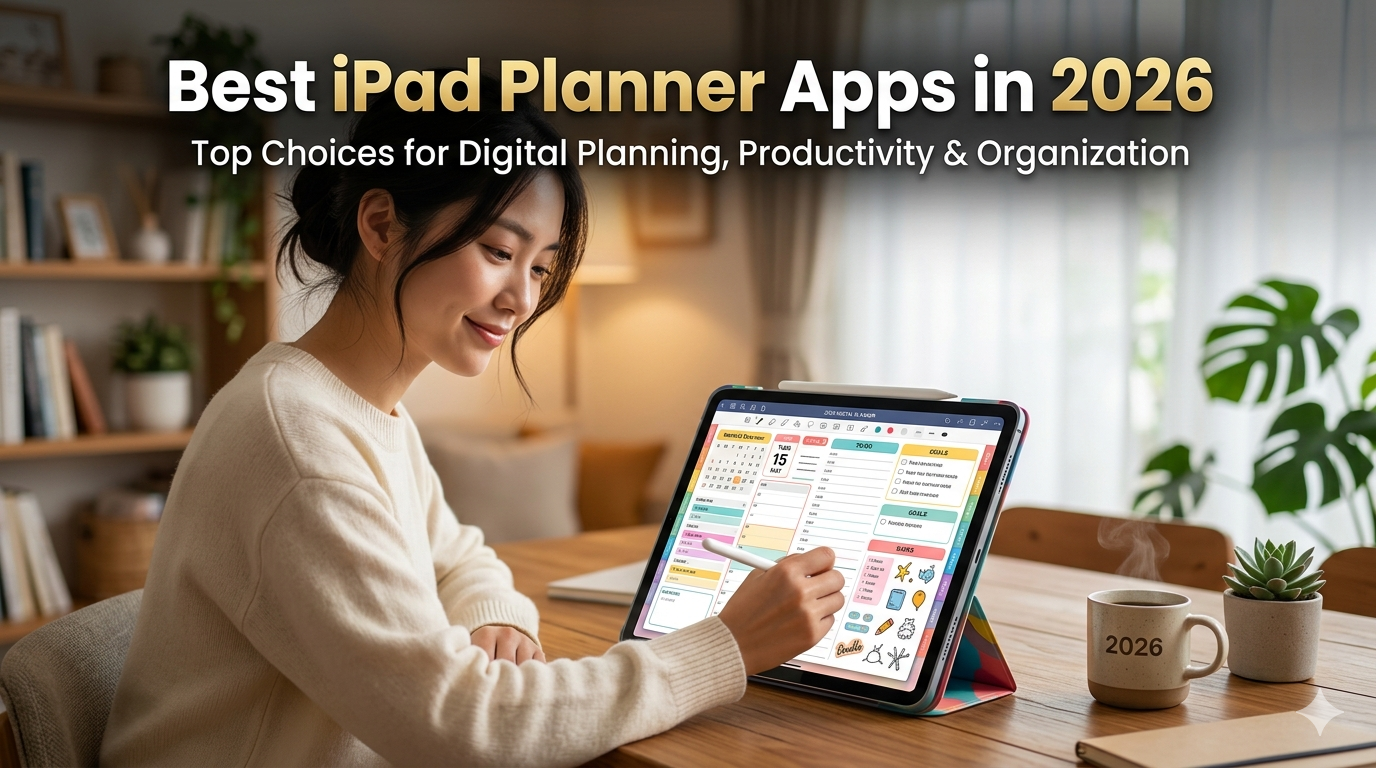
I make Planner for iPad. That means I have opinions — but it also means I’ve spent years studying what makes a planning app actually work. Here’s the most honest roundup you’ll find.
Every “best iPad planner apps” article you’ve read was written by someone who spent an afternoon downloading apps and taking screenshots. This one was written by someone who’s been building one since the Apple Pencil made handwriting on glass feel like handwriting on paper.
Yes, I’m biased. I’ll tell you exactly where. And I’ll also tell you where the other apps genuinely beat mine — because pretending they don’t would waste your time, and you’d figure it out anyway.
Here’s what matters in 2026: the iPad planner landscape has split into three distinct categories, and most roundups ignore this entirely. They throw GoodNotes, Notion, Fantastical, and a PDF template from Etsy into the same list and call it a comparison. That’s like comparing a Swiss Army knife, a chef’s knife, a butter knife, and a machete because they all cut things.
Let’s fix that.
The Three Categories You Need to Understand First
Before you pick an app, you need to know which kind of planning you’re actually doing. This is the single most important thing in this article.
Category 1: Handwriting-first planner apps. These are built around Apple Pencil. You write your plans by hand, you see your calendar, you use stickers and stamps. The experience is designed to feel like a paper planner that happens to sync with your life. Apps: Planner for iPad, Pencil Planner.
Category 2: Note-taking apps used as planners. These are powerful digital notebooks where people import PDF planner templates and use them with Apple Pencil. The app wasn’t built for planning — but the community made it work. Apps: GoodNotes, Notability, CollaNote.
Category 3: Typed productivity apps with iPad versions. These are task managers, calendar apps, or all-in-one workspaces. They run on iPad but aren’t designed around handwriting. Apps: Notion, Things 3, Todoist, Fantastical, Structured, TickTick.
There’s also a hybrid that doesn’t fit neatly: Zinnia, which is a creative journaling app with planner features. We’ll get to that.
The right category depends on one question: do you want to handwrite your plans, or type them? If you want to handwrite, you’re choosing between Categories 1 and 2. If you want to type, you’re in Category 3. Mixing them up is the number one reason people download an app, use it for four days, and abandon it.
Category 1: Handwriting-First Planner Apps
These apps exist because some of us want the ritual of handwriting — the slowness, the memory encoding, the feeling of putting pen to paper — without giving up calendar sync, search, and the fact that our iPad is already in our bag.
Planner for iPad
What it is: A native iPadOS planner app built from scratch around Apple Pencil handwriting and Apple Calendar display. Inspired by Japan’s techo (手帳) culture — the tradition of treating your planner as a personal companion, not just a productivity tool.
What it does well:
- Calendar sync that actually matters. Your Apple Calendar events (including Google Calendar, if synced through Apple Calendar) show up directly in your weekly and monthly views. You don’t copy them by hand. You don’t switch between apps. They’re just there — and your handwritten plans live alongside them. This is read-only display, which is a deliberate choice: your planner shows your schedule, but your handwriting stays in the planner where it belongs.
- Zero setup friction. Open the app, pick a week, start writing. No templates to import, no PDFs to download, no hyperlinks to debug. The dates are always correct because they’re generated dynamically.
- Built-in stickers and stamps. Decorating your planner doesn’t require importing PNG files from Etsy or managing a sticker library in a separate app. It’s all there — habit markers, mood icons, priority flags, decorative elements.
- It’s fast. Because it’s a native app — not a 500-page PDF loaded inside another app — it opens instantly and never lags, even after months of daily use.
What it doesn’t do:
- No handwriting-to-text conversion (OCR). You can’t search your handwritten notes by keyword.
- iPad only. No iPhone companion, no Mac version, no web access.
- No PDF annotation. This is a planner, not a document tool.
- No cross-platform sync. If you need your planner on a Windows laptop, this isn’t it.
Pricing: Free to download and use. Premium plans unlock additional templates, stickers, and features. No trial countdown — the free version is a real, usable planner.
Best for: People who want a dedicated handwriting planner with real calendar integration and no setup overhead. If you’ve tried the GoodNotes + PDF template workflow and found it too fiddly, this is the alternative that actually works as a planner out of the box.
Full disclosure: I built this app. I’m going to be honest about where the others beat it, and I think you’ll see that I am. But you should know.
Download Planner for iPad (free)
Pencil Planner & Calendar Pro
What it is: Another handwriting-first planner app with Apple Pencil support and calendar integration. It’s the closest direct competitor to Planner for iPad.
What it does well:
- Calendar integration with both Apple Calendar and Reminders. Events from your calendar appear in day, week, and month views, and you write over them with Apple Pencil — very similar concept to Planner for iPad.
- Multiple view layouts: day, week, month, year, and year grid. The day view is particularly detailed.
- Pen customization is solid — fountain pen, colored pencil, and highlighter options with adjustable thickness.
- Available on both iPad and iPhone.
What it doesn’t do well:
- Update frequency has slowed significantly. Multiple App Store reviews mention concern about whether the app is still actively maintained. The feature roadmap hasn’t been updated in some time, which is a real risk for an app you’re committing your planning life to.
- The V1-to-V2 transition frustrated some long-time users. V2 pushed handwriting-to-text conversion in the task area, which removed the freeform writing some users preferred.
- The interface can feel cluttered compared to more focused alternatives.
Pricing: Free with a subscription for premium features (around $12.99/year or $1.99/month).
Best for: People who want calendar sync plus handwriting and also need an iPhone companion app. If Planner for iPad’s lack of an iPhone version is a dealbreaker, Pencil Planner is worth trying — but check recent reviews to make sure the development pace meets your expectations.
Category 2: Note-Taking Apps Used as Planners
This is the most popular approach to iPad planning — and also the one with the most hidden friction. The apps themselves are excellent. Using them as planners is a workaround, and workarounds always have costs.
GoodNotes
What it is: One of the most beloved note-taking apps on iPad. Incredible handwriting engine, powerful PDF annotation, and — thanks to a massive Etsy ecosystem — a popular platform for PDF planner templates.
What it does well as a planner:
- The best handwriting experience on iPad, full stop. Pressure sensitivity, palm rejection, shape recognition, and handwriting search (OCR) are all industry-leading. If the physical act of writing is what matters most to you, GoodNotes wins here.
- Enormous template ecosystem. Thousands of PDF planner templates on Etsy, many of them beautifully designed with hyperlinked navigation between months, weeks, and days.
- Cross-platform: iPad, iPhone, Mac, Windows, Android, Web.
- AI features (GoodNotes 5/6) can summarize and organize your handwritten notes.
What it doesn’t do well as a planner:
- No calendar sync. This is the dealbreaker for many people. Your Apple Calendar events don’t appear in your GoodNotes planner template. You’re maintaining two completely separate systems — one for scheduled events, one for written plans. Every Sunday, you’re copying meetings by hand.
- PDF templates expire. When December hits, your 2026 planner is done. You buy a new template, import it, and your planning history is now split across files.
- Large planner PDFs get slow. A 400-page hyperlinked planner with months of handwriting and stickers can make GoodNotes lag noticeably.
- Broken hyperlinks in third-party templates are surprisingly common and extremely frustrating.
Pricing: Free (limited to 3 documents), Essential $11.99/year, Pro $35.99/year. Plus optional AI Pass at $9.99/month.
Best for: People who use their iPad primarily for note-taking and want planning as a secondary function inside the same app. If you’re a student who annotates lecture PDFs and also wants a planner in the same place, GoodNotes makes sense. If planning is your primary use, a dedicated planner app will serve you better.
Notability
What it is: A note-taking app famous for syncing audio recordings with handwritten notes — a killer feature for students and meeting-heavy professionals.
What it does well as a planner:
- Audio recording synced to your writing. Record a lecture or meeting, and Notability links your handwriting to the exact moment in the recording. Tap a word and hear what was being said when you wrote it. Nothing else does this.
- Good Apple Pencil experience with solid palm rejection.
- Built-in planner templates in the gallery, so you don’t have to go to Etsy.
- AI-generated note summaries.
What it doesn’t do well as a planner:
- Same calendar sync problem as GoodNotes. Your scheduled events live in a different world from your planner.
- The template selection is more limited than GoodNotes’ Etsy ecosystem.
- Notability moved to a subscription model, which bothered some long-time users.
Pricing: Free (limited features), $4.99/month for full access.
Best for: Students who attend lectures and want notes + planning in one place. The audio sync feature is genuinely unique and valuable — but it’s a note-taking feature, not a planning feature.
CollaNote
What it is: A free note-taking app that’s gained a devoted following for offering surprisingly solid handwriting and PDF annotation at no cost.
What it does well: Good Apple Pencil support, completely free, real-time collaboration. It’s the “I just want a free digital notebook” option that actually works.
What it doesn’t do well as a planner: Same limitations as GoodNotes and Notability — no calendar sync, PDF template dependency, no built-in planner structure.
Best for: Budget-conscious users (especially students) who want a free note-taking app and don’t mind the PDF template workflow.
Category 3: Typed Productivity Apps with iPad Versions
If you don’t care about handwriting — if you want to type your tasks, manage projects, and view calendars — these are the heavy hitters. They’re excellent at what they do. They’re just not “planners” in the handwriting-on-iPad sense.
Notion
What it is: A workspace that can become almost anything — database, wiki, project manager, journal, planner. It’s infinitely flexible, which is both its greatest strength and its biggest trap.
What it does well: Databases, linked views, templates, team collaboration, cross-platform everything. If you want to build a life operating system with interlinked projects, goals, and tasks, Notion is absurdly powerful.
What it doesn’t do well as an iPad planner: Handwriting support is minimal. The iPad app is functional but clearly designed for typed input. The “blank canvas” flexibility means you can spend weeks building a planning system instead of actually planning. And Notion’s complexity is the opposite of the simplicity that makes handwritten planning stick.
Pricing: Free for personal use, $10/month Plus, $20/month Business.
Best for: People who think in databases and systems. Not for people who think with a pen.
Things 3
What it is: The most elegant task manager on Apple platforms. Clean, focused, and beautifully designed.
What it does well: Task management that feels effortless. Natural language input, headings, checklists, tags, and a “Today” view that’s genuinely motivating. One-time purchase ($9.99 for iPad) with no subscription.
What it doesn’t do well: No handwriting. No calendar display (it integrates with Calendar for scheduling, but doesn’t show your events inline). It’s a to-do list, not a planner.
Best for: GTD practitioners and minimalists who want to type their tasks and check them off. Pairs well with a handwriting planner for the weekly overview.
Fantastical
What it is: The best calendar app on Apple platforms. Natural language event creation, beautiful design, and powerful scheduling features.
What it does well: If your planning life revolves around your calendar — events, invitations, scheduling — Fantastical is the premium option. Natural language input (“Lunch with Sarah Friday at noon”) is genuinely magical.
What it doesn’t do well: It’s a calendar, not a planner. You can’t handwrite on it. You can’t decorate it. You can’t reflect on your week with Apple Pencil.
Pricing: Free (limited), $4.99/month or $39.99/year for premium.
Best for: Heavy calendar users who want a better calendar app. Pairs well with a handwriting planner — use Fantastical for scheduling and a planner app for the handwritten layer on top.
Structured
What it is: A visual day planner that turns your tasks into a timeline. Strong following among ADHD users and time-blocking fans.
What it does well: The timeline view is excellent — you see your day as a visual block, with tasks slotted into specific time windows alongside calendar events. Calendar sync works well. AI-powered daily planning is a newer feature. Pomodoro timer built in.
What it doesn’t do well: No handwriting. It’s a typed task-and-timeline tool. The visual approach is great for daily planning but less useful for weekly or monthly reflection.
Pricing: Free (basic), Pro subscription for calendar sync, recurring tasks, and AI features.
Best for: Time-blockers who want to see their day as a visual timeline and prefer typing to writing.
Todoist / TickTick
Grouping these because they fill the same niche: cross-platform task managers with project organization, recurring tasks, and team collaboration.
Todoist is simpler and more elegant. TickTick adds a built-in Pomodoro timer and habit tracker. Both are typed, not handwritten. Both are excellent at task management and weak at the kind of reflective, handwritten planning that iPad + Apple Pencil makes possible.
Best for: People managing complex projects and task lists who need cross-platform access (including Android and web).
The Hybrid: Zinnia
Zinnia doesn’t fit neatly into the categories above, which is part of its charm.
What it is: A creative digital journaling and planning app. Think of it as a craft table for your iPad — you build your own spreads with stickers, washi tape, custom layouts, and handwriting. It’s the closest digital equivalent to the Instagram bullet journal aesthetic.
What it does well: Creative freedom. If you want your planner to be beautiful — scrapbook-style layouts, decorative elements, artistic expression — Zinnia gives you more creative tools than any other app. The sticker and washi tape libraries are extensive, and you can create custom stickers.
What it doesn’t do well: Planning, ironically. The creative setup process is time-consuming — you’re designing your planner before you use it. Calendar sync is limited. The subscription ($9.99/month or around $30–60/year depending on the plan) adds up. And the Apple Pencil interaction has some friction — stickers require finger input, which means switching between pencil and finger constantly.
Best for: Creative journalers who enjoy the process of building and decorating a planner as much as (or more than) actually planning.
The Honest Comparison: What Actually Matters
Let me cut through the feature lists and tell you what I’ve learned from building a planner app and watching how people actually use them.
Calendar sync is the #1 predictor of whether someone keeps using a digital planner. People who have to manually copy events from their calendar to their planner abandon the planner within weeks. It’s the single most tedious thing about digital planning, and it’s invisible in most app reviews because reviewers test apps for a few hours, not a few months.
Handwriting matters more than features. The apps with the longest retention aren’t the ones with the most features — they’re the ones where the daily act of writing feels good. That’s why GoodNotes users are so loyal despite the lack of calendar sync. The pen feels right.
Simplicity wins over time. The apps people are still using in December are the simple ones. Not the ones with 47 features and an AI assistant. The ones where you open the app, see your week, and start writing. Every feature that doesn’t directly serve the act of planning is a potential distraction.
PDF templates are a treadmill. They look amazing. They get abandoned at roughly the same rate as paper planners. The yearly repurchase cycle, the import friction, the broken hyperlinks, the sluggish performance — these are real costs that template sellers don’t show you in their Etsy previews.
My Actual Recommendation (With the Bias Acknowledged)
Here’s what I’d say if we were having coffee:
If you want to handwrite your plans and your life runs on Apple Calendar: Try Planner for iPad. It’s free. It does the thing you actually need — calendar sync + Apple Pencil — without the setup overhead. Yes, I made it. I also made it because nothing else was doing this well.
If handwriting quality is the single most important thing: Try GoodNotes. Be aware of the calendar sync gap, and decide if you can live with manual event entry. For some people, the writing experience is worth the tradeoff.
If you want creative expression in your planner: Try Zinnia. Budget for the subscription. Accept that setup takes time.
If you want to type, not write: Try Structured if you’re a visual time-blocker. Things 3 if you want elegance. Todoist or TickTick if you need cross-platform.
If you’re a student and budget is tight: CollaNote (free note-taking) + a free PDF template gets you started. When you’re ready to upgrade, Planner for iPad’s free tier is a genuine step up.
If you use Notion for everything else: Use Notion for planning too. The switching cost isn’t worth it.
And the advice nobody gives: try two apps for one week each, then pick. Don’t research for three weeks. Don’t watch seventeen YouTube reviews. Download two apps, use each one for a real work week, and keep the one you actually opened on day five. The planner you’re still using in May is the right one.
Planner for iPad is free to download on the App Store. Apple Calendar sync, Apple Pencil handwriting, stickers, templates. No trial timer. Get it here.
Have questions about which app is right for you? Check out our comparison guides: GoodNotes vs Planner for iPad, Notability vs Planner for iPad, Notion vs Planner for iPad. Or start from the beginning with our Complete Guide to Digital Planning on iPad.