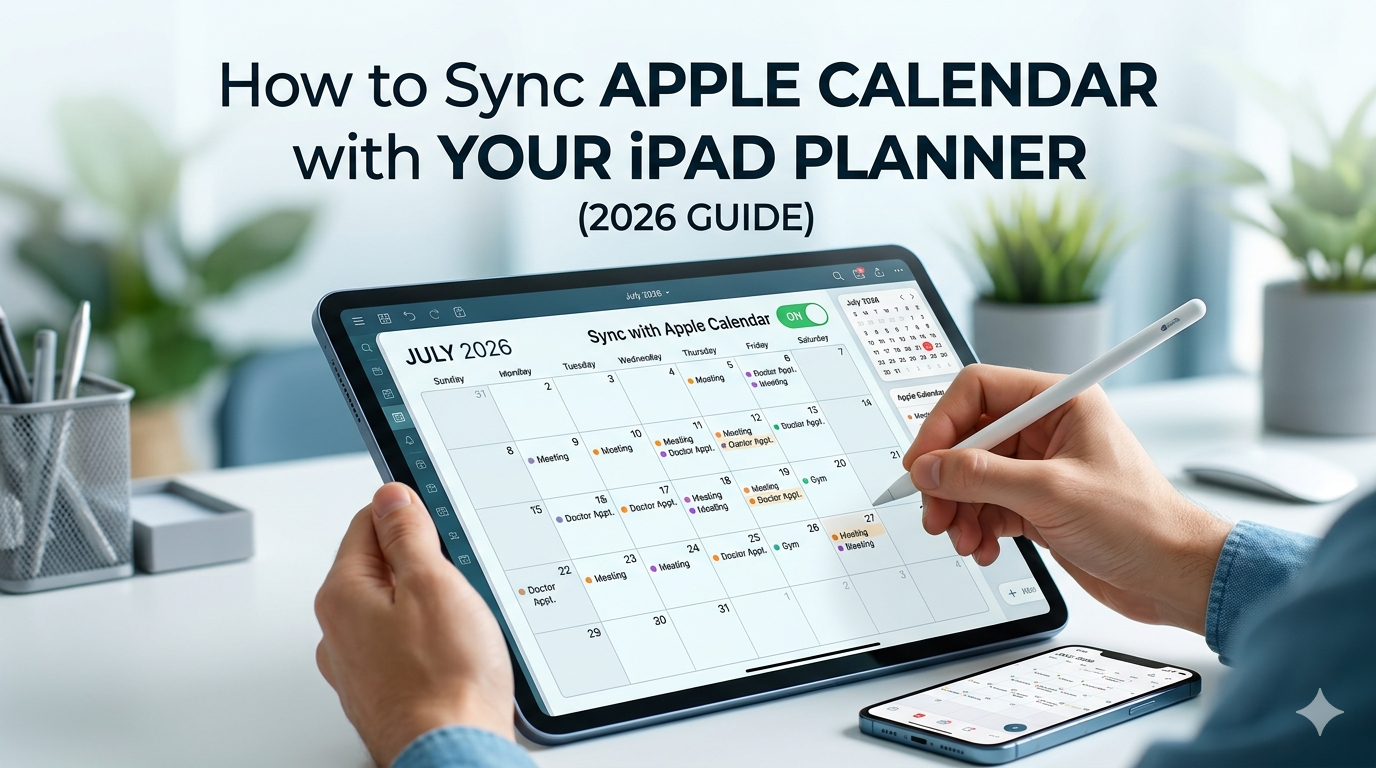
Your week is already in Apple Calendar. The dentist appointment, the team meeting, your kid’s recital, the flight on Friday. So when you open your iPad planner to map out the week, you have a choice: rewrite all of it by hand, or let your planner pull those events in automatically.
Most people don’t realize the second option exists — or assume it only works with one specific app. The truth is more interesting. Apple Calendar sync on iPad works through a system framework called EventKit, and the experience varies wildly depending on whether your “planner” is a PDF template inside GoodNotes, a third-party app like Fantastical, or a native iPadOS planner app built around calendar integration.
This guide walks through every realistic option, what each actually does, and how to set up sync in under five minutes. By the end, you’ll know exactly which approach fits your planning style — and why most “digital planners” can’t do this at all.
Why Calendar Sync Matters More Than You Think
Before we get into setup, it’s worth being honest about why this matters. A planner without calendar sync is a beautiful artifact. You write things down, you cross them off, and the act of doing so feels good. But your actual schedule — the part that decides whether you make it to the airport on time — lives somewhere else. Usually Apple Calendar, sometimes Google Calendar, occasionally Outlook.
When those two systems don’t talk to each other, three things happen:
You write events into your planner manually, which feels productive but is just data entry. You miss things, because the source of truth is the system that pings you, and your planner is the one you forgot to update. You stop trusting the planner, and within a few weeks it becomes a journal you open on Sundays.
Calendar sync solves this by making your planner a view of your real schedule rather than a parallel copy of it. The events you’ve already accepted, declined, or scheduled show up automatically. You add the planning layer — time blocks, intentions, notes, the things calendars don’t do well — on top of a foundation that’s always current.
How Calendar Sync Actually Works on iPad
This is the part most articles skip, and it’s the part that explains why your options are what they are.
When you add a calendar to the Apple Calendar app — whether it’s iCloud, Google, Exchange, or something else — iPadOS stores those events in a system database. Any other app on your iPad can request permission to read from that database using a framework called EventKit. EventKit accesses calendars synced with the iOS Calendar app, including third-party calendars integrated into the system, like Google or Exchange. So when a planner app says “syncs with Apple Calendar,” what it actually means is: it’s reading from the same well that Apple Calendar reads from.
This has two implications worth understanding.
First, you don’t need to manually add Google or Outlook to your planner separately. If those calendars are already showing up in Apple Calendar on your iPad, any planner app with EventKit access will see them too. One setup, all calendars.
Second, there are different levels of access. iPadOS lets apps request read-only, write-only, or full access to your calendar. A planner app that only displays events needs read-only. A planner app that also lets you create events from inside the planner needs full access. This distinction matters when you’re choosing an app, and we’ll come back to it.
The Four Ways to Get Calendar into Your iPad Planner
There are essentially four approaches, and they’re not equivalent. Here’s how they actually compare.
Approach 1: PDF Planners in GoodNotes or Notability
This is the most popular setup, and it’s also the one with the least real sync. PDF planners are static documents. You buy a PDF planner from Etsy or a creator’s shop, import it into GoodNotes or Notability, and write on the pages with Apple Pencil.
These apps don’t read from Apple Calendar at all. There’s no sync. If you want events to appear in your weekly spread, you copy them from Apple Calendar by hand, the same way you’d copy them into a paper planner.
Some people genuinely prefer this — the act of writing events down is itself part of the planning ritual. But if you’re looking for “sync” in any meaningful sense, this isn’t it. You’re using two unconnected systems and acting as the middleware.
Approach 2: Manual Subscription via iCloud or Google Sharing
A workaround some people use: subscribe to your Google Calendar inside Apple Calendar, then take screenshots of the week and import them as images into GoodNotes. Or use the “Print to PDF” function and drop a weekly view into your planner notebook.
This works in the sense that the events appear in your planner. But it’s a snapshot, not a sync. Add a meeting on Tuesday, and your Sunday screenshot is wrong. You’re back to manual updates, just with extra steps.
Worth mentioning because lots of people do it. Not worth recommending.
Approach 3: Calendar Apps with Planning Features (Fantastical, etc.)
Apps like Fantastical and Structured start from the calendar side. They show your Apple Calendar events directly and add a layer of planning features on top — time blocking, natural language input, integrated tasks.
This is real sync, and these apps are excellent at what they do. The trade-off: they’re calendar apps with planning bolted on, not planning apps with calendars bolted on. The interface is structured around your day’s events. If you want a planner experience — full-page weekly spreads, handwriting with Apple Pencil, stickers, templates, the visual ritual of opening a notebook — you won’t find it here.
For some people that’s exactly right. For people who came to digital planning from paper, it usually isn’t.
Approach 4: Native iPad Planner Apps with EventKit Integration
This is the category most people don’t know exists. A native iPadOS planner app — built ground-up as a planner, not as a PDF viewer or a calendar app — can request EventKit access and pull your Apple Calendar events directly into its planner spreads.
You get the planner-first interface (handwriting, stickers, templates, visual layouts) and automatic sync from Apple Calendar, Google Calendar, and any other calendar feeding into the iPad’s system calendar. The events appear in the right slots in your weekly view. When you add an event in Apple Calendar, it shows up in your planner automatically.
This is what Planner for iPad does, and it’s the approach we’ll set up step-by-step in the next section.
Setting Up Apple Calendar Sync in Planner for iPad
Planner for iPad is a native iPadOS app — not a PDF, not a calendar viewer with planning bolted on. It uses EventKit to read your iPad’s system calendars, which means anything you’ve connected to Apple Calendar on your iPad shows up automatically. iCloud calendars, Google Calendar, Outlook, work calendars from Exchange — if Apple Calendar can see it, Planner for iPad can display it.
Here’s how to set it up.
Step 1: Make Sure Your Calendars Are in Apple Calendar First
Open the Apple Calendar app on your iPad. You should see all the calendars you want to sync — work, personal, family, whatever. If a calendar is missing:
For Google Calendar, go to Settings → Calendar → Accounts → Add Account → Google. Sign in and toggle Calendars on. For Outlook or Exchange, the process is the same with the appropriate account type. For iCloud, it’s already there if you’re signed in to iCloud.
Once a calendar shows up in the Apple Calendar app, you’re done with this step. Planner for iPad will see it automatically.
Step 2: Install Planner for iPad and Grant Calendar Access
Download Planner for iPad from the App Store. The first time you open it and navigate to a calendar view, the app will request permission to access your calendar. iPadOS will show a system dialog asking whether to allow access.
Tap “Allow Full Access” or “Allow.” Planner for iPad uses read-only access for calendar sync, which means the app can display your events but won’t modify, delete, or create new ones in your underlying calendars. Your Apple Calendar data stays exactly as it is.
If you accidentally tap “Don’t Allow,” you can fix it later: go to Settings → Privacy & Security → Calendars, find Planner for iPad in the list, and toggle it on.
Step 3: Choose Which Calendars to Display
Once access is granted, your Apple Calendar events will appear in Planner for iPad’s weekly and daily views. By default, all your calendars are shown — but if you have a busy work calendar that clutters your personal planner, or a family calendar you don’t need to see during work planning, you can usually filter which calendars are displayed.
This is where the EventKit approach shines. The same color-coding and calendar grouping you have in Apple Calendar carries over. Your work calendar stays blue, your personal calendar stays green, and so on.
Step 4: Plan on Top of Your Synced Events
This is the part that matters. With your Apple Calendar events showing up automatically, you stop using your planner to record your schedule and start using it to think about your schedule.
You can write notes next to a meeting. Sketch out the agenda for tomorrow’s call. Add stickers to mark important deadlines. Time-block the gaps between your existing events. Draw a weekly intention at the top of the spread. None of this changes your underlying calendar — it’s planning content layered on top of your real schedule.
When tomorrow’s meeting moves to next week in Apple Calendar, Planner for iPad reflects the change. You don’t have to update anything by hand.
What Read-Only Sync Means (and Why It’s Actually Better)
A common question: why can’t I create events in my planner and have them sync back to Apple Calendar?
Some apps do this — full-access apps that write back to your system calendar. Planner for iPad currently uses read-only sync, and there’s a reasonable case that this is the right design choice for a planner app, not a limitation.
When your planner can write to your calendar, the planner becomes a calendar editor. Every doodled time block becomes a real event with notifications. Every scratched-out plan creates a calendar entry you have to clean up later. The boundary between “thinking about my time” and “scheduling my time” disappears, and the planning layer becomes another inbox to manage.
Read-only sync keeps the boundary intact. Apple Calendar is the source of truth for things that have to happen at specific times. Your planner is the space where you think about how to spend the time around those things. The two systems each do what they’re good at.
If you genuinely need to create an event during planning, you switch to Apple Calendar (it takes about three seconds), add it there, and it appears in your planner automatically the next time you look. In practice, this is fine. In design terms, it’s intentional.
Troubleshooting: When Sync Isn’t Working
A few things to check if events aren’t appearing.
Calendar permissions might be off. Go to Settings → Privacy & Security → Calendars, find your planner app, and confirm access is enabled. If you previously denied permission, this is where you reverse that.
The calendar might not be enabled in the Apple Calendar app. Open Apple Calendar, tap “Calendars” at the bottom, and make sure the calendar you want is checked. If it’s hidden in Apple Calendar, it’ll be hidden in your planner too.
Google Calendar can take time to sync. When you first add a Google account to your iPad, events can take a few minutes to populate. If new events you’ve added on your laptop aren’t showing up, give it 5–10 minutes and pull to refresh in Apple Calendar first.
Try restarting the planner app. EventKit doesn’t always push live updates aggressively to background apps. If you’ve added an event and it isn’t showing up, force-close the planner app and reopen it.
Check your iCloud sync. If events aren’t syncing across your devices in the first place, the issue isn’t your planner — it’s iCloud. Settings → [your name] → iCloud → Show All → Calendars should be on.
Should You Even Use Calendar Sync?
For most people, yes — because the alternative is doing data entry every Sunday for the rest of your life. But it’s worth being honest that calendar sync isn’t for everyone.
Some planners deliberately keep their digital planner separate from their calendar. They use the planner as a thinking space, free from the visual weight of every meeting, every commitment, every obligation. The blank week is the point. They want to look at Monday and decide what matters, not see Monday already half-claimed by other people’s requests.
If that’s you, you don’t need calendar sync. A PDF planner in GoodNotes might actually serve you better, and there’s nothing wrong with that.
If you’re the other kind of planner — the one whose calendar is your reality, and who wants the planner to amplify rather than ignore that reality — calendar sync is the difference between a planner you use and a planner you abandon by February.
The Bottom Line
If you’re using a PDF planner in GoodNotes or Notability, you don’t have calendar sync, and you can’t add it. The format doesn’t support it. You can paste in screenshots, but you’re doing the work yourself.
If you want a calendar app that does some planning, Fantastical and Structured are excellent.
If you want a planner-first experience with real Apple Calendar sync — the visual ritual of a digital notebook plus your actual schedule appearing automatically — you need a native iPad planner app with EventKit integration. That’s a smaller category of apps, and Planner for iPad is one of them.
The setup takes about three minutes. The time it saves you, week after week, is the whole point.