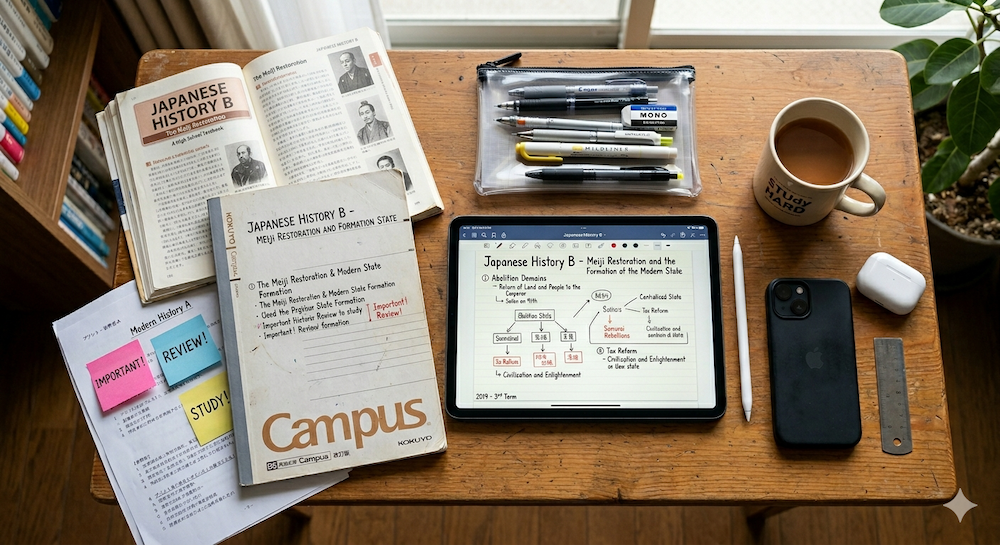
You have an iPad. You have classes, deadlines, and a social life to balance. Here’s how to find an iPad planner that survives past the first week of the semester.
There’s a particular kind of optimism that hits at the start of every semester. You download a new app, set up your schedule, maybe even color-code your courses. For about four days, you’re the most organized person you know.
Then week two arrives. You miss a lecture. The planner starts to feel like homework. By midterms, it’s sitting untouched in a folder labeled “Productivity” next to three other apps you also don’t open.
This isn’t a you problem. It’s a tool problem.
Most iPad planner apps aren’t designed for how students actually work. They’re designed for professionals with predictable schedules, or for planning enthusiasts who enjoy the act of setting up a system. Students need something different — something that handles a schedule that changes every semester, works with the calendar you already use, and doesn’t require a 30-minute setup ritual to be useful.
What Students Actually Need (And What They Don’t)
Before comparing apps, it helps to be honest about what makes student life different from the productivity scenarios most planner apps are built for.
Your schedule resets every semester. A professional’s calendar is roughly the same week to week. A student’s calendar is radically different every four months — new courses, new time slots, new buildings. Any planner that requires heavy upfront setup is asking you to rebuild your system twice a year. That’s a habit killer.
You have two types of time: class time and everything else. Most of your structured time is predetermined — lectures, labs, tutorials. What you actually need to plan is the unstructured time around those blocks. A good student planner makes that visible without making you re-enter your class schedule by hand.
Deadlines are everything. Assignments, exams, project milestones — student life runs on due dates that are set by someone else. You need to see them coming, not discover them the night before. A planner that shows your calendar events alongside your handwritten notes solves this naturally.
You’re already using Apple Calendar (or Google Calendar). If your university uses Google Workspace, your class schedule is probably in Google Calendar. If you use an iPhone or iPad, those events sync to Apple Calendar automatically. The planner app that can pull from that calendar — without you copying anything — has a massive advantage over one that starts with a blank page.
You don’t need a project management tool. Notion, Trello, Asana — these are powerful, but they’re built for teams and complex workflows. A second-year biology student juggling five courses doesn’t need a kanban board. They need to see Monday’s commitments at a glance and write down what to study tonight.
The Three Main Approaches (And Their Tradeoffs)
If you search “iPad planner for students” right now, you’ll find three broad categories of advice. Each has real strengths, but also a failure mode that hits students especially hard.
1. PDF Planner Templates in GoodNotes or Notability
This is the most popular approach in student communities. You buy a PDF template (usually from Etsy, sometimes free), import it into GoodNotes or Notability, and use Apple Pencil to write in the pre-designed layouts. Hyperlinks let you jump between monthly, weekly, and daily views.
Why students like it: It looks beautiful. The customization is endless. There’s a whole subculture of sticker packs, cover designs, and decorating sessions that make planning feel creative rather than tedious.
Where it breaks down: The template is static. When a new semester starts, you need a new template — or you’re flipping past five months of empty pages from last semester. If a professor moves a lecture or adds office hours, nothing updates automatically. You’re managing two separate systems: a calendar app for what’s actually happening, and a PDF planner for what you wrote down last week. The longer the semester goes, the wider the gap between those two becomes.
There’s also a subtler issue: the setup itself becomes the activity. Choosing the template, importing it, adding stickers, decorating the cover — all of that feels productive, but none of it is planning. For students who are already short on time, the aesthetics can become the procrastination.
2. Task Management Apps (Todoist, Things 3, TickTick)
These are text-based, keyboard-driven apps focused on to-do lists, recurring tasks, and project organization. They’re fast, powerful, and sync across every device.
Why students like it: You can dump every assignment, reading, and deadline into a list and trust that the app will remind you. Natural language input (“Read chapter 5 every Wednesday at 6pm”) makes adding tasks effortless. Some, like TickTick, include Pomodoro timers for study sessions.
Where it breaks down: These apps are great at capturing tasks but terrible at showing time. They give you a list, not a layout. You can see that you have twelve things to do this week, but you can’t see when you’re going to do them — because there’s no visual relationship between your tasks and your actual schedule. For students, who need to fit studying into the gaps between classes, that spatial awareness matters more than a sorted list.
Also, none of them support Apple Pencil in any meaningful way. If you’re holding a stylus in a lecture and want to jot down a quick note alongside your schedule, these apps aren’t designed for that.
3. Native Planner Apps with Calendar Integration
This is the category Planner for iPad belongs to. Instead of importing a template or building a system, you open an app that’s already structured as a planner — with daily, weekly, and monthly views — and it pulls in your existing calendar events so you’re never starting from a blank page.
Why it works for students: No setup between semesters. Your calendar changes, and the planner reflects that automatically. The weekly view shows your classes as fixed blocks, and the empty space around them is where you plan with Apple Pencil. There’s no gap between “what’s on my calendar” and “what’s in my planner” because they’re the same view.
The tradeoff: You don’t get the decorating culture of GoodNotes templates. The layouts are functional, not infinitely customizable. If the creative side of planning is what keeps you motivated, this approach can feel plain by comparison.
What Calendar Sync Actually Solves for Students
This might seem like a small feature, but for students, it changes the entire planning experience.
Here’s the scenario without calendar sync: it’s Sunday night. You open your planner to plan the week. First, you switch to your calendar app to check your class schedule — but wait, your study group moved to Thursday this week, and your professor added extra office hours on Wednesday. You switch back to your planner and start writing everything in. Halfway through, you get a text, check your phone, and never finish.
Now with calendar sync: you open Planner for iPad. Your class schedule is already there. The study group change is reflected because your friend updated the shared Google Calendar. The office hours are visible because your professor posted them through the university calendar. All you do is pick up your Apple Pencil and start writing around those blocks — what to study, what to prioritize, what can wait.
Planner for iPad syncs with Apple Calendar in read-only mode, which means it displays your events but doesn’t write back to your calendar. That’s actually a clean separation: your calendar app handles the scheduling, and your planner handles the thinking and handwriting. You’re not choosing between them — you’re layering one on top of the other.
For students using Google Calendar (which is most students at universities running Google Workspace), the setup is simple: sync your Google account in your iPad’s Settings, and those events appear in Apple Calendar, which Planner for iPad then displays. One-time setup. No recurring maintenance.
Handwriting in a World of Typing
There’s a specific reason handwriting matters for students, and it’s not about aesthetics.
If you’ve ever sat in a lecture and typed notes on a laptop, you’ve probably experienced the transcript problem: you captured every word the professor said, but when you read it back later, none of it stuck. You were transcribing, not processing.
Handwriting forces a different kind of engagement. You can’t write fast enough to capture everything, so your brain has to decide what matters in real time. That selective processing is what makes handwritten notes stickier than typed ones — and it applies to planning too.
When you handwrite your study plan for the evening, you’re making a small commitment. The physical act of forming the letters creates a sense of intention that dragging a task card in Notion doesn’t. It’s the same reason people still sign important documents by hand — the motor act makes it feel real.
Planner for iPad leans into this with full Apple Pencil support: pressure sensitivity, palm rejection, and the ability to write directly on your daily and weekly views. It also includes stamps and stickers for visual markers — circling an exam date, flagging a deadline, marking a study session as done. These small touches keep the experience engaging without requiring the elaborate decoration workflow of a GoodNotes template.
A Semester Workflow That Actually Sticks
Here’s a workflow designed specifically for students. It takes about 10 minutes per week total and doesn’t require maintaining any complex system.
Start of semester (one-time, 10 minutes): Make sure your class schedule is in Google Calendar or Apple Calendar. If your university publishes a course calendar, subscribe to it. Planner for iPad will pull everything in automatically.
Sunday evening (5 minutes): Open the weekly view. Your classes are already shown. Look at the gaps between them — that’s your planning canvas. With Apple Pencil, write your top priorities for the week: assignments due, exams coming, readings to finish. Don’t plan every hour. Just mark the anchors.
Daily (2 minutes): Open the daily view each morning. Your classes and appointments are visible. In the free space, handwrite 2–3 things you want to accomplish today. Be specific: “Read chapters 4–5 for Bio” is better than “study.” Cross them off as you go.
When an assignment is announced: Write it on the relevant day in your weekly view. Or just scribble a quick note on today’s page. Don’t worry about organizing it perfectly — the point is capture, not categorization.
Before exams: Flip back through previous weeks. Your handwritten notes, priorities, and crossed-off tasks create a natural record of what you’ve covered. It’s not a study guide, but it’s a map of where your time went — and that awareness is surprisingly useful for identifying gaps.
This workflow survives because it’s low-friction. You never have to set up a new template, import a new PDF, or rebuild your system. When next semester starts, your calendar updates and your planner follows. The only thing that changes is your handwriting.
How It Compares: A Quick Honest Look
Every tool has strengths. Here’s where Planner for iPad fits relative to what students commonly use:
vs. GoodNotes + PDF template: GoodNotes gives you more creative freedom and blank-canvas flexibility. Planner for iPad gives you calendar integration and zero setup. If you love decorating your planner and it genuinely keeps you engaged, GoodNotes is great. If you tend to spend more time setting up than actually planning, Planner for iPad removes that trap.
vs. Notability: Notability’s superpower is audio recording synced to your handwritten notes — unbeatable for lectures. But Notability isn’t a planner. It’s a note-taking app. If you want both, you can use Notability for lectures and Planner for iPad for scheduling and weekly planning. They serve different purposes.
vs. Notion: Notion is endlessly flexible, but that flexibility is a double-edged sword. Building a student planning system in Notion is a project in itself — and it doesn’t support Apple Pencil. If you think in databases and linked pages, Notion might work. If you think in handwritten lists and visual time blocks, it won’t.
vs. Apple Calendar alone: Apple Calendar shows you what’s happening but gives you no space to think around it. There’s no Apple Pencil support, no place to write priorities, no weekly overview you can annotate. Planner for iPad turns your calendar from a schedule into a planning surface.
vs. Things 3 / Todoist: Excellent task managers with no visual timeline. They tell you what to do but not when in the context of your actual schedule. If you’re disciplined enough to work from a flat list, these are powerful. If you need to see your tasks mapped against your class schedule, a visual planner works better.
What Planner for iPad Doesn’t Do (And That’s Fine)
Transparency matters, so here’s what this app isn’t:
It doesn’t auto-schedule your tasks. If you want an AI to tell you when to study, look at Motion or Morgen.
It doesn’t record lectures. For that, Notability is the standard. Use both if you need both.
It doesn’t sync across iPhone and Mac with a writing interface — it’s an iPad app, designed for iPad’s screen size and Apple Pencil. You plan on your iPad. That’s the scope.
It doesn’t do two-way calendar sync. You can see your events, but you can’t create new events from within the app. Your calendar app handles scheduling; Planner for iPad handles the handwritten thinking layer.
These limits are intentional. A planner that tries to do everything becomes another Notion — powerful but demanding. The value here is in what you don’t have to think about.
Try It Before the Semester Gets Away from You
Planner for iPad is free to download. No account required, no trial period, no “7 days until we lock your features.” You can sync your Apple Calendar, write with Apple Pencil, and plan your week without paying anything.
The best planner for students isn’t the most powerful one or the most beautiful one. It’s the one you’re still using in week eight.