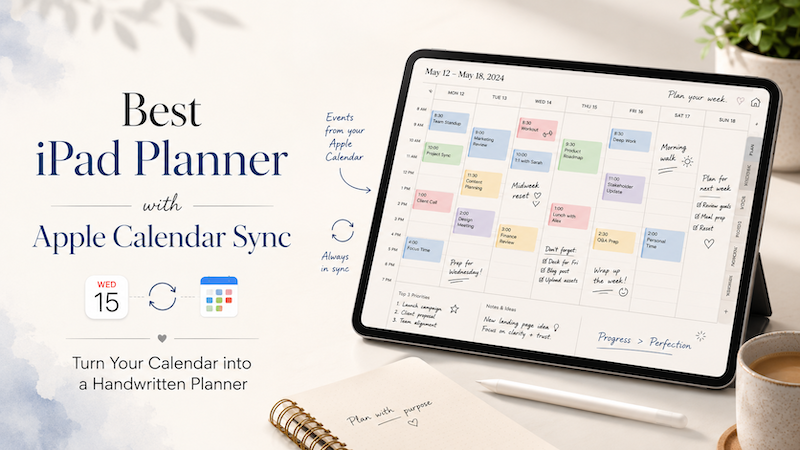
For many people, the calendar is where the day begins.
Meetings, appointments, classes, deadlines, reminders — they all live inside a calendar app. But when it comes to actually planning the day, a calendar alone often feels too rigid.
A calendar can tell you what is scheduled.
But it does not always help you think through how you want to spend your time.
That is why many iPad users still love handwritten planning. Writing with Apple Pencil feels more flexible, more personal, and more intentional than simply tapping on calendar blocks.
The problem is that traditional digital planners often separate your handwritten notes from your actual calendar events. You may have a beautiful PDF planner on your iPad, but your real schedule is somewhere else.
This is where an iPad planner with Apple Calendar sync becomes useful.
Instead of choosing between a calendar app and a handwritten planner, you can combine both.
Why Apple Calendar Sync Matters for iPad Planning
Apple Calendar is already deeply connected to the iPad experience.
Many people use it directly, while others use it as a bridge for calendars from services such as Google Calendar, Outlook, iCloud, work accounts, school accounts, or family calendars.
If your events appear in Apple Calendar, they can become part of your planning system.
That matters because your calendar is not just a list of events. It is the structure of your day.
A planner that can show your calendar events gives you a more realistic view of your time. You can see what is already scheduled before you start writing your tasks, notes, goals, or plans.
Without calendar sync, planning can become disconnected from reality.
You might write a long to-do list without noticing that half of your day is already filled with meetings. Or you might plan study sessions, errands, and personal projects without checking your existing appointments.
With Apple Calendar sync, your schedule becomes visible inside your planner, so you can plan around your real day.
The Problem with Traditional PDF Digital Planners
Many digital planners for iPad are based on PDF templates.
They can look beautiful. They often include monthly pages, weekly pages, daily pages, habit trackers, goal pages, and decorative layouts.
But PDF planners usually have one major limitation: they are static.
Your calendar events do not automatically appear inside them.
If your schedule changes, you need to manually update your planner. If a meeting is moved, canceled, or added, your handwritten planner does not know about it.
That creates double work.
You check your calendar app.
Then you open your planner.
Then you copy important events by hand.
Then you update them again when something changes.
For people who enjoy decorating planners, this may be fine. But for people who want a practical planning system, it can quickly become frustrating.
A planner should reduce friction, not create more of it.
What an Apple Calendar Planner Should Do
A good iPad planner with Apple Calendar sync should do more than simply display dates.
Ideally, it should let you:
- See your calendar events inside your planner pages
- Write notes around your events with Apple Pencil
- Plan your day without copying events manually
- Use your existing calendar accounts
- Combine structured schedules with flexible handwriting
- Keep the feeling of a paper planner while using the power of a digital calendar
This is the key idea:
Your calendar gives you structure.
Your handwriting gives you flexibility.
The best iPad planner combines both.
Planner for iPad: A Handwritten Planner Built Around Your Calendar
Planner for iPad is designed for people who want to use their iPad like a real planner, but without losing the benefits of digital calendar sync.
Instead of treating your calendar and planner as separate tools, Planner for iPad brings your calendar events directly into your planner pages.
You can see your schedule and write freely around it with Apple Pencil.
This makes it especially useful for people who like the feeling of handwriting but still rely on digital calendars for real scheduling.
You do not need to manually copy every appointment into your planner. Your calendar events can appear inside the planner, giving you a clear view of your day, week, or month.
Then you can add your own handwritten notes, priorities, ideas, reminders, and reflections.
It feels closer to using a paper planner — but with your actual calendar already included.
How Apple Calendar Sync Works in a Planner Workflow
The basic workflow is simple.
First, make sure your events are visible in Apple Calendar on your iPad.
This may include iCloud calendars, Google calendars, Outlook calendars, work calendars, school calendars, or other calendars that you have added to the Calendar app.
Then, when you use Planner for iPad, those calendar events can be shown inside your planner.
From there, you can use Apple Pencil to plan naturally.
For example, you might:
- Circle an important meeting
- Write preparation notes next to an event
- Add a handwritten to-do list beside your schedule
- Block out focus time
- Write reminders in the margins
- Reflect on how the day went
- Plan tomorrow based on today’s schedule
This is different from using a normal calendar app.
A calendar app is good for scheduling.
A handwritten planner is good for thinking.
Together, they create a more complete planning system.
Why Handwriting Still Matters
In a world full of productivity apps, handwriting may seem old-fashioned.
But many people continue to prefer handwritten planning because it feels more intentional.
Typing is fast, but writing slows you down in a useful way.
When you write something by hand, you are not just entering data. You are deciding what matters.
That is why Apple Pencil works so well for planning. It brings back the flexibility of paper while keeping the advantages of a digital device.
You can write messy notes, draw arrows, highlight important events, sketch ideas, or rearrange your thinking visually.
A calendar app usually wants everything to fit into neat boxes.
A handwritten planner gives you space to think.
Who Should Use an iPad Planner with Apple Calendar Sync?
An Apple Calendar planner is useful for many types of people.
Students
Students often have classes, assignments, exams, club activities, part-time jobs, and personal plans scattered across different places.
With a planner that shows calendar events, students can see their class schedule and write study plans around it.
Instead of keeping assignments, lectures, and study notes completely separate, they can build a single planning space on iPad.
Professionals
For professionals, meetings often dominate the calendar.
But meetings are not the same as planning.
You still need to prepare, take notes, follow up, prioritize tasks, and protect time for focused work.
An iPad planner with Apple Calendar sync lets you see your scheduled meetings while writing your own action items beside them.
Teachers
Teachers often need to manage lessons, meetings, school events, grading, preparation, and personal tasks.
A calendar shows the fixed schedule, but a planner gives room for lesson notes, reminders, and daily adjustments.
Using Apple Pencil makes this feel closer to a traditional teacher planner, but with digital calendar support.
Freelancers
Freelancers often manage multiple clients, projects, calls, deadlines, and personal tasks.
A synced planner helps bring structure to a flexible schedule.
You can see client meetings and deadlines while writing project notes, priorities, and next steps in the same space.
Paper Planner Fans
Some people simply prefer writing by hand.
They may have tried many task apps and productivity systems, but still feel most comfortable with a planner-style layout.
For them, an iPad planner with calendar sync can be the best of both worlds: the warmth of handwriting and the convenience of digital scheduling.
Apple Calendar vs Google Calendar vs Outlook Calendar on iPad
Many people ask whether they need to use Apple Calendar specifically.
The answer depends on how your calendars are set up.
On iPad, Apple Calendar can often act as a central place where multiple calendar accounts are displayed. If you use Google Calendar or Outlook Calendar, you may be able to add those accounts to the iPad Calendar app.
Once your events appear in Apple Calendar, they can become part of your iPad planning workflow.
This is why Apple Calendar sync is so important.
It is not only for people who use iCloud Calendar. It can also help people who rely on Google Calendar, Outlook, or other calendar accounts, as long as those events are available through Apple Calendar on the device.
In other words, Apple Calendar can become the bridge between your existing schedule and your handwritten planner.
Why Not Just Use a Calendar App?
Calendar apps are excellent for managing events.
They are great for:
- Creating meetings
- Setting alerts
- Sharing calendars
- Managing recurring events
- Checking availability
- Viewing schedules across devices
But planning is not only about events.
Planning also includes:
- Deciding priorities
- Thinking through tasks
- Making notes
- Preparing for meetings
- Reflecting on the day
- Breaking large goals into smaller steps
- Creating space for focused work
A normal calendar app is not always the best place for that.
This is why many people use both a calendar and a planner.
The problem is that using two separate systems can become messy.
An iPad planner with Apple Calendar sync solves this by bringing the schedule into the planner, so you can use both systems together.
A Better Daily Planning Routine on iPad
Here is a simple routine you can use with an Apple Calendar planner.
1. Check your calendar events
Start by looking at the fixed events already on your schedule.
These are the parts of your day that are already committed.
2. Write your top priorities
Next, write down the most important things you want to accomplish.
Keep this list realistic. Your available time depends on your calendar.
3. Plan around your events
Use the open space around your calendar events to write tasks, notes, reminders, or preparation points.
For example, if you have a meeting at 2 PM, you might write a short preparation checklist next to it.
4. Leave room for adjustment
Real days rarely go exactly as planned.
A handwritten planner makes it easy to cross things out, add notes, draw arrows, or move ideas around.
5. Review at the end of the day
At the end of the day, write a short note about what worked, what changed, and what should move to tomorrow.
This turns your planner into more than a schedule. It becomes a record of how you actually spend your time.
The Best iPad Planner Is Not Just a Digital Notebook
A good iPad planner should not simply imitate paper.
Paper is flexible, but it cannot update your calendar events.
Calendar apps are powerful, but they often feel too rigid for personal planning.
The best iPad planner sits between the two.
It gives you the freedom to write by hand while also connecting to the digital systems you already use.
That is what makes Apple Calendar sync so valuable.
It turns your planner from a blank template into a living planning space.
Final Thoughts
If you love handwriting but rely on a digital calendar, you should not have to choose between them.
An iPad planner with Apple Calendar sync lets you see your real schedule and plan around it naturally with Apple Pencil.
You can keep the structure of your calendar, the flexibility of handwriting, and the convenience of your iPad in one place.
For anyone who wants a more personal, visual, and practical way to plan, Planner for iPad is a strong option.
Instead of replacing your calendar, it adds a handwritten planning layer on top of it.
That is where digital planning on iPad becomes truly useful.
Try Planner for iPad here: