Your work meetings are in Outlook.
Your personal appointments are in Apple Calendar.
Your partner adds school events and family plans to a shared calendar.
Meanwhile, birthdays, holidays, travel reservations, and recurring activities all seem to have calendars of their own.
Using multiple calendars is not necessarily the problem. In fact, separating different parts of your life can make scheduling easier.
The real problem begins when you have to check three or four apps before you can answer a simple question:
What does my week actually look like?
The best iPad planner for multiple calendars should not force you to move every event into a single account. It should bring your existing calendars together, show them in one clear planning view, and give you space to decide what to do with the time between them.
That is where an iPad planner with calendar sync and Apple Pencil support can be especially useful.
You Do Not Need One Calendar for Everything
When people feel overwhelmed by multiple calendars, their first instinct is often to consolidate everything into one calendar.
That sounds tidy, but it can create new problems.
A single calendar containing work meetings, medical appointments, school events, birthdays, exercise plans, reminders, and household tasks quickly becomes difficult to scan. It also makes sharing complicated. Your coworkers do not need to see your family schedule, and your family does not need access to every work meeting.
A better system is:
- Keep separate calendars for separate areas of life
- Display them together when planning
- Hide calendars that are not relevant to the current view
- Use one planner as the place where you make sense of everything
Apple Calendar on iPad supports multiple calendar accounts, including iCloud, Google, Microsoft Exchange, and other providers. It can display calendars from those accounts together, while preserving their separate names and colors.
The goal is not to create one enormous calendar.
The goal is to create one reliable view of your time.
Why Multiple Calendars Become Difficult to Manage
Each calendar may work perfectly on its own.
Your work calendar tells you when meetings happen. Your personal calendar stores appointments. A shared family calendar keeps everyone aware of school events, activities, and travel plans.
The difficulty appears at the boundaries between them.
A work meeting ends at 5:00 p.m., but you need to collect your child at 5:30.
A personal appointment overlaps with a project deadline.
A family event occupies Saturday afternoon, but your personal planner still assumes the whole weekend is available.
No individual calendar is wrong. Each one simply shows only part of your life.
This is why checking your calendars separately is not enough. You need to see them together before you can make a realistic plan.
What the Best iPad Planner for Multiple Calendars Should Do
A useful iPad planner for multiple calendars should provide more than a place to write.
It should help you see your existing commitments without manually copying them into a digital notebook.
Display Calendars You Already Use
You should not have to rebuild your schedule inside the planner.
If your work events already exist in Outlook, your personal appointments are stored in iCloud, and your family uses Google Calendar, the planner should work with those sources rather than replace them.
Keep Calendar Events Current
A copied event is only accurate until someone changes it.
If a meeting moves from Tuesday to Thursday, a handwritten copy remains on Tuesday until you erase and rewrite it. A static PDF planner has the same problem: anything you type or write onto the page is disconnected from the original calendar event.
A planner with live calendar integration can display the updated event in its new position.
Preserve the Difference Between Calendars
Combining calendars should not mean losing their identities.
You still need to recognize which events belong to work, personal life, family, school, or another category. Calendar names and consistent colors make a combined schedule easier to understand.
Give You Space to Think
Calendar apps are excellent at storing fixed events.
They are less suited to incomplete thoughts such as:
- Prepare questions before the meeting
- Leave early because traffic may be bad
- Move this task if the morning becomes busy
- Ask about the school form
- Protect Friday afternoon for focused work
An iPad planner should let you place these thoughts around your real schedule using Apple Pencil.
That handwritten layer is where a calendar becomes a plan.
A Simple Calendar Structure for Work, Personal, and Family Life
You do not need a complicated collection of calendars.
For most people, three main calendars provide enough separation.
1. Work Calendar
Use your work calendar for commitments connected to your job:
- Meetings
- Client calls
- Presentations
- Work travel
- Company events
- Deadlines that occur at a specific time
If your employer uses Microsoft 365 or Google Workspace, continue using the calendar attached to that account. There is usually no reason to duplicate work events in a personal iCloud calendar.
Keep confidential information inside the system approved by your workplace. A combined planner view can help you see when a meeting occurs without requiring you to copy sensitive notes into a shared family calendar.
2. Personal Calendar
Your personal calendar can contain events that apply primarily to you:
- Medical appointments
- Exercise classes
- Social plans
- Personal travel
- Haircuts and other appointments
- Important renewal dates
- Time reserved for hobbies or rest
This calendar is useful for commitments that affect your availability but do not belong to work or the household as a whole.
3. Family Calendar
A shared family calendar can contain events that other household members need to know about:
- School events
- Children’s activities
- Family appointments
- Trips
- Visitors
- Shared errands
- Birthdays and celebrations
- Household maintenance appointments
An iCloud calendar can be shared with other iCloud users, with either editing permission or read-only access. This allows family members to view the same schedule without sharing every personal calendar.
The family calendar should contain information relevant to the family, not a complete copy of everyone’s private schedule.
For example, instead of sharing the full details of a medical appointment, you might add a simple event such as “Unavailable” when that is all the household needs to know.
Optional Calendars to Add Carefully
You may also use calendars for:
- Birthdays
- National holidays
- School terms
- Sports schedules
- Project milestones
- Meal planning
- Content publishing
- Travel itineraries
These can be useful, but every additional calendar creates more visual noise.
Before adding one, ask:
Do I need to see these events while planning an ordinary week?
A holiday calendar may be useful all year. A sports schedule may only need to be visible during the season. A project milestone calendar may be valuable during work planning but unnecessary when looking at a family weekend.
Apple Calendar lets you choose which calendars are currently visible and assign colors to many calendar types.
You do not have to display everything all the time.
How to Combine Multiple Calendars on iPad
The simplest approach is to use Apple Calendar as the system-level hub on your iPad.
This does not mean moving all your events into iCloud. It means connecting the calendar accounts you already use so that iPadOS can display them together.
Step 1: Add Your Calendar Accounts to iPad
Open the Settings app and go to:
Apps → Calendar → Calendar Accounts → Add Account
Add the services you use, such as:
- iCloud
- Microsoft Exchange
- Yahoo
- A supported CalDAV account
Sign in and make sure calendar syncing is enabled.
Apple documents support for adding multiple accounts from providers such as iCloud, Google, and Microsoft Exchange to Calendar on iPad.
Step 2: Check Apple Calendar
Open Apple Calendar and view the calendar list.
Confirm that the calendars you need are visible:
- Work
- Personal
- Family
- School
- Shared calendars
- Any useful subscriptions
If a calendar is missing here, it will usually also be missing from planner apps that read the iPad’s system calendar.
Step 3: Rename Calendars Clearly
Avoid vague names such as:
- Calendar
- New Calendar
- Events
- Main
Use names that can be understood immediately:
- Work
- Personal
- Family
- School
- Client Projects
- Travel
Clear names matter when several events appear close together.
Step 4: Choose a Default Calendar
When you create a new event, iPadOS can place it into a default calendar automatically.
Choose the calendar you use most often, but check the calendar field whenever you create an event. Otherwise, a personal appointment may accidentally appear in your work calendar or a family event may remain visible only to you.
The default calendar saves taps. It should not replace checking where an event belongs.
Step 5: Connect a Planner That Reads Apple Calendar
Once your accounts appear in Apple Calendar, use an iPad planner that can display those system calendars.
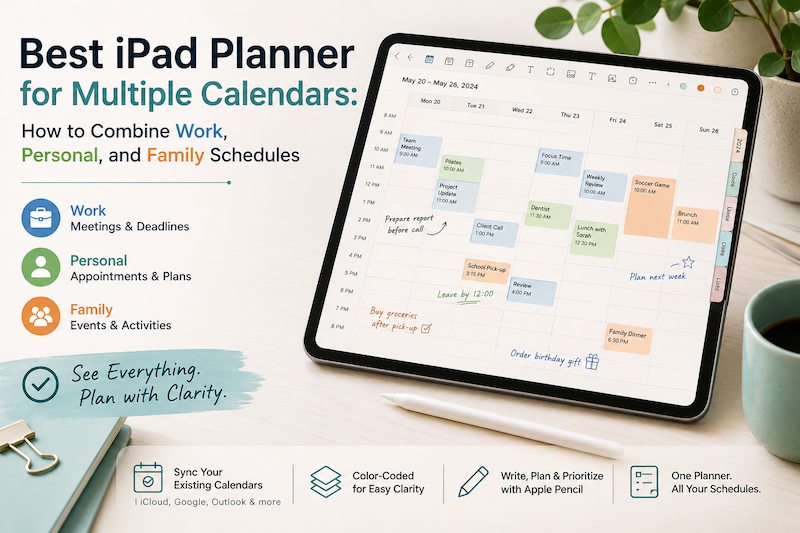
Planner for iPad reads calendars connected to Apple Calendar, so events from sources such as iCloud, Google Calendar, Outlook, and Exchange can appear in the planner without being copied manually. The app then allows you to write directly around those events with Apple Pencil.
This creates a useful division of labor:
Your calendar stores what is scheduled.
Your planner helps you decide how to handle it.
Use Color Without Turning the Week into a Rainbow
Color is one of the easiest ways to distinguish calendars, but too many colors can make the schedule harder to read.
A simple system works better.
For example:
- Work: blue
- Personal: green
- Family: orange
- School: yellow
- Travel: purple
The exact colors do not matter. Consistency does.
Do not change colors every few weeks based on mood or aesthetics. The purpose of color is recognition. After using the same system for a while, you should be able to identify an event category without reading its full title.
It is also helpful to reserve bright or intense colors for calendars that require attention. If every calendar uses an equally strong color, nothing stands out.
Color should answer one question quickly:
What part of my life does this event belong to?
It does not need to communicate priority, status, duration, mood, and ownership at the same time.
Separate Events, Tasks, and Planning Notes
One reason calendars become crowded is that people use them to store everything.
A calendar is not always the best place for a task.
Consider these three types of information.
Calendar Events
Put something on the calendar when it must happen at a particular time or occupies a specific block of time.
Examples:
- Team meeting at 10:00
- Dentist appointment at 3:30
- School performance at 6:00
- Flight departure at 8:15
Tasks and Reminders
Use a task or reminder when something needs to be completed but does not yet require a fixed time.
Examples:
- Send the invoice
- Buy a birthday gift
- Complete the permission form
- Book a hotel
- Prepare slides
Handwritten Planning Notes
Use the planner for context, priorities, and decisions.
Examples:
- Finish the draft before the afternoon meeting
- Ask Emma about the revised deadline
- Leave a 30-minute buffer before pickup
- Keep Thursday evening free
- Move the workout if the appointment runs late
This separation keeps the calendar readable.
It also prevents tentative plans from becoming permanent-looking appointments.
How Handwriting Helps When Calendars Are Already Full
At first, handwriting may seem unnecessary when all your events are already digital.
But displaying events is not the same as planning around them.
Imagine that your Tuesday contains:
- A work meeting from 9:00 to 10:00
- A dentist appointment at 12:30
- School pickup at 3:30
- A family dinner at 6:00
The calendar shows the fixed structure of the day.
On the planner page, you might add:
- Review the proposal before 9:00
- Leave at 12:00
- Buy groceries after the dentist
- Bring the school form
- Do not schedule focused work after 3:00
These notes do not need to become calendar events. They are decisions about how to move through the day.
That is the advantage of combining calendar sync with Apple Pencil.
You keep the accuracy of a digital calendar without giving up the flexibility of a handwritten planner.
A Weekly Planning Routine for Multiple Calendars
A combined system works best when you review it regularly.
You do not need an elaborate Sunday planning ritual. Ten or fifteen focused minutes can be enough.
Review the Entire Week
Display your work, personal, and family calendars together.
Look for:
- Overlapping events
- Travel time between commitments
- Days with too many transitions
- Evenings that are already occupied
- Deadlines that need preparation time
- Family plans that affect work availability
The purpose is not to memorize the schedule. It is to notice conflicts before they become emergencies.
Mark the Fixed Commitments
Treat calendar events as the fixed frame of the week.
You do not need to rewrite them. They are already visible and will remain connected to the original calendar.
Instead, use handwriting to circle, underline, or annotate the commitments that require preparation.
Plan the Gaps
The empty spaces between events are where your actual work and personal priorities must fit.
Ask:
- Which task needs uninterrupted time?
- Where is there enough time for errands?
- Which evening needs to remain unplanned?
- When can I prepare for important meetings?
- Does this week include any recovery time?
A blank space is not automatically available time. Travel, setup, meals, and mental recovery also take time.
Hide Calendars When Necessary
A complete view is useful for weekly planning, but it may be distracting during focused work.
When planning a workday, you may only need work and essential family events.
When planning the weekend, you may hide routine work meetings.
Filtering calendars is not ignoring part of your life. It is reducing noise so you can focus on the current decision.
Example: Planning One Day Across Three Calendars
Suppose Wednesday contains the following events.
Work calendar
- 9:00 — Team meeting
- 1:00 — Client call
- 4:00 — Project review
Personal calendar
- 11:30 — Medical appointment
Family calendar
- 3:15 — School pickup
- 6:30 — Family dinner
Looking at the work calendar alone, the afternoon seems manageable.
Looking at all three calendars together, the conflict becomes obvious: the project review overlaps with school pickup.
The combined view allows you to act before Wednesday:
- Ask whether the review can move
- Arrange for someone else to handle pickup
- Join part of the review remotely
- Reschedule the appointment if necessary
You can then write the decision directly on the planner page:
“Confirm pickup arrangement by Tuesday.”
This is what a multiple-calendar planner should help you do. It should not merely display more information. It should make conflicts easier to see and decisions easier to record.
Common Multiple-Calendar Mistakes
Copying the Same Event into Several Calendars
Duplicates create confusion.
When an event changes, one copy may update while another remains at the old time. Keep one authoritative version of the event and share or display that calendar where needed.
Creating Too Many Categories
You probably do not need separate calendars for exercise, reading, shopping, cleaning, meals, hobbies, and every individual project.
Start with broad categories. Add another calendar only when it solves a real visibility or sharing problem.
Sharing More Information Than Necessary
A shared family calendar should help coordinate the household. It does not need to expose the details of every personal or professional event.
Use neutral titles such as “Busy” or “Appointment” when other people only need to know that you are unavailable.
Using the Calendar as a To-Do List
Scheduling every minor task makes the calendar visually dense and difficult to trust.
Reserve calendar space for actual commitments and deliberate time blocks. Keep flexible tasks in a reminder system or handwritten list.
Planning Each Area of Life Separately
A perfect work plan may be impossible once family and personal commitments are included.
Always review the combined week before deciding how much work, exercise, social activity, or personal administration you can realistically complete.
Why Planner for iPad Works Well with Multiple Calendars
Planner for iPad is designed for people who want both an up-to-date digital schedule and the freedom of a paper-style planner.
It can display events from calendars connected to Apple Calendar, including calendars originating from services such as Google Calendar and Outlook. You can then use Apple Pencil to write on daily, weekly, and monthly planner views.
This means you do not need to:
- Copy meetings into a PDF planner
- Rewrite family events every week
- Update handwritten entries when an appointment moves
- Switch constantly between a calendar and a notebook
- Abandon the calendar system your workplace or family already uses
Planner for iPad uses calendar access as a read-only planning layer. Your original events remain managed by their calendar services, while the planner becomes the place where you add priorities, notes, time blocks, and handwritten context.
For people managing work, personal, and family schedules, that distinction is valuable.
The calendar remains reliable.
The planner remains flexible.
The Bottom Line
Managing multiple calendars does not require moving everything into one account.
Keep work events in your work calendar.
Keep personal appointments in your personal calendar.
Use a shared calendar for plans that affect the household.
Then bring those calendars together on your iPad when you need to understand the whole week.
The best iPad planner for multiple calendars should show your real schedule without forcing you to recreate it. It should preserve the separation between work, personal, and family life while giving you one place to notice conflicts, plan the gaps, and write down the decisions that a calendar alone cannot capture.
That is the balance Planner for iPad is designed to provide: multiple calendars underneath, one clear planner view on top, and the freedom to think through your week with Apple Pencil.
Download Planner for iPad on the App Store and turn your separate calendars into one practical planning system.