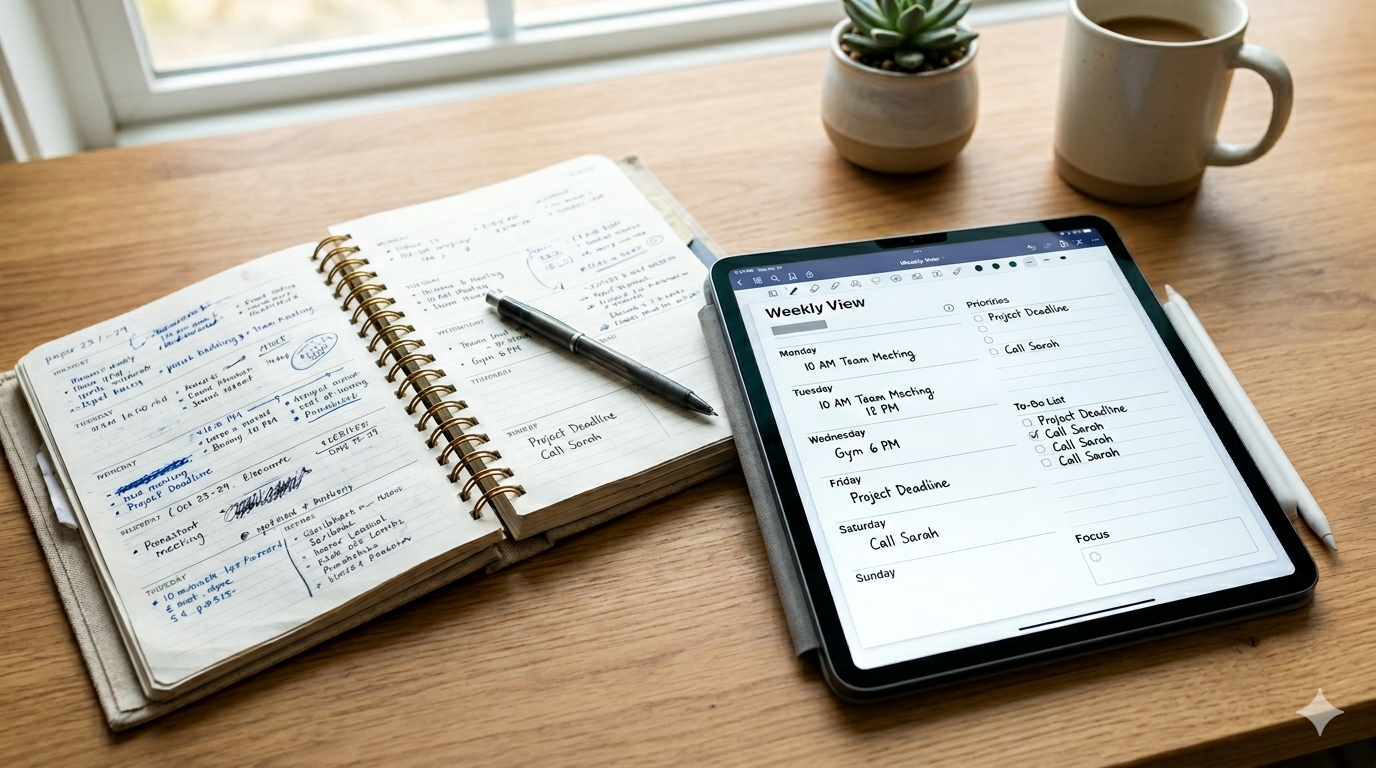
There’s a quiet argument that’s been circulating for years: handwritten planners are inefficient. They’re slow. They don’t sync. You can’t search them. You can’t back them up. If you drop one in a puddle, your entire third quarter is gone. Apps, the argument goes, are simply better tools for getting things done.
If you’ve ever stood in a stationery aisle holding a beautiful Hobonichi or Moleskine and felt a small wave of guilt — like you were about to choose aesthetics over output — this post is for you.
The productivity case against handwriting isn’t wrong, exactly. It’s just incomplete. And the solution most people reach for — abandoning handwriting entirely for something like Notion or Todoist — often makes the problem worse, not better. Here’s a different path.
The real reason handwritten planners feel “unproductive”
When people say paper planners are inefficient, they usually mean one of three specific things:
Friction. You can’t copy and paste. You can’t drag a task from Tuesday to Thursday. You write the same recurring meeting fifty-two times a year.
Fragility. Your planner exists in exactly one place. If you forget it at home, your day is invisible. If you lose it, your year is gone.
Isolation. A paper planner doesn’t know your calendar exists. It can’t remind you of anything. It doesn’t talk to your other tools.
These are real problems. But notice what’s not on the list: the act of writing by hand itself. Every honest accounting of handwriting in productivity research points the opposite direction. Writing by hand activates more areas of the brain than typing, leading to better memory retention and learning. The slowness people complain about is the same slowness that makes the information stick.
So the actual question isn’t “handwriting versus typing.” It’s “is there a way to keep the cognitive benefits of handwriting while losing the friction, fragility, and isolation?”
What changes when handwriting moves to iPad
The Apple Pencil is the part most people underestimate. It isn’t a stylus that approximates writing — it’s a writing instrument that happens to be digital. The latency is low enough that the pen feels like it’s leaving ink behind your hand, not chasing it.
Once handwriting becomes digital ink, the three complaints above start to dissolve:
- You can’t lose it. Your planner lives in iCloud. Drop your iPad in a lake and your January through December are still there when you open the replacement.
- You can move things. Drag a task to a different day. Erase without crossing out. Duplicate a weekly template.
- It can talk to your other tools. Your calendar events show up next to your handwriting.
This is the territory Planner for iPad was built for. It’s not a notes app. It’s not a PDF viewer. It’s a dedicated handwriting planner — designed from the start around the assumption that you want to write, not type, your way through your week.
How to actually use it (a practical setup)
If you’re coming from paper, the temptation is to recreate your paper system pixel-for-pixel. Don’t. The whole point is to use the things paper couldn’t do. Here’s a setup that works for most people in their first week.
1. Pick a template and stop redesigning it. Planner for iPad ships with weekly, daily, and monthly templates. Choose one and commit for fourteen days before changing anything. The cost of constantly redesigning your planner is the single biggest hidden tax in the digital planning world — and Etsy template culture has made it worse, not better. Pick one. Use it. Iterate later.
2. Connect your calendar — but understand what that means. Planner for iPad displays your Apple Calendar and Google Calendar events directly in your weekly and daily views. This is read-only display: events you’ve already created in your calendar app appear in your planner so you can see them while you’re writing. The app doesn’t write back to your calendar — that stays in your dedicated calendar app, where it belongs. In practice this is exactly what you want. You see your meetings while you plan around them, without your planner becoming a second source of truth that drifts out of sync.
3. Write your tasks by hand. Type nothing. This is the part people skip and then wonder why their digital planner feels like a worse version of Todoist. The whole point is to use the Pencil. Write your daily tasks. Write your weekly intentions. Write the meeting notes. The friction of writing is the feature — it forces you to think about what’s worth writing.
4. Use stamps and stickers for repetitive structure. Recurring categories — workout, deep work, errands — get stamps. This gives you the visual scanability of a Bullet Journal without the labor of redrawing the same icons every week.
5. Review weekly with the Pencil, not the keyboard. Sunday evening, open last week. Read what you wrote. Circle what mattered. Cross out what didn’t. Carry forward what’s still alive. This takes ten minutes and is the single highest-ROI habit in any planning system.
When this setup outperforms a typed system
For about a year I tracked which planning approach worked best for which kind of work. The pattern was consistent.
Typed task managers (Todoist, Things, Notion) win when work is transactional and high-volume — lots of small, well-defined tasks that need to be captured fast and checked off. Email triage. Bug tickets. Errands.
Handwritten planning on iPad wins when work is ambiguous and requires thinking — figuring out what to do, not just doing it. Quarterly planning. Project scoping. Weekly reviews. Days where you’re not sure what’s actually important and need to slow down enough to find out.
Most knowledge workers have both kinds of work and don’t need to choose. Use a typed task manager for the transactional layer. Use a handwriting planner for the thinking layer. They don’t compete — they cover different problems.
What you give up
Honesty matters here. Handwriting on iPad is not strictly better than every alternative. A few real tradeoffs:
- Search is imperfect. Handwriting recognition has improved enormously, but it’s not as fast or reliable as searching typed text. If your job depends on retrieving a specific phrase from six months ago, type it.
- Speed of capture is lower. Typing is faster than writing. If you need to dump fifty action items in two minutes, a keyboard wins.
- It requires an iPad and Apple Pencil. This is real money, and worth being upfront about. If you don’t already own these, the math gets harder.
If you’re looking for the absolute fastest input method, this isn’t it. If you’re looking for a tool that helps you think through your week instead of just listing it, it might be.
The shorter version
Handwritten planners aren’t bad for productivity. Disconnected planners are bad for productivity. Move handwriting onto an iPad and the disconnection goes away while the cognitive benefits of writing by hand stay intact. Planner for iPad is built around exactly this premise — a dedicated handwriting planner that syncs your calendar in for context, runs on Apple Pencil, and stays out of your way.
If you’ve been feeling guilty about wanting to write your plans by hand, stop. The instinct was right. You just needed better paper.