A calendar tells you what is scheduled.
A daily planner helps you decide what to do with the rest of your day.
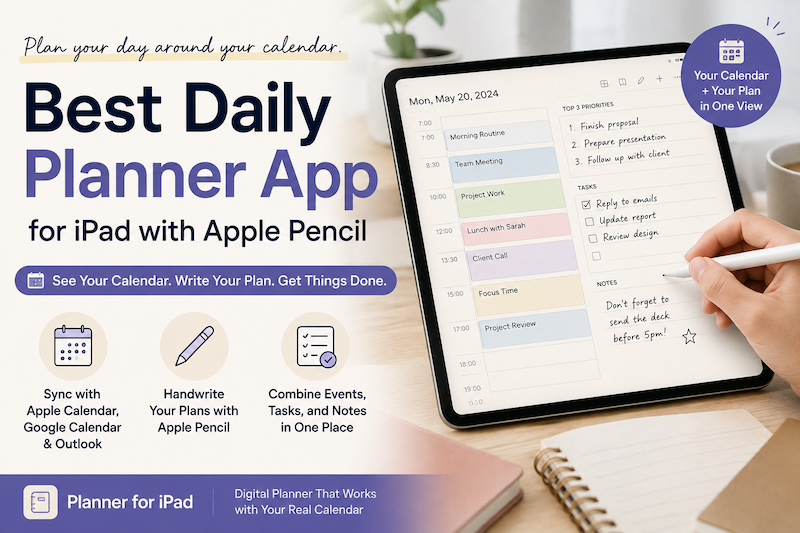
On an iPad, these two things do not have to live in separate apps. With the right daily planner, you can see your calendar events, write plans with Apple Pencil, organize tasks, and add notes—all in one place.
If you like the flexibility of a paper planner but also rely on Apple Calendar or Google Calendar, a daily planner app designed around both handwriting and calendar integration can be a much more practical solution.
In this article, we’ll look at what makes a good daily planner for iPad and how Planner for iPad can help you plan your day around the events already on your calendar.
Why Use a Daily Planner When You Already Have a Calendar?
Calendar apps are excellent at managing appointments.
You can use them for meetings, classes, deadlines, reservations, and other events that happen at a specific time.
But many parts of your day do not belong on a calendar.
For example:
- Finish a presentation
- Call a client
- Buy groceries
- Review notes from yesterday
- Think through an idea
- Write down something you do not want to forget
You could turn all of these into calendar events, but your calendar can quickly become cluttered.
A daily planner gives you another layer.
Your calendar provides the fixed structure of the day, while your planner gives you space to decide what happens around it.
The Problem With Using a Paper-Style PDF Planner on iPad
Many iPad planners are essentially PDF files designed to look like paper planners.
They can be beautiful, and they work well with Apple Pencil.
However, there is one major limitation:
your actual calendar events usually live somewhere else.
You may have a meeting at 10:00 AM in Apple Calendar, another appointment in Google Calendar, and tasks in Reminders.
Then you open your PDF planner and manually copy those events into the page.
That works, but it creates duplicate work.
A better approach is to use a planner that can display your real calendar events directly on the planner page.
Instead of copying your schedule, you can simply plan around it.
See Your Calendar While Planning Your Day
This is one of the main ideas behind Planner for iPad.
Your calendar events can appear directly inside your planner.
That means your day might already contain:
9:00 — Team meeting
12:30 — Lunch with Sarah
15:00 — Dentist
You can then use Apple Pencil to write everything else around those events:
Before the meeting
- Review yesterday’s numbers
- Prepare two questions
Afternoon
- Finish landing page copy
- Reply to customer emails
Notes
- Ask about next week’s schedule
Instead of switching constantly between a calendar app and a note-taking app, your schedule and handwritten planning can exist together.
Apple Pencil Makes Daily Planning Feel Different
Typing is useful when information needs to be structured.
Handwriting is useful when you are still thinking.
That distinction matters when planning a day.
You might circle something important, draw an arrow between two tasks, cross something out, sketch an idea, or simply write a reminder in the margin.
Those tiny actions are awkward in a traditional calendar app but completely natural with Apple Pencil.
A good iPad planner should therefore avoid turning handwriting into a secondary feature.
The planner page itself should feel like a space where you can think.
Start With the Things You Cannot Move
One simple way to plan your day is to begin with your calendar.
First, look at the events that already have fixed times.
For example:
- 9:30–10:00 — Daily meeting
- 11:00–12:00 — Client call
- 16:00–17:00 — Project review
These become the skeleton of your day.
Then look at the open spaces between them.
Perhaps 10:00–11:00 becomes focused work.
Maybe 13:00–15:30 becomes your main project block.
Instead of creating an ideal schedule from scratch and then discovering that it conflicts with reality, you are planning around the commitments that already exist.
This is especially useful if your calendar changes frequently.
Combine Multiple Calendars in One Daily Plan
Many people no longer have just one calendar.
You might have:
- A work calendar
- A personal calendar
- A shared family calendar
- A Google Calendar
- An Apple Calendar
- An Outlook calendar
The challenge is not simply recording events.
It is seeing how everything fits together.
When those calendars can be displayed inside your planner, your daily page becomes a single place to understand your actual day.
You can then use handwriting for the things that do not need to become formal calendar events.
This combination keeps the calendar structured while keeping the planner flexible.
Use Reminders for Tasks That Need Structure
Not every task needs to be handwritten.
Some tasks need due dates, alerts, or synchronization across devices.
That is where a task manager such as Apple Reminders is useful.
Planner for iPad can work alongside Apple Reminders, allowing you to combine structured tasks with handwritten planning.
A practical workflow might look like this:
Calendar:
Things happening at a specific time.
Reminders:
Tasks that need to be completed.
Handwriting:
Your priorities, thoughts, notes, and plan for how to approach the day.
Each tool does what it is good at without forcing everything into the same format.
A Simple Daily Planning Routine on iPad
You do not need an elaborate productivity system.
A useful daily planning routine can take only a few minutes.
1. Check today’s calendar
Start with the commitments that already exist.
Look for meetings, appointments, classes, travel, or anything else that affects your available time.
2. Identify your most important work
Choose one to three things that would make the day feel productive if completed.
Do not start by filling every empty hour.
Start with priorities.
3. Write tasks around your schedule
Use Apple Pencil to place tasks where they realistically fit.
If your morning is filled with meetings, do not pretend you have three hours of deep work available.
4. Leave empty space
A planner does not have to be completely filled.
Unexpected work appears. Meetings run long. Energy changes.
Blank space gives your plan room to survive contact with the actual day.
5. Add notes as the day progresses
Your daily planner can also become a lightweight record of what happened.
Write quick meeting notes, ideas, decisions, or things to remember tomorrow.
Daily Planning vs. Weekly Planning
Daily and weekly planning solve slightly different problems.
A weekly planner is useful for seeing the bigger picture.
It helps you answer questions like:
- Which days are already busy?
- When should I work on an important project?
- Am I leaving enough time for personal commitments?
- What needs to happen before Friday?
A daily planner is more tactical.
It helps answer:
- What should I do next?
- What can I realistically finish today?
- Where can this task fit between meetings?
- What do I need to remember from today?
The two work best together.
Plan broadly at the beginning of the week, then adjust each day based on what is actually happening.
Why Calendar Integration Matters More Than Decorative Templates
It is easy to judge a digital planner by how attractive its templates look.
But after using one every day, practical details tend to matter more.
The key question is not:
“Does this look like a beautiful paper planner?”
It is:
“Does this reduce the amount of work required to organize my day?”
If you already use a digital calendar, manually reproducing that information inside a digital planner defeats part of the purpose of using an iPad.
Calendar integration removes that duplication.
Your planner can start with information that already exists, leaving you free to focus on the parts that actually require thought.
Who Is This Kind of Daily Planner For?
A calendar-connected handwritten planner is particularly useful if you:
- Use an iPad and Apple Pencil every day
- Have several meetings or appointments
- Prefer handwriting for planning
- Use Apple Calendar or Google Calendar
- Want calendar events and handwritten notes in the same view
- Find traditional task managers too rigid
- Like paper planners but do not want to manually copy your schedule
- Want one place to see both structured and unstructured parts of your day
It can work especially well for professionals, students, teachers, freelancers, parents, and anyone whose schedule changes frequently.
Try Planner for iPad
There is no single perfect productivity system.
Some people prefer a traditional calendar.
Others prefer a notebook.
Many of us need both.
Planner for iPad is designed to bring those two approaches together.
You can see events from your calendars on the planner page and then use Apple Pencil to write your own plans, notes, priorities, and ideas around them.
Instead of choosing between the convenience of a digital calendar and the freedom of handwriting, you can use both.
If your current workflow involves constantly switching between your calendar and handwritten notes, try planning your next day with the two in the same place.
Sometimes the best daily planner is not the one with the most features.
It is the one that lets you see what is already happening today—and decide what you want to do around it.