There are more free digital planners than ever. Here’s a guide to the best ones — and an honest look at what they can and can’t do.
You searched for “free digital planner” because you want to start planning on your iPad without paying for something you might not stick with. That’s completely reasonable.
The good news: there are genuinely good free options in 2026. Some of them are surprisingly well-designed, with hyperlinked pages, dated calendars, and even sticker packs. You can download one tonight and start planning tomorrow morning.
The less-good news: every free planner makes tradeoffs. Some are missing features you won’t notice until weeks in. Others are lead magnets — stripped-down versions designed to upsell you. And a few look beautiful but fall apart during actual daily use because they weren’t built for the way planning actually works on an iPad.
This guide covers the best free options available right now, explains exactly where each one falls short, and offers a different way to think about what “free” really costs when it comes to your daily planning system.
Full disclosure: This blog is published by the team behind Planner for iPad. We’ve done our best to evaluate each option fairly. You’ll find our app mentioned at the end — but only after we’ve given every free option an honest review.
How Free Digital Planners Work on iPad
Before diving into specific planners, it helps to understand what you’re actually getting when you download a free digital planner.
Most free planners are PDF files. You download the PDF, import it into a note-taking app like GoodNotes, Notability, or Noteshelf, and then write on it with your Apple Pencil. The pages are typically hyperlinked — tap a tab to jump from the monthly view to a specific week, or from the index to a habit tracker.
This means you need two things to use a free digital planner: the PDF itself, and a note-taking app that supports PDF annotation. GoodNotes is the most popular choice, but it now requires a subscription for full functionality. Notability, Noteshelf, and free alternatives like Noteful also work.
The important thing to understand is that a PDF planner is a static document. It doesn’t know what day it is. It doesn’t connect to your calendar. It can’t send you reminders or roll over unfinished tasks. Everything that happens inside it happens because you do it manually.
That’s not necessarily a dealbreaker — but it’s the lens through which every option below should be evaluated.
The Best Free Digital Planners for iPad in 2026
1. Paperlike Free Digital Planner Lite
Best for: Getting started quickly with a clean, no-nonsense layout.
Paperlike — the company known for their matte iPad screen protectors — offers a free Lite version of their digital planner. It’s a horizontal layout with either Sunday or Monday start, and it covers the full year with dated monthly and weekly pages.
The design is minimal and professional. Pages aren’t cluttered with decorative elements, which makes it a good fit for people who want to write, not decorate. Navigation is handled through hyperlinked tabs, and the whole thing feels polished for a free product.
The catch: the Lite version is horizontal-only, with no customization options. If you want portrait orientation, journal pages, or any layout flexibility, you’ll need to upgrade to the Pro Planner. Still, as a zero-cost entry point, it’s one of the cleanest options available.
2. World of Printables Collection
Best for: Finding a style that matches your aesthetic.
World of Printables offers a collection of 20 free digital planners for 2026, each with a different visual style — minimalist, colorful, dark mode, pastel, professional, and more. They’re fully hyperlinked and designed for GoodNotes, Notability, Noteshelf, and Xodo.
The variety is the real selling point. If you want a bujo-style dot grid planner, there’s one. If you want a life planner with meal prep pages and budget trackers, there’s one for that too. Most include daily, weekly, and monthly spreads, plus extra template pages.
The catch: managing 20 options can be overwhelming, and the quality varies between styles. Some feel professionally designed; others feel like they were generated from the same template with different color palettes swapped in. You’ll likely need to download a few before finding one that actually fits your workflow.
3. HappyDownloads Free Planner
Best for: Testing digital planning before committing to a paid bundle.
HappyDownloads offers free dated planners for GoodNotes, Penly, Notability, and Xodo, with both Sunday and Monday start options. The layout is clean, hyperlinked, and includes the essential monthly, weekly, and daily pages.
They also offer a free OneNote version for users who prefer Microsoft’s ecosystem — a nice touch that most creators skip. The companion freebies vault includes hundreds of free stickers, which adds a layer of personalization without any cost.
The catch: this is transparently a funnel to their paid planner bundles, which offer full customization including color choices and additional template sections. The free version works, but you’ll feel its boundaries quickly if you want to personalize beyond the default layout.
4. Organized Digital Planner
Best for: Simplicity lovers who want a blank-canvas approach.
This creator offers a straightforward, no-frills planner in four styles (black-and-white basic, neutral, floral, and colorful), each available in both Sunday and Monday starts. The layout includes yearly, monthly, and weekly spreads, a habit tracker, a daily template you can duplicate, and four customizable sections.
The design philosophy is “blank canvas” — the planner gives you the structure and expects you to bring the style through your own handwriting, stickers, and color choices.
The catch: the features are truly basic. No goal-setting pages, no project trackers, no meal planning. If you want anything beyond calendar + weekly + to-do, you’ll need to add pages manually or switch to a more full-featured option.
5. Million Dollar Habit Free Life Planner
Best for: Goal-oriented planners who want more than just a calendar.
This undated planner is positioned as a full “life planner” — it includes monthly calendars, weekly and daily spreads, plus sections for goal setting, habit tracking, and progress monitoring. It’s designed for GoodNotes, Notability, Noteshelf, and similar apps.
Being undated means you can reuse it year after year, which is a genuine advantage. You’re not locked into 2026-specific pages, and you can start at any point in the year without wasting pages.
The catch: undated planners require more manual work. You’ll need to write in every date yourself, and you lose the convenience of pre-printed calendars that match the actual year. For some people, that’s flexibility. For others, it’s friction that makes the planner feel like homework.
The Hidden Costs of Free
Every free planner on this list is genuinely usable. You can download any of them right now and have a functional planning system on your iPad within minutes. But after testing them — and hearing from people who’ve used them — there are recurring friction points that only show up after the initial excitement wears off.
You still need to buy a note-taking app
A PDF planner is just a file. To actually write on it, you need GoodNotes ($9.99/year or legacy purchase), Notability (subscription), Noteshelf (one-time purchase), or a free alternative like Noteful. The “free” planner often isn’t your only expense.
No calendar sync — ever
This is the single biggest limitation of PDF planners, free or paid. Your Google Calendar events, your Apple Calendar appointments, your work meetings — none of them appear in your planner automatically. You have to check your calendar app separately and copy everything by hand.
On Monday morning, this feels manageable. By Wednesday, when three meetings have shifted and a new one has been added, your handwritten schedule is already outdated. The double-entry problem isn’t a minor inconvenience — it’s the reason most people abandon their digital planner within a few weeks.
Hyperlinks break in unexpected ways
PDF hyperlinks behave differently across apps. In GoodNotes, you need to switch to “read-only” mode for links to work — which means you can’t write and navigate at the same time. In some apps, tapping a link is snappy; in others, there’s a noticeable delay. And if you accidentally move or delete a page, you can break the entire navigation structure.
No intelligence, no automation
A PDF doesn’t know anything. It doesn’t know that today is Tuesday. It doesn’t know that you have three tasks left over from yesterday. It can’t suggest that you’re overbooked, or that you haven’t checked off your habit tracker in a week. Every bit of awareness in your planning system comes from you remembering to open the right page and do the work manually.
Year-end means starting over
Dated planners expire. When January 2027 arrives, you’ll need to download a new PDF, import it, and set up your system again. Your old planner pages live in a separate file — searchable if you remember where you put them, but disconnected from your current planning context. Undated planners avoid this problem but add their own overhead, as noted above.
When Free Makes Sense
Free digital planners are a perfectly good choice in a few specific situations.
You’re trying digital planning for the first time. You don’t know yet whether you prefer daily or weekly layouts, horizontal or vertical, minimal or decorated. A free PDF lets you experiment without financial commitment. Download two or three, try them for a week each, and figure out what works.
You’re a student on a tight budget. If the choice is between a free planner and no planner, the free planner wins every time. Pair it with a free app like Noteful, and you have a zero-cost system that beats paper in portability and searchability.
You plan lightly and infrequently. If you check your planner once or twice a week to jot down a few things, the limitations above may never bother you. The overhead of calendar sync, automation, and year-to-year continuity only matters if you’re planning daily.
When You Might Want Something More
If you’ve tried free planners and found yourself frustrated by the manual work — copying calendar events, navigating between apps, rewriting tasks that didn’t get done — it might be worth considering a purpose-built planner app instead of a PDF.
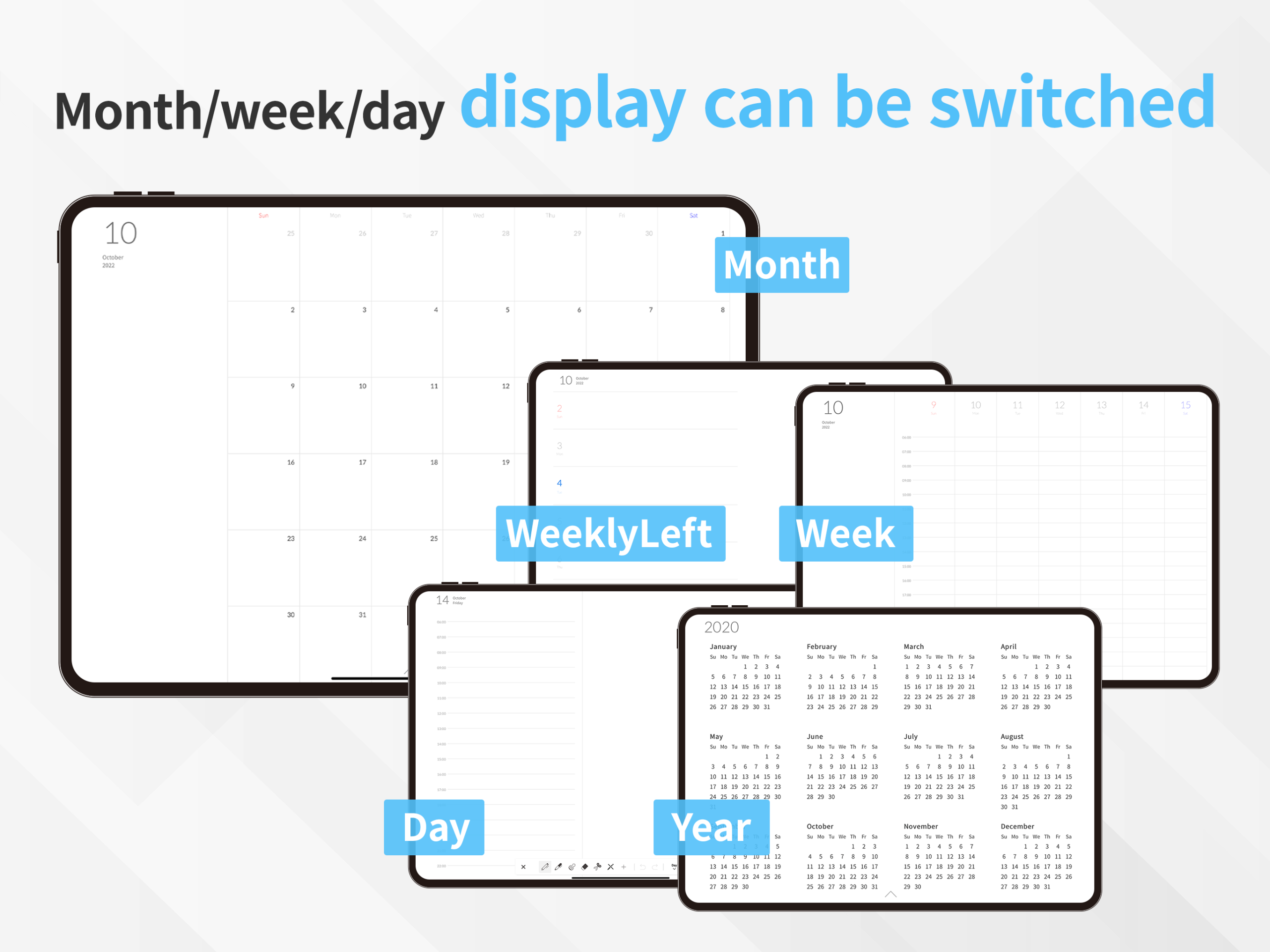
Planner for iPad was built specifically for this scenario. It’s a native iPad app — not a PDF — designed from day one around Apple Pencil handwriting with live calendar integration. Your Apple Calendar events (from iCloud, Google Calendar, Outlook, or any CalDAV source) appear directly on your planner pages. You open the app, see your schedule, and write around it. No importing, no setup, no double-entry.
It also includes built-in stamps and stickers, multiple templates, and Apple Reminders integration — features that replace the sticker packs, extra template downloads, and workarounds that PDF planners require you to source separately.
Planner for iPad is free to download, with a subscription for full access. If the free PDF approach is working for you, stick with it. But if you’ve hit the ceiling of what a static document can do, it’s worth trying.
The Bottom Line
The best free digital planner is the one you actually use — and any of the options on this list can serve that purpose. Download one, open it in your preferred note-taking app, and start writing.
But if you find yourself spending more time managing your planner than actually planning — copying events, fixing broken links, hunting for the right page — that’s not a discipline problem. That’s a tooling problem. And it might be worth exploring whether a different kind of tool fits better.
Your planning system should be something you look forward to opening, not something you have to maintain. Start free if that’s what makes sense. But keep the door open to something that works harder for you.