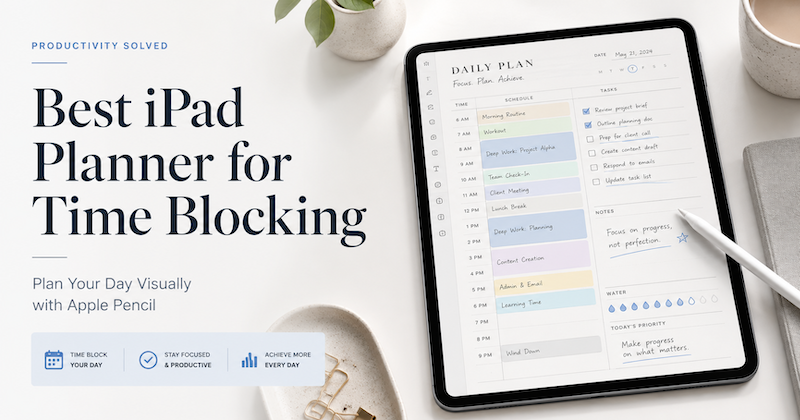
Time blocking is one of the simplest ways to plan your day.
Instead of keeping a long to-do list and hoping you will somehow get through it, you give each task a place in your schedule. Work, errands, family time, breaks, reading, exercise, deep focus — everything becomes easier to manage when you can actually see where it fits.
But there is one problem.
Most calendar apps are too rigid, and most digital planners are too disconnected from your real schedule.
That is why an iPad planner with Apple Pencil can be such a good tool for time blocking. It gives you the structure of a calendar, but also the flexibility of handwriting.
Download Planner for iPad on the App Store
Why Time Blocking Works
A to-do list tells you what you need to do.
Time blocking helps you decide when you are actually going to do it.
This small difference matters a lot. A task like “write report” can sit on your to-do list for days. But when you block 9:00–10:30 for writing, it becomes part of your day.
Time blocking helps you:
- See how much time you really have
- Avoid overloading your day
- Protect time for important work
- Group small tasks together
- Make room for breaks and personal time
- Reduce the stress of constantly deciding what to do next
It is not about making your day perfect. It is about making your day visible.
The Problem with Using Only a Calendar App
Calendar apps are great for fixed events.
Meetings, appointments, school schedules, deadlines, calls, and family events all belong on a calendar. These are the things you do not want to forget.
But daily planning is not only about fixed events.
You may also need to think about:
- What should I focus on before my first meeting?
- Where can I fit in a small task?
- Which tasks can wait until tomorrow?
- When do I need a break?
- What is the most important thing today?
A normal calendar app is not always good at this kind of thinking. It is structured, but often too structured. Every task becomes another event. Every small adjustment requires clicking, editing, dragging, and rearranging.
For many people, that feels more like managing software than planning a day.
Why Apple Pencil Makes Time Blocking Feel More Natural
Handwriting changes the feeling of planning.
When you use Apple Pencil, you can quickly draw arrows, circle important tasks, write notes in the margin, mark priorities, or sketch a rough plan for the day. You do not need every thought to become a perfectly formatted calendar event.
This is especially helpful for time blocking because your day is rarely clean and predictable.
Some blocks are fixed.
Some are flexible.
Some are just ideas.
Some need to move later.
With handwriting, you can plan in a looser, more human way.
You can write “focus time” across a blank part of the day, circle your most important task, add a reminder next to a meeting, or draw a line between related tasks. It feels closer to using a paper planner, but with the benefits of a digital device.
The Best iPad Planner for Time Blocking Combines Calendar and Handwriting
The most useful iPad planner for time blocking is not just a blank PDF template.
A blank template can look beautiful, but it still requires you to copy your schedule manually. If your meetings change, your planner does not automatically know. If your calendar is full, you have to keep switching between apps.
A better approach is to use a planner that combines your real calendar with handwritten planning.
With Planner for iPad, your calendar events can appear directly on your planner pages. You can see your actual schedule, then use Apple Pencil to plan around it.
This makes time blocking much easier.
Your meetings and appointments give the day structure.
Your handwriting gives the day flexibility.
Instead of choosing between a calendar app and a digital planner, you can use both together.
A Simple Time Blocking Method on iPad
Here is a simple way to start time blocking with an iPad planner.
1. Start with your fixed events
First, look at the events that are already on your calendar.
These might include meetings, appointments, classes, school pickup, calls, or personal commitments. These are the blocks that are already decided.
Once you can see these events on your planner page, the shape of the day becomes clear.
You can immediately see whether your day is open, crowded, fragmented, or focused.
2. Choose your top priorities
Next, write down the most important things you want to accomplish today.
Try not to choose too many. Time blocking works best when you are honest about your available time.
A good rule is to pick one to three important tasks.
For example:
- Finish proposal draft
- Review project notes
- Plan next week
- Study for 45 minutes
- Clean up inbox
- Prepare tomorrow’s meeting
Writing these by hand helps you slow down and make a real decision. You are not just collecting tasks. You are choosing what matters.
3. Block focus time
Now look for open spaces in your day.
If you have a 90-minute gap in the morning, that might be your best focus block. If your afternoon is full of meetings, maybe you should not plan deep work there.
Use Apple Pencil to mark a focus block directly on the page.
You can write the task name, circle it, underline it, or add a small note like “do this first” or “no email.”
The goal is not to make the page perfect. The goal is to make your intention visible.
4. Group small tasks together
Small tasks can quietly take over your day.
Email, messages, quick calls, forms, errands, admin work — each one may only take a few minutes, but switching between them all day can destroy your focus.
Instead, create a block for small tasks.
For example:
- 11:30–12:00 Admin
- 15:00–15:30 Email and messages
- 17:00–17:30 Review and cleanup
This keeps small tasks from leaking into every part of the day.
5. Leave White Space
A good time-blocked day should not be completely full.
This is where many people go wrong. They plan every minute, then feel like they failed as soon as something changes.
Real life needs space.
Leave some blank areas for delays, breaks, transitions, or unexpected tasks. On an iPad planner, this white space is easy to see. It reminds you that your day is not only a productivity machine.
A planner should help you live better, not just do more.
6. Review at the End of the Day
At the end of the day, take a minute to review what happened.
You can mark completed blocks, move unfinished tasks to tomorrow, or write a short note about what worked.
This is one of the advantages of using an Apple Pencil planner. Your page becomes more than a schedule. It becomes a record of how the day actually went.
Over time, you may start to notice patterns.
Maybe your mornings are best for creative work.
Maybe meetings drain more energy than you expected.
Maybe you need more buffer time.
Maybe your daily plan is too ambitious.
Time blocking becomes more useful when you learn from it.
Digital Planner vs Calendar App for Time Blocking
So should you use a digital planner or a calendar app?
The best answer is: both.
A calendar app is best for fixed events. It keeps your official schedule organized.
A digital planner is best for thinking, adjusting, and making decisions. It gives you space to plan your day visually.
Planner for iPad brings these two ideas together. You can see your calendar events and write freely around them with Apple Pencil.
That combination is especially powerful for time blocking because your day needs both structure and flexibility.
Why Planner for iPad Works Well for Visual Planning
Planner for iPad is designed for people who want a planner that feels natural on iPad.
It is useful for time blocking because it lets you work visually. Instead of managing everything through menus and forms, you can write directly on your planner page.
You can use it to:
- View your schedule
- Write daily priorities
- Create focus blocks
- Add handwritten notes
- Plan around meetings
- Keep personal and work plans in one place
- Review your day visually
For people who like paper planners but also rely on digital calendars, this can feel like a much better balance.
You get the convenience of digital planning without losing the freedom of handwriting.
Final Thoughts
Time blocking is not about controlling every minute of your life.
It is about seeing your time clearly.
When you can see your meetings, tasks, priorities, and open spaces on one page, it becomes much easier to make good decisions. You can protect focus time, avoid overcommitting, and create a day that feels more intentional.
An iPad planner with Apple Pencil is a great tool for this because it lets you plan visually, adjust easily, and write in a way that feels natural.
If normal calendar apps feel too rigid and blank PDF planners feel too disconnected, Planner for iPad offers a practical middle ground: your real schedule, combined with the flexibility of handwriting.
For time blocking, that combination makes a lot of sense.