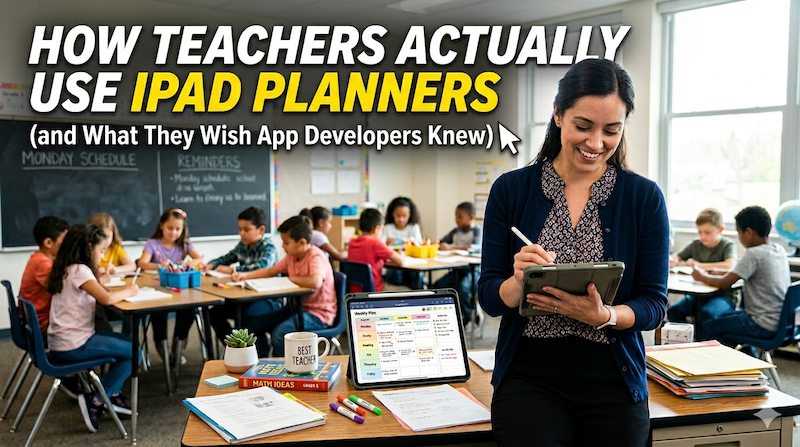
I’m not a teacher. I make a planner app, and over the years I’ve heard from a lot of them. Here’s what I’ve learned about the gap between how teachers actually work and how planner apps are designed — and what the best ones in the world still get wrong.
Full disclosure before we begin: I’m Takeya. I make Planner for iPad. I am not a teacher, and I’m not going to pretend to be one in this article.
What I am is someone who has spent close to a decade reading emails from teachers, watching how they use my app (and others), and slowly realizing that almost every “best iPad planner for teachers” article on the internet is written by someone who is neither a teacher nor an app developer. They’re written by affiliate marketers who downloaded GoodNotes once, found a Teachers Pay Teachers template, and called it a guide.
This is the article I wish existed when I started getting messages from teachers in 2018 asking why my app didn’t have a class roster feature. (Spoiler: it still doesn’t. We’ll get there.)
What follows is an honest look at how teachers actually use iPad planners across the US, the UK, and Japan — three markets I’ve watched closely — and what they consistently wish app developers understood. Some of this is praise for what’s working. Some of it is a list of things I personally haven’t fixed yet, in my own app. Both seem worth writing down.
Why teachers are on iPads in the first place
Before we get into the planner side, it’s worth understanding why iPads became a teacher tool in the first place, because the answer shapes everything that follows.
In the US, iPads moved into classrooms in waves. The first wave was about students — one-to-one device programs in the 2010s, accelerated by remote learning in 2020. But somewhere in there, a quieter migration happened on the teacher side. Teachers who had to be on Zoom while running a hybrid classroom realized that having a second screen for lesson plans was no longer optional. Many bought an iPad personally. The school provided a laptop; the iPad was theirs.
In the UK, the pattern was different. Independent schools and academy trusts often issued iPads as part of broader Apple deployments, but plenty of state-school teachers bought their own. The UK teacher I hear from most often is a secondary teacher juggling two or three subjects, who uses the iPad for marking PDFs and writing lesson notes in equal measure.
In Japan, the pattern is different again. The GIGA Schoolはじめ initiative pushed a one-device-per-student model into compulsory education, but the device of choice was rarely iPad — most municipalities went with Chromebooks or Windows devices. The Japanese teachers I hear from are usually private-school teachers, juku (cram school) instructors, or English teachers, who are using iPads alongside the famously paper-heavy Japanese school administrative culture. Their planning happens in a hybrid system: a paper techo on the desk, the iPad open for digital records, and a printed jikanwari (timetable) taped inside the staffroom locker.
These three realities don’t produce the same teacher. But they produce remarkably similar frustrations with planner apps. The cultural surface is different; the underlying problem is the same. Teachers are using consumer planning tools for a workflow that consumer planning tools weren’t designed for.
How teachers actually use iPad planners
Let me walk through what I’ve learned about the real shape of the work.
Lesson planning is not week-by-week
Every productivity app on the App Store assumes you plan in calendar units. Day, week, month, year. Teachers don’t plan that way. Teachers plan in units — a two-week poetry unit, a three-week mitosis unit, a six-week project on the French Revolution. The calendar week is a constraint, not a unit of planning.
This means a teacher opening an iPad planner is constantly translating. They have a unit plan in their head (or on a separate document) and they’re trying to project it onto a weekly grid that doesn’t really fit. Five days × six periods = thirty cells, except Tuesday is a half-day for assemblies and Thursday is a fire drill and Friday is the field trip you forgot to subtract.
The teachers who succeed at iPad planning have usually built a hybrid system. They keep a unit plan as a separate PDF or note, and use the iPad planner as a daily/weekly execution layer, not a strategy layer. The strategy layer lives somewhere else — often in a physical binder, ironically.
Class rosters are everywhere and nowhere
Almost every teacher I’ve talked to keeps some version of a class roster in their planner. Not a formal gradebook — those live in PowerSchool or SIMS or whatever district system they’re stuck with — but a personal roster. Quick notes about students. Who’s having a hard week. Who needs to be moved seats. Who forgot their homework three times in a row. Who has a parent meeting Friday.
This is the most sensitive data on the iPad, and it’s almost always stored as informal scribbles in the margin of a weekly view. Which is fine, until the iPad gets lost in a coffee shop.
I have not yet built a class roster feature in Planner for iPad. I get asked about it roughly twice a month. The reason I haven’t built it is that doing it badly would be worse than not doing it at all — a half-implemented student data feature creates exactly the kind of liability that schools warn teachers about. Doing it well requires thinking about privacy, encryption, export, and what happens to the data when a teacher changes schools. It’s not a weekend feature. It’s a quarter of work. But it’s on the list, and every teacher who’s emailed me about it is right to ask.
Parent communication is a separate planner
In the US especially, parent communication has become a job in itself. Every contact gets logged somewhere — by phone, by email, in the parent portal — and then logged again in the teacher’s personal records, because if there’s ever a dispute, the teacher needs their own paper trail.
A surprising number of teachers use their iPad planner as that paper trail. They jot a sentence at the end of the day: Called Mason’s mom re: missing assignments, will follow up Friday. Then they go back six weeks later and search for “Mason” and discover the search function doesn’t work the way they hoped.
Handwritten search is one of the genuinely hard problems in this space. Apple’s PencilKit framework supports handwriting recognition, but the indexing is slow and inconsistent, and most planner apps either skip it entirely or implement a half-version that frustrates users. In Planner for iPad, handwriting search exists but it’s not as fast as I’d like it to be on older iPads. This is a real limitation I’m working on.
IEP and accommodation tracking is mostly happening in side documents
In US classrooms, every special-education student has an Individualized Education Program (IEP), and every teacher of that student has responsibilities — accommodations, modifications, specific goals to track. The UK equivalent is the EHCP (Education, Health and Care Plan) or SEN support documentation. Japan has 個別の教育支援計画 (kobetsu no kyouiku shien keikaku), though usage and formality vary widely by school.
In all three systems, the planning tools provided by the school are usually adequate for legal compliance and useless for daily teaching. So teachers maintain a side document — sometimes in the iPad planner, sometimes in a separate notebook — where they track which accommodations actually got used, which strategies worked, which kid had a meltdown when the lights flickered.
The thing developers should know: this data is not gradebook data. It’s softer, more textured, more like a journal than a record. The teachers who do this well are essentially keeping a clinical observation log for thirty kids simultaneously. No app I’ve seen handles this beautifully. The closest tool is honestly a blank handwriting page with a date at the top.
Substitute teacher notes have a specific shape
When a teacher is out sick, someone else has to walk into the room cold and run the day. Sub plans are their own genre — they need to be specific enough that a stranger can follow them, but written quickly because the teacher is, you know, sick. Most teachers have a template they reuse. Some keep a recurring “emergency sub plans” document for the day they’re too sick to even write fresh ones.
The iPad is actually pretty good for this — easy to share as a PDF, easy to update on the fly — but no planner app I know of has a built-in “sub plan view” that lays out the day in the way a substitute teacher actually needs to read it. (Spoiler: a substitute needs the seating chart first, the schedule second, and the lesson plan a distant third. Most planner apps put them in the opposite order.)
Year planning happens in summer, in a format nobody supports
This is the one that took me longest to understand. The teaching year doesn’t start in January. It starts in August in most of the US, in September in the UK, in April in Japan. Teachers do their heaviest planning work in the two or three weeks before the school year begins — laying out the curriculum across the year, blocking in school holidays, marking the dates of standardized tests and parents’ evenings.
This is the moment a teacher most needs an excellent year-view in their planner. And it’s the moment most planner apps fail them hardest, because almost every planner app assumes a January-start year. A teacher in early August opening a planner that says “January 2026” at the top has to do mental gymnastics for the next two weeks.
This is one of the things Planner for iPad handles reasonably well — you can navigate to any month, and the templates aren’t tied to a fixed January start. But “reasonably well” isn’t “designed for teachers.” A real teacher-mode would let you set an academic year start, color-code term boundaries, and pre-populate national/regional school holiday calendars by region. It’s on the list.
What teachers wish app developers knew
If you took every teacher email I’ve received in the last five years and distilled it down, you’d get something close to this list. I’ve put it in the order I hear it, not in the order of importance.
1. The school year doesn’t start on January 1st
This is the single most consistent piece of feedback, across all three countries. Whatever default a planner app assumes, it should be configurable. Academic-year-start is not a niche feature; for the teacher market, it’s the foundational feature.
The deeper version of this insight: the rhythm of a teacher’s year is not the rhythm of a calendar year. The peaks aren’t December and June; they’re the end of each term, plus report-card season, plus standardized testing windows. A planner designed for teachers should make those rhythms visible.
2. Class periods aren’t 60 minutes
The default time block in almost every planner app is 60 minutes, sometimes 30. Real school schedules are 42-minute periods, 50-minute periods, 80-minute block schedules, 90-minute rotating blocks, double periods on Tuesdays, half-periods before assembly. Some schools change the entire schedule for the week before exams.
A teacher’s daily view should let them define their own period structure, save it as a recurring template, and switch to “exam week” or “field trip day” variants without rebuilding from scratch.
3. Privacy matters more than developers tend to think
I’ll say this gently because it’s a serious issue: most consumer planner apps are not designed for data that includes minors’ names, behavioral notes, or learning disabilities. They sync via iCloud or Google Drive, they might cache to third-party servers, and their privacy policies were written to cover photos of brunch.
Teachers who put student data into these apps are, in many cases, technically violating their school’s data policies — or in the US, FERPA. They do it anyway because the alternative is carrying a paper notebook home, and that’s not safer.
The developer-side response should be: build for this reality. Make local-only storage an option. Make export easy. Make sure data lives on the device by default. In Planner for iPad, all handwritten data is stored locally and sync goes through iCloud (which is end-to-end encrypted for most data classes in modern iCloud configurations), but I should be clearer in the app and in marketing about what this means for teachers specifically.
4. The cross-device reality is “iPad in the classroom, Mac at home”
Most teachers do their planning on a laptop at home and their day-to-day execution on the iPad in the classroom. Many of them want the same planner to work on both. This is hard for iPad-only apps (mine included). The honest answer for teachers right now is usually a tradeoff: an iPad-native app that has the best handwriting experience but doesn’t run on Mac, or a cross-platform app like Notion that runs everywhere but feels terrible to write in by hand.
There’s no clean solution. The closest thing is exporting your planner pages as PDFs and viewing them on the Mac, which works but feels like 2008. The teachers I respect most are the ones who’ve accepted this tradeoff and made peace with it. (Note: Planner for iPad does run on M-series Macs since the app is iPadOS-native, though it’s not optimized for that experience.)
5. Templates need to bend
Teacher planner templates online are weirdly rigid. They assume five-day weeks, six-period days, two columns for “objectives” and “homework,” and a specific font. Real teachers want to bend templates: add a row for emotional check-ins on Mondays, hide the homework column for kindergarten, swap “objectives” for “学習のめあて” if they teach in Japanese.
Most iPad planner apps lock templates. The ones that don’t (GoodNotes with PDF templates, for example) require teachers to design their own, which most teachers don’t have time for. The middle ground — adaptable templates with a small amount of structure — is where teacher-focused planner design should live. I’m not all the way there yet in Planner for iPad, but I’m closer than I was a year ago.
6. Stickers and stamps are not a gimmick
App developers (myself included) sometimes think of stickers and stamps as a fun decorative feature, mostly for personal users who like cute planners. For teachers, they’re a visual indexing system. A red exclamation stamp on Tuesday’s third period means “the lesson went sideways, debrief later.” A blue circle on a student’s name means “follow up with parent.” A small star next to a date means “field trip approved.”
The teacher uses these symbols to scan the planner at a glance and pick out the information that matters. They’re not decoration; they’re a personal iconography. Apps that limit sticker sets to “cute aesthetic packs” miss this entirely. Apps that let teachers create or import their own symbols, name them, and reuse them across pages — those serve teachers better.
7. Search has to work on handwriting
For a teacher who’s been using an iPad planner for two years, the most valuable feature is “find that note I wrote about Mason in October.” Apple’s PencilKit has improved a lot, but planner apps vary wildly in how they expose handwriting search. Many simply don’t index handwriting at all.
This is a feature where the gap between expectation and reality bites hardest. Users assume handwritten text is searchable by default, the way typed text is. It mostly isn’t.
8. Apple Calendar sync should not be one-way for school events — but it’s complicated
This is a nuanced one. Teachers want their school calendar (faculty meetings, professional development days, parent conferences) to appear in their iPad planner. They generally do not want their iPad planner to push events back to the school calendar — that’s usually managed by an administrator.
So a read-only Apple Calendar sync, which displays events from the system calendar inside the planner pages, is actually the right design for this use case. (This is how Planner for iPad works, and it’s the design decision that has aged best in the teacher feedback I’ve received. I won’t pretend I designed it specifically for teachers — I designed it because two-way sync introduces a class of bugs I didn’t want to deal with — but it happens to fit the teacher workflow exactly.)
9. Sub-day granularity matters more than month-level navigation
Most planner apps spend a lot of design effort on year-view and month-view. Teachers spend most of their planning time at the day-and-period level. A “today” view that shows period 1, period 2, period 3 stacked vertically with room to write next to each one is more valuable than another beautiful month grid.
10. The app is not the only place planning happens
This is the meta-point that contains the others. A teacher’s planning system is a constellation — the iPad planner is one star in it, alongside the school’s LMS, the gradebook, paper sticky notes on the monitor, a Google Doc shared with the team teacher, a physical paper planner in the desk drawer, and the staffroom whiteboard. Any planner app that imagines itself as the central hub of a teacher’s life is making a category error. The realistic role of an iPad planner is to be the most reliable, daily-use surface in a wider system — not the system itself.
Designers who get this build apps that play well with others: export to PDF easily, import calendar events cleanly, don’t try to absorb the gradebook, don’t try to replace the LMS. The best teacher-friendly planner apps know they’re a tool, not a platform.
What I’ve learned, what I haven’t fixed yet
Writing this article forces me to be honest with myself. Here’s where I am.
Planner for iPad does well at: handwriting experience, Apple Pencil responsiveness, read-only Apple Calendar sync, page templates that don’t lock you in, stamps and stickers that teachers can use as a symbol system, local-first storage with optional iCloud sync.
It doesn’t yet do well at: academic-year-start configuration, class roster management (deliberately — for the privacy reasons above, but I owe the teacher community a real answer here), period-based daily templates with custom time blocks, handwriting search at the speed teachers need, sub-day teacher views with the period-stack layout I described above.
I’m not saying this to apologize, exactly. I’m saying it because the gap between what teachers need and what any single planner app provides is wider than the marketing of any of those apps would suggest. Mine included.
The most honest thing a developer can say to the teacher community is: the perfect iPad planner for teachers does not exist yet. Not mine, not the well-known competitors, not the famous PDF template stores. What exists is a set of tools that, when combined, can come close. The teachers who succeed at iPad planning are the ones who’ve stopped looking for the one app and started building a workflow.
If you’re a teacher reading this, what I’d suggest is this: pick the daily-use surface first. Find the app that you actually enjoy writing in on the iPad, because if you don’t enjoy writing in it, you won’t open it. Then build the rest of your system around it — the unit plans, the rosters, the parent logs — using whatever tools serve those specific jobs best. Don’t try to make one app be everything.
And if you’re an app developer reading this, the kindest thing you can do for teachers is listen to them specifically. Not “productivity users” in general. Not “creators.” Teachers are a distinct user category with distinct needs, and most planner apps — including mine — are still catching up.
Planner for iPad is available on the App Store: apps.apple.com/us/app/planner-for-ipad/id1246635949. If you’re a teacher and there’s something on the wishlist above you’d specifically want — or something I missed entirely — I read every email.