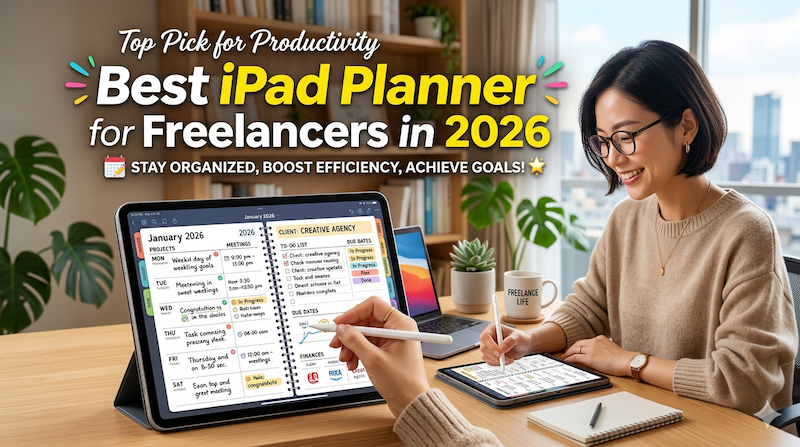
Client deadlines. Invoices. The project you keep meaning to start. The admin you keep putting off. Here’s how to pick an iPad planner that holds the whole reality of freelance life — not just the work part.
Full disclosure: I’m Takeya. I make Planner for iPad. I’m also a solo operator — I run my own products, I market them myself, and I know what it feels like to open a planner on a Monday morning and realize you’re not just managing a week, you’re managing a small business that happens to live inside your head.
This article isn’t a sales pitch. It’s an honest look at what freelancers actually need from a planner, what most apps get wrong, and how to choose one that survives past month three.
The Freelancer Problem No Productivity App Solves
Most productivity apps are built for one of two people: the employee with a manager and a clear scope, or the founder with a team and a roadmap.
Freelancers are neither.
You don’t have a manager telling you what to prioritize. You don’t have a team to delegate to. You have:
- Three to seven clients, each with their own deadlines, communication style, and idea of “urgent”
- A pipeline of leads that may or may not turn into work
- Invoices to send and chase
- Taxes that creep up on you twice a year
- Your own marketing, which you keep meaning to do
- A skill you actually want to keep getting better at
- And a personal life that still needs groceries and dentist appointments
The honest truth is that no single tool can manage all of this. But the right planner can do something more important: it can give you one place to think about all of it, once a week, so the rest of the week you can just do the work.
That’s what most freelancers are actually looking for. Not a feature-stuffed productivity suite. A quiet place to plan.
What Freelancers Actually Need from a Planner
After years of watching how solo operators (myself included) use planning tools, I’ve come to believe there are five things that matter, and a long list of features that don’t.
1. A weekly view that respects how freelance work actually flows
Freelance work isn’t 9-to-5. You batch deep work on Tuesdays. You take Wednesday afternoons off to pick up your kid. You do admin on Fridays. A daily-only view forces you into a rhythm you don’t have. A weekly view lets you see the shape of your actual week.
2. Calendar visibility without leaving the planner
You probably already keep client calls in Apple Calendar or Google Calendar. You don’t need a planner that wants to replace that — you need one that shows you what’s already scheduled while you plan around it. Most planners either ignore your calendar or try to take it over. Neither works.
3. Handwriting, not typing
This sounds aesthetic. It’s actually neurological. When you’re juggling four clients in your head, typing tasks into a list keeps your brain in input mode. Writing by hand on iPad with Apple Pencil shifts you into thinking mode. You make better decisions about what to drop, what to push, what actually matters this week. Freelancers especially benefit from this — because nobody else is doing the prioritizing for you.
4. Low setup cost
If your planner requires you to spend two hours every December importing a new template, configuring hyperlinks, and re-installing sticker packs, you’ll abandon it by March. Freelancers don’t have time for systems that require maintenance.
5. Something that opens fast
You’re going to plan in the cracks. Between calls. While the kettle boils. In the ten minutes before a client review. If your planner takes fifteen seconds to load, you won’t open it.
That’s the list. Notice what’s not on it: AI scheduling, kanban boards, OKR tracking, Pomodoro timers, habit gamification. Those things aren’t bad. They’re just not what makes freelance life manageable.
What to Avoid
Before I get to recommendations, here’s what I’d steer freelancers away from.
Productivity suites that pretend to be planners. Notion, ClickUp, Monday — these are powerful tools, but they’re built for teams. As a freelancer, you’ll spend more time configuring them than using them. The people who succeed with Notion are usually the ones who already have their planning figured out elsewhere.
PDF planner templates loaded into note-taking apps. This is the GoodNotes-plus-Etsy-template setup, and on the surface it looks perfect for freelancers — fully customizable, beautiful spreads, infinite stickers. The problem is maintenance. Every year you re-import. Hyperlinks break. You buy another template. You spend a Sunday “setting up” instead of working. For a freelancer whose time is literally money, this compounds.
Project management apps masquerading as planners. Asana, Trello, Todoist — great for tracking deliverables across clients. Terrible for the kind of weekly thinking that keeps a freelance business healthy. Use them for client work, not for life.
Anything that requires a desktop computer to plan effectively. You’re often planning between things. iPad is the right form factor for that — bigger than a phone, more portable than a laptop, and quiet in a way that desktop apps aren’t.
The Tools Worth Considering
Here are the planning approaches I’d actually recommend to a freelancer asking me at a coffee shop.
Apple Calendar + a Notes app
The minimum viable setup. Free. Already on your iPad. Apple Calendar handles your appointments, Notes handles your weekly thinking. It works, and for some freelancers it’s genuinely enough.
The limit: there’s no native way to see your calendar and your weekly plan in the same place. You bounce between apps. For a freelancer with three or fewer clients, that’s fine. With more, the context-switching wears you down.
Fantastical + a Notes app
A step up. Fantastical is the best calendar app on iPad — natural language event entry, beautiful weekly views, strong integrations. Pair it with Apple Notes or Bear for weekly thinking, and you have a clean, fast, calendar-first system.
Cost: about $5/month for Fantastical’s premium features. Worth it if you live in your calendar.
The limit: same as above. You’re managing two apps. And neither was designed for handwritten weekly planning, which for many freelancers is the single most useful habit they can build.
Planner for iPad
This is the app I make, so take this with the appropriate grain of salt. But I built it specifically for the kind of planning freelancers and solo operators actually do.
A few things worth knowing:
- It syncs with your Apple Calendar (read-only display) so the events you’ve already scheduled show up inside your weekly plan automatically. You don’t enter anything twice.
- It’s designed for Apple Pencil first. The whole point is that you write your week, not type it.
- It opens fast. There’s no setup ritual. You open it on a Sunday evening and you’re planning in three seconds.
- It’s free to download and free to use. The premium features are unlocks for power users, not a paywall on basic functionality.
Is it the right tool for everyone? No. If you need team collaboration, project pipelines, or client portals, you need something else (alongside, not instead of). If you don’t own an Apple Pencil, you’re missing the whole point.
But if you’re a freelancer who wants one quiet place to think about your week — with your real calendar in view, in your own handwriting, without a setup tax — it’s worth trying. You can download it from the App Store here.
Paper planner + iPad calendar
Don’t laugh. A lot of freelancers I respect plan their week on paper — usually a Hobonichi or a Leuchtturm — and use iPad only for the calendar and client work. The friction of paper forces them to think harder about what goes on the page. The lack of notifications keeps them out of reactive mode.
The limit: you lose searchability and you carry an extra object. For some people, that’s the right trade-off. For others, it isn’t.
How to Choose, Honestly
If you’re a freelancer trying to decide between these, here’s the question I’d ask first:
Where does your week actually fall apart?
If it falls apart because you forget appointments, you have a calendar problem. Get Fantastical or just use Apple Calendar properly.
If it falls apart because you finish the week unsure of what you actually accomplished, you have a planning problem. You need a weekly review habit, and you need a planner that makes that habit easy. (This is where I’d genuinely point you toward Planner for iPad, or paper if you prefer.)
If it falls apart because client work bleeds into every waking hour and you can’t see when the bleeding stops, you have a boundaries problem. No app will fix that. But a weekly view — paper or digital — will at least show you, in writing, where the boundary is supposed to be.
The right tool depends on which problem you actually have. Most freelancers I know have all three, in shifting proportions, and the planner they reach for changes over the years. That’s normal.
What I’d Tell Myself Three Years Ago
If I could go back to the version of me who was just starting to take freelance life seriously, here’s what I’d say.
The planner doesn’t make you organized. The weekly habit does. The planner is just the surface you do it on.
Pick the simplest tool you’ll actually open. If that’s paper, use paper. If that’s Apple Calendar and Notes, use those. If you want something built specifically for handwritten weekly planning with calendar visibility, try Planner for iPad.
But whatever you pick, sit down with it once a week — Sunday evening, Monday morning, whenever — and ask three questions:
- What did I actually do last week?
- What’s coming this week that’s already scheduled?
- Given those two things, what are the three things that have to happen?
That’s the whole system. Everything else — the stickers, the templates, the productivity philosophy — is decoration on top of those three questions.
Freelance life is unpredictable. The planner that works is the one that gives you twenty quiet minutes of clarity in the middle of the unpredictability. That’s the only feature that matters.
Planner for iPad is a free iPad app for handwritten weekly planning with Apple Pencil and Apple Calendar sync. Download it on the App Store →