Your iPad isn’t just a screen — it’s your entire campus toolkit. Here’s how to unlock its full potential.
Most students buy an iPad thinking it’ll replace a few textbooks. Within a week, it becomes a Netflix machine. Sound familiar? The truth is, the iPad is one of the most powerful tools a student can own — if you know how to use it right.
Whether you’re in high school, college, or grad school, here are the smartest ways to turn your iPad from a passive consumption device into an active academic weapon.
1. Go (Actually) Paperless with Note-Taking
The most obvious starting point — and still the most impactful. Apps like GoodNotes and Notability let you write with Apple Pencil directly on lecture slides, PDFs, and blank pages. But the real advantage isn’t just digital ink. It’s searchability, organization, and the ability to rearrange your notes after the fact.
Pro tip: Import your syllabus as a PDF on day one. Annotate deadlines, highlight key topics, and link related notes. You’ll thank yourself at midterms.
2. Turn Split View into a Study Superpower
iPad’s multitasking features are criminally underused. Open your textbook on one side and your notes on the other. Or pull up a lecture recording alongside your problem set. Split View and Slide Over let you keep two (or three) contexts visible at once — something a laptop browser tab can’t replicate as naturally.
This is especially powerful during research: drag and drop quotes, images, or links from Safari directly into your notes without switching apps.
3. Use Focused Reading Mode
Reading on a screen doesn’t have to mean constant distraction. Use Safari’s Reader View or the Books app to strip away clutter. Pair it with Focus Mode to silence notifications during study blocks. Your iPad can be a deep-work device — but only if you set boundaries.
For academic papers, apps like PDF Expert or MarginNote let you annotate, highlight, and create mind maps from dense material. It’s a different experience from reading on a laptop.
4. Record and Revisit Lectures
With the iPad’s built-in microphone (or an external one), you can record lectures while simultaneously taking handwritten notes. Some note-taking apps even sync your audio to your writing, so tapping a word jumps to that exact moment in the recording.
This is a game-changer for fast-paced lectures where you can’t capture everything in real time.
5. Collaborate Without Friction
Shared documents, real-time editing, group FaceTime calls with screen sharing — the iPad handles collaborative work smoothly. Use Freeform for visual brainstorming with classmates, or jump into shared Google Docs for group projects. The portability of the iPad means you can contribute from the library, the café, or your dorm room floor.
6. Build a Creative Workflow
If your studies involve any creative discipline — design, music, film, architecture — the iPad is unmatched. Procreate for illustration. GarageBand for music composition. LumaFusion for video editing. These aren’t toy apps; professionals use them daily. As a student, having a creative studio in your backpack is a genuine advantage.
7. Manage Your Time — The Part Most Students Skip
Here’s where things get real. You can have the best note-taking setup, the cleanest Split View workflow, the most organized lecture recordings — and still miss deadlines, forget assignments, and feel overwhelmed.
Why? Because capturing information and managing your time are two completely different skills. Most students optimize for the first and ignore the second.
A calendar app alone doesn’t cut it. It shows you when things are, but not how to plan around them. And most to-do apps feel like sterile checklists disconnected from the rhythm of your actual week.
What students really need is something that combines the visual, tactile planning of a paper planner with the smart connectivity of a digital calendar.
That’s Exactly What Planner for iPad Does
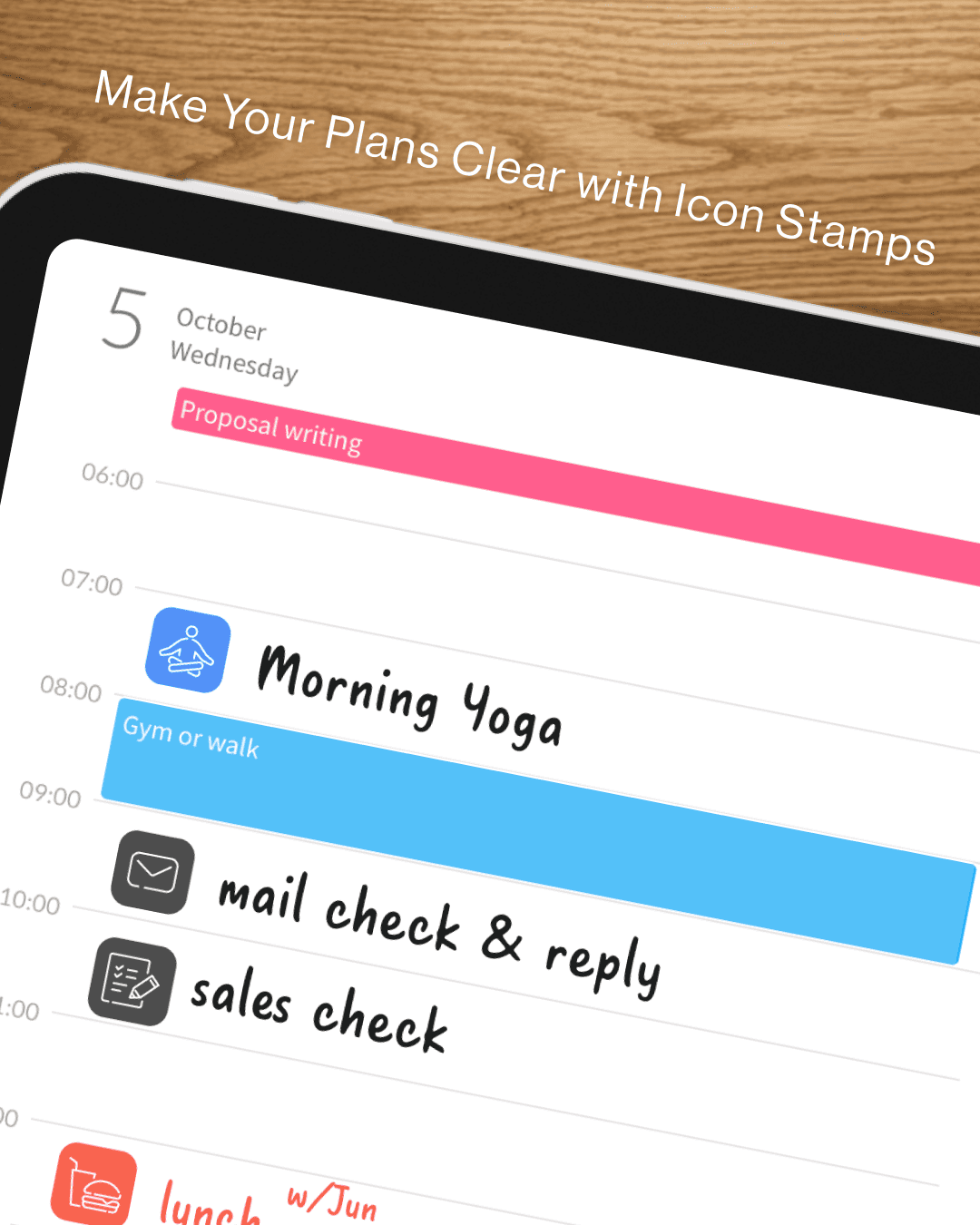
Planner for iPad is built specifically for the iPad and Apple Pencil. It gives you the handwriting-first experience of a physical planner — write your goals, sketch your weekly plan, jot down quick reminders — while staying synced with your Apple Calendar so nothing falls through the cracks.
It’s not another productivity app trying to do everything. It’s the missing layer between your calendar and your brain: a space to think on paper while staying connected like an app.
For students, that means:
- Seeing your class schedule and assignments in one handwritten view — no toggling between apps
- Planning your week with Apple Pencil the way you’d plan in a bullet journal, but with live calendar data underneath
- Staying flexible — move things around, add stickers and stamps for motivation, and make the planner genuinely yours
If you’ve ever bought a beautiful paper planner in September and abandoned it by October, this is the digital version that actually sticks — because it lives on the device you already carry everywhere.
Your iPad can be so much more than a screen. Make it your planner, too.
Planner for iPad is available on the App Store. Requires iPadOS 17 or later and supports Apple Pencil.