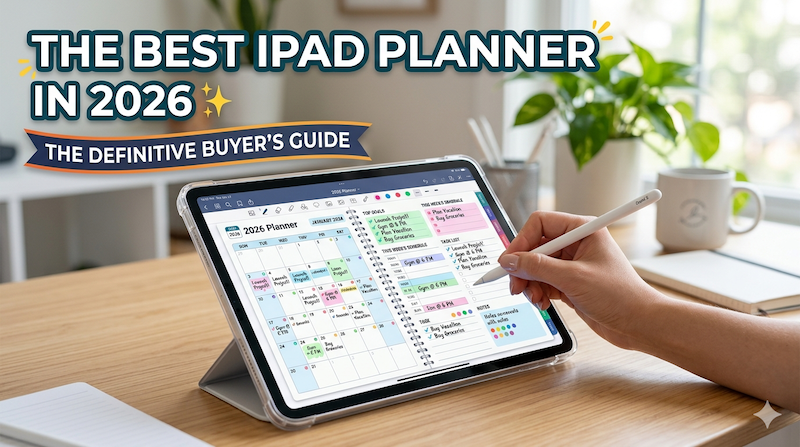
The iPad planner market has quietly become one of the most crowded categories on the App Store. Search “planner” and you’ll get hundreds of results, half of them sponsored, most of them written by marketers who have never actually planned a week of their life on an iPad. This guide is different. I’m going to tell you, from the perspective of someone who has spent close to a decade building one of these apps, what actually matters when you’re choosing — and what doesn’t.
Full disclosure before we go any further: I’m Takeya, and I make Planner for iPad. I’m going to talk about my own app in this guide, but not in the way most “best of” articles do. I’ll tell you exactly where it’s strong, exactly where it isn’t, and where you should choose something else. If you’ve read enough sponsored-feeling listicles to develop a permanent eye-roll, this is for you.
Who this guide is for
This guide is written for one person: someone who has decided — or is seriously considering — that they want to plan on their iPad, and now they need to choose how. You might be coming from a Hobonichi or a Moleskine, frustrated by the lack of search and backup. You might be coming from Notion, Todoist, or Apple Calendar, tired of typing into databases and wanting something more tactile. You might already own GoodNotes and be wondering if a dedicated planner app would actually be better than a PDF template stuck inside a notes app.
Whichever path brought you here, the question is the same: in 2026, what’s the right iPad planner for the way you actually work?
The honest answer is that it depends on six or seven things, most of which the marketing pages of these apps won’t tell you. So let’s go through them.
What “iPad planner” actually means in 2026
Before we compare anything, we need to be precise. The term “iPad planner” gets used for three very different categories of software, and most buying mistakes happen because people pick the wrong category, not the wrong app.
Category 1: Handwriting-first planners. These are apps built around Apple Pencil input. You write the way you’d write in a paper planner, except the page lives in an app that can sync, search, and back up. The app provides the structure — daily pages, weekly spreads, monthly calendars — and your job is to fill it in by hand. Planner for iPad falls into this category. So does Pencil Planner. Zinnia is mostly here too.
Category 2: PDF-based digital planners in notes apps. This isn’t really a category of app, but it’s how a lot of people plan. You buy a hyperlinked PDF planner (often from Etsy or a creator’s own store) and you open it in GoodNotes or Notability. The notes app does the work; the planner is just a fancy template. This is the “Frankenstein” approach and it has both fans and frustrated former users.
Category 3: Calendar and task apps with planning features. These are productivity apps where typing, not handwriting, is the primary mode of input. Fantastical, Sunsama, Akiflow, TickTick — these aren’t really “planners” in the paper-planner sense, but a lot of people use them as such. You won’t be writing with Apple Pencil. You’ll be tapping and typing.
A surprising number of people start their iPad planner search without realizing these three categories exist. They read a comparison of GoodNotes vs Notion, get confused, and give up. So before you keep reading, ask yourself: do you want to write, or do you want to type? That single question eliminates two-thirds of the market.
If your answer is “type,” this isn’t the right guide. Most of what follows assumes you bought an Apple Pencil because you actually want to use it.
The seven things that actually matter
Here’s the framework I’d use if I were buying an iPad planner today and I didn’t make one myself. These are the things that will determine whether the app sticks past February — which, statistically speaking, is when most people abandon their planning systems.
1. Does it survive the second week?
The dirty secret of planner apps is that almost all of them feel great in the first week. The novelty of a clean digital page, the satisfaction of a perfectly stamped sticker, the soft drag of the Apple Pencil — these things produce a small dopamine hit that lasts about ten days. Then real life starts, and the question becomes: does opening the app on a Tuesday morning, when you’re tired and you have a meeting in eight minutes, feel like help or homework?
The apps that survive this are the ones that get you from “I want to plan” to “I am planning” in fewer than two taps. Apps that require you to pick a template, choose a layout, name the page, set the date, and decide on a sticker pack — all every single morning — get abandoned. The friction adds up. By week three, you’re back to scribbling on a sticky note.
When you’re trialing a planner app, the test is not “does this have all the features I want?” The test is: open it cold on a Tuesday morning and count the taps to today’s page. Three or fewer is good. Five or more is going to fail.
2. Does it sync with what’s already in your life?
In 2026, nobody’s calendar lives in one place. You have work meetings in a Google or Microsoft calendar. You have personal appointments in Apple Calendar. You have your kid’s school events shared from your spouse. If your planner can’t see any of that, you’re going to be rewriting your schedule by hand every Monday morning, and that’s going to last about three weeks before you stop.
The honest version of this requirement, though, is more subtle than most marketing pages let on. There are two kinds of calendar integration:
Display-only sync. Your existing calendar events appear on the planner page. You can see them, plan around them, and write notes next to them. But the planner doesn’t write back to your calendar. If you add a new event in the planner, it stays in the planner. Planner for iPad works this way. So does Pencil Planner. So, mostly, does Zinnia.
Two-way sync. Events created in the planner appear in your calendar, and vice versa. This sounds better, but it’s actually rare in handwriting-first apps because it creates a strange impedance mismatch: a handwritten note is not a structured calendar event. Apps that do this end up either forcing you to type the event details (defeating the handwriting purpose) or guessing what your scribble means (which goes badly). Most apps that promise two-way sync are really task apps with a planner skin.
For most handwriting planners, what you actually want is display-only sync that’s reliable and read-only. Your calendar stays the source of truth. Your planner is where you think on top of it. This is a deliberate design choice, not a limitation.
3. How does handwriting actually feel?
This is the most underrated criterion. Two apps can both “support Apple Pencil” and feel completely different to write in. The differences come from:
- Latency. The lag between pencil tip and ink on screen. Anything over ~20ms feels noticeably bad. The best apps are functionally invisible.
- Palm rejection. Some apps still fail at this in 2026, which is embarrassing. If you can’t rest your hand on the screen while you write, the app is broken.
- Pressure sensitivity and line quality. Does the line thicken when you press harder? Does it taper at the end of a stroke? These are subtle but matter for the feeling of writing.
- Zoom behavior. Can you zoom in to write small letters, then zoom out to see the spread? How smooth is that interaction?
GoodNotes and Notability are the gold standards here because they’ve been refining handwriting for years. Dedicated planner apps vary. The best ones are indistinguishable from a notes app in feel. The worst feel like writing through wet paper.
The test: in your free trial, write a paragraph of normal text at normal speed. If you start consciously slowing down to make it look right, the app has bad handwriting. If you forget you’re on a screen, it’s good.
4. Stamps, stickers, and the question of joy
Some people love this. Some find it ridiculous. Both reactions are valid, but you should know which one you are before you buy.
The “decorative planner” tradition comes partly from Japanese techo culture and partly from the bullet journal community on Instagram. The idea is that your planner should be aesthetically pleasing — that the act of dressing up a page with washi tape and stickers is itself part of the reflection process. Apps that lean into this give you huge sticker libraries, color customization, and template marketplaces.
There’s a serious case for this and a serious case against it. The case for: making the page beautiful makes you return to it. Joy is not a productivity bug; it’s a productivity feature. The case against: you can spend an entire planning session decorating a page and never actually plan anything. Stickers can be a sophisticated form of procrastination.
A useful distinction: do you want stickers as function (a stamp that means “completed,” a recurring icon for “workout”) or as decoration (cute washi tape borders, kawaii illustrations)? Some apps lean heavily one way, some the other. Planner for iPad sits in the middle — there are stamps and stickers, but the app doesn’t push you toward decoration over content. GoodNotes-with-a-PDF-template can go either way, depending on the template. Pencil Planner is more minimal. Hobonichi-style apps lean decorative.
Know what you want before you choose.
5. Search, backup, and the “I will not lose my year” question
This is the one feature that genuinely separates digital planners from paper, and it’s the one most people forget to test.
You will, at some point, want to find something you wrote four months ago. Maybe it’s the name of a contractor you met at a conference. Maybe it’s the date you started a new medication. Maybe it’s a phrase from a book you scribbled down on a Tuesday. In a paper planner, this means flipping through 120 pages while your coffee gets cold. In a good digital planner, you type three letters and it appears.
But — and this is the thing — not all digital planners actually search handwriting well. Some convert your handwriting to searchable text on the fly. Some don’t. Some search only typed text. Some search only the current notebook, not your whole library. Before you commit, write three pages of handwritten notes, close the app, come back tomorrow, and search for a word you wrote. Did it find it? If not, that’s a serious limitation.
Backup is the other half. Your year of planning needs to live in iCloud or an equivalent. If the company disappears tomorrow, can you export your data? Apps that lock your handwriting into a proprietary format you can’t get out of are a long-term risk, no matter how nice they look right now.
6. Templates: lots vs. opinionated
There are two philosophies in planner app design.
Templates as catalog. Give the user 200 layouts and let them pick. Weekly grids, weekly horizontal, weekly vertical, weekly with habit tracker, weekly with mood log, weekly for students, weekly for moms, weekly for project managers, weekly for “creative entrepreneurs”… The user is in charge.
Templates as opinion. Give the user a small, considered set of layouts and assume that constraint produces better planning behavior. A daily page. A weekly page. A monthly page. Maybe a project page. That’s it.
Both work for different people. Catalog apps are great if you genuinely have a strong sense of what you need and just want to find your match. They’re terrible if you’re a chronic optimizer who will spend three months tweaking layouts and never actually plan anything (you know who you are).
Opinionated apps are great if you want the app to do some of the thinking for you. They’re frustrating if your workflow is genuinely unusual and the limited layouts don’t fit it.
I’d guess most readers should default to opinionated. The number of people who actually need 200 templates is much smaller than the number of people who think they do.
7. Price model and long-term commitment
This is where the math gets uncomfortable.
Most planner apps in 2026 have moved to subscription pricing. The reasoning is straightforward — they need recurring revenue to fund ongoing development — and the result is that you’re committing to an ongoing relationship with the app, not just a one-time purchase. A planner you’ll use for ten years at $50/year is $500. That’s more than three Hobonichis a year for a decade.
This isn’t an argument against subscriptions. It’s an argument for testing thoroughly before you commit. The good news is most apps offer free trials, free tiers, or one-time purchase options for core features. The bad news is that the cheapest option is rarely the best long-term fit, and the most expensive isn’t either.
What I’d actually look at: does the price include syncing across all your devices? Are templates and stickers included or are they constantly being upsold? Is there a one-time purchase option for the core experience? Apps that nickel-and-dime you on stamps and templates feel cheap fast.
The actual comparison: what’s worth your time in 2026
With those seven criteria as the frame, let’s look at the apps you’re actually choosing between. I’ve grouped them by category because — as we discussed earlier — comparing apps across categories doesn’t help anyone.
Handwriting-first planners
Planner for iPad. This is my app, so take this with appropriate skepticism. The design philosophy is opinionated rather than catalog-based — a daily page, a weekly view, a monthly view, templates for projects and notes, and stamps that are functional rather than decorative. Apple Calendar sync is display-only and reliable. Apple Pencil handwriting feel is — I hope — close to a notes app. The pricing model includes a free tier with the core features. Where it’s weakest: if you want a massive sticker library and decorative variety, this isn’t that app. If you want two-way sync to Google Calendar, it doesn’t do that. Best for: people who want to plan, not configure.
Pencil Planner. A solid, more minimal alternative. The visual language is cleaner and less feature-rich, which some people love. Calendar integration is similar — display-focused. Where it’s weakest: limited customization, fewer template options. Best for: people who want a paper-feel digital planner without any frills.
Zinnia. Sits between handwriting and decorative. Strong template library, good Apple Pencil support, leans into the “make your page beautiful” aesthetic. Where it’s weakest: can feel busy and configuration-heavy if you just want to start writing. Best for: people who genuinely enjoy making their planner pages beautiful.
Notes-apps-as-planners
GoodNotes + a PDF planner template. This is what a huge percentage of iPad planner users actually use, even though they’re not “in” a planner app. You buy a hyperlinked PDF (from Etsy, from creators, sometimes free) and use GoodNotes’ excellent handwriting as the engine. Pros: the best handwriting feel in the category, by miles. Vast ecosystem of templates. Cons: no calendar sync at all — your planner is an island, disconnected from the rest of your life. Templates vary wildly in quality. You’re maintaining the system, not using a designed product. Best for: people who already love GoodNotes and want maximum visual control, and who don’t need their calendar to show up.
Notability + a PDF planner template. Same idea, slightly different app. Notability’s handwriting is similarly excellent. The recording/audio features are unique but rarely relevant to planning. Best for: same as above, with a slight preference for Notability’s interface.
Calendar/productivity apps used as planners
These are worth a brief mention because some readers will end up here.
Fantastical. Beautiful calendar app, increasingly trying to be a planner. Strong on natural language event entry. Not a handwriting app. If you don’t want to use Apple Pencil, this is one of the best options.
Notion. Wildly powerful, infinitely configurable, and one of the most common ways people think they want to plan that actually ends in disaster. The setup cost is enormous, and unless you genuinely love systems-building, you’ll spend more time configuring than planning. Best for: people who are honest with themselves about being optimizers and who want a single tool to do dozens of things.
Sunsama, Akiflow, TickTick. These are task management apps with calendar integration. They’re not really planners in the paper-planner sense, but for someone who wants daily intentional planning without handwriting, they’re well-designed options.
The Hobonichi question
I get this question constantly: “Can an iPad planner actually replace my Hobonichi?”
The honest answer is no, and yes. No, because a Hobonichi is a physical, tactile, beautifully made object whose Tomoe River paper has a feel that no screen can replicate. There’s a ritual to writing in one that goes beyond function. If that ritual matters to you, no app will replace it.
Yes, because the function of a Hobonichi — a page a day, room to write freely, no overwhelming structure — is exactly what a good digital handwriting planner can give you, plus search, plus backup, plus the ability to find what you wrote in March without flipping pages. If you love the Hobonichi format but hate that you can’t search it and lose it in airports, a handwriting-first iPad planner is the closest digital equivalent.
We have a separate article that goes deeper on this — Hobonichi on iPad: Can You Actually Replicate the Hobonichi Experience Digitally? — if you want the full treatment.
Does the iPad model matter?
A surprisingly common question, and the surprisingly nuanced answer is: less than you’d think, but more than zero.
Screen size. This matters most. An 11-inch iPad shows roughly the same area as an A5 notebook — perfect for daily pages, slightly cramped for full weekly spreads. A 13-inch iPad Pro or iPad Air gives you something close to a B5 spread, which is where weekly layouts really breathe. If you’re committed to weekly planning with substantial writing space, the larger screen is genuinely better. If you mostly do daily pages, the smaller iPad is fine and arguably better for portability.
Apple Pencil generation. The current Apple Pencil Pro and Apple Pencil (USB-C) both work well with every serious planner app. The older Apple Pencil (1st gen) still works on the iPads that support it, but the lightning charging is a tax you’ll pay daily. If you’re buying new, get the current generation; if you already have an old one and it works, don’t upgrade just for planning.
iPad mini. This is genuinely interesting and underrated. The mini’s small screen makes it awkward for weekly spreads but exceptional for daily journaling — it’s roughly pocket-notebook sized and feels like writing in a Moleskine. A non-trivial number of serious planner users specifically prefer the mini for its intimate scale. If you’re a journaler more than a scheduler, consider it.
iPad (base model). The cheapest iPad still runs every planner app on this list. The Apple Pencil support is a little worse — lower refresh rate, no hover preview — but the difference is real only if you’ve used both. For first-time digital planners, the base iPad is a perfectly reasonable starting point, and you can upgrade later if you decide handwriting matters more.
Storage. Planner files are small. You will never run out of storage because of your planner. Don’t pay for extra storage on that basis.
The honest summary: if you already own an iPad and Apple Pencil of any vintage from the last five years, you’re fine. The app matters more than the hardware. If you’re buying from scratch, the 11-inch iPad Air with the current Apple Pencil is the sweet spot — enough screen, current Pencil support, half the price of the Pro.
How to choose: a decision framework
Rather than picking one app and declaring it the winner, let me give you a way to map your situation to an answer.
If you’ve never used a digital planner before and want the gentlest learning curve:
Try Planner for iPad or Pencil Planner first. They’re designed to be picked up and used immediately, without the setup overhead. You won’t spend a Sunday afternoon configuring; you’ll just start planning Monday morning. We have a beginner’s guide to Apple Pencil digital planning that walks through the first week.
If you already use GoodNotes daily and love it:
Get a quality PDF planner template and use what you already know. The handwriting experience is excellent, you don’t need to learn a new app, and you can be planning by tonight. The trade-off is no calendar sync, ever.
If you’re coming from Notion or Todoist and you’re burned out on configuration:
This is a permission slip. Pick an opinionated handwriting-first planner and let the constraint do its work. The fact that there are only three template choices is a feature, not a bug.
If you’re a teacher, a student, or have ADHD:
We have dedicated guides for each: teachers, and ADHD brains. The criteria shift in interesting ways for each. ADHD planning, especially, benefits from less structure than most apps provide.
If you’re a business professional with back-to-back meetings:
Read our guide for business professionals. Calendar integration becomes the make-or-break feature.
If you’re a writer, researcher, or working on something long:
The criteria are different again. Our writers and researchers guide covers this — long projects need different scaffolding than tactical day-to-day planning.
If you’ve already started a planner this year and fallen behind:
You don’t necessarily need a new app — you might just need to restart the one you have. Our mid-year reset guide is for exactly this.
The setup that actually matters
Whichever app you choose, there are a few setup decisions in the first hour that will determine whether you stick with it past week three. None of these are dramatic; they’re the unsexy details that compound.
Connect your calendar on day one. Don’t wait. The moment you can see your existing events on the planner page is the moment the app becomes integrated into your life rather than a separate thing competing with it. For most handwriting planners, this means setting up Apple Calendar sync (which is display-only — your events appear on the page, but the planner doesn’t write back to your calendar). Our Apple Calendar sync guide walks through this.
Set up iCloud sync between devices. If you have an iPhone or Mac, your planner should be readable everywhere. Not necessarily writable — handwriting on an iPhone is bad — but at least viewable. Not having this is why people end up checking paper planners on their phone.
Pick one template and stick with it for two weeks. Resist the urge to try every layout. Pick the daily page, or pick the weekly spread, and use only that for fourteen days. Most planner failures happen in the first two weeks because people change layouts every three days and never let any of them become a habit.
Decide what you’re not going to use the planner for. This is the most important and least obvious one. Your planner is not your task manager, not your journal, not your reading log, not your habit tracker, not your project management tool — unless you deliberately decide it is. Trying to make your planner do everything is the fastest way to make it do nothing. Pick the two or three things you want it to do, and let the other tools in your life handle the rest.
What none of these apps can do for you
I want to close with something uncomfortable, because I think most planner buying guides skip it and you deserve honesty.
No app will make you plan. No app will make you stick with planning. No app will fix the underlying reasons your January planner is empty by April. The best planner in the world is the one you actually open on a Tuesday morning when you’re tired, and “the one you actually open” is determined less by features than by how the app makes you feel about returning to it.
This is why I keep coming back to friction and joy. Friction is what kills planners. Joy is what brings you back. Every feature decision in a good planner app is some version of “does this add friction, or does this add joy?” If you keep that question in mind as you trial these apps, you’ll find your answer pretty quickly.
The other thing no app can do: tell you what your life is actually for. Planners are tools for executing on a vision you’ve already articulated. They’re terrible at generating the vision itself. If you keep buying planners and abandoning them, it might not be a planner problem. It might be that you haven’t decided what you’re planning for. That’s a different question, and it deserves a different conversation — one you should probably have with yourself before you spend another year searching for the perfect app.
My honest recommendation
If you’ve read this far, you deserve a clear answer rather than a hedge.
For most people in 2026 — people who own an iPad and Apple Pencil, who want to plan by hand, who want their calendar to show up, who want the app to disappear into the practice rather than become the practice itself — I’d start with one of the opinionated handwriting-first planners. Try the free tier of Planner for iPad first because it’s mine and I know it works for this use case. If you bounce off it, try Pencil Planner. If you want more visual richness, try Zinnia.
If you already love GoodNotes and you don’t care about calendar sync, just buy a quality PDF template and skip the dedicated apps entirely. There’s no shame in this and it works.
If you find yourself, three weeks from now, with an empty planner and a vague sense of failure, please don’t blame the app. Try our complete guide to planning on iPad and consider whether the issue is the tool or the practice. Usually it’s the practice.
Either way: the iPad in your hand is one of the best planning tools ever invented. The question isn’t whether it works. The question is which app gets out of the way enough to let you do the planning.
Now go pick one and start.
Frequently asked questions
Do I need to buy templates separately?
It depends on the app. Most handwriting-first planners include a set of templates with the app itself — daily, weekly, monthly, and usually a handful of specialty layouts. If you go the GoodNotes-plus-PDF route, you’ll be buying templates separately (Etsy, creator stores, or free options) and the quality varies wildly. Budget $5–$20 for a good PDF template if that’s your path; budget zero if you choose a dedicated planner app, since templates are usually bundled.
Can I use an iPad planner without an Apple Pencil?
Technically yes, but you shouldn’t. The whole point of a handwriting-first planner is the handwriting. Without a Pencil, you’re tapping with your finger to add stickers and typing in text fields, at which point you’ve reinvented a worse version of Apple Calendar. If you don’t want to use a Pencil, you want a calendar/task app — Fantastical, Notion, Todoist — not a planner.
What about Android tablets? Surface? Other platforms?
This is an iPad guide because that’s the platform with the mature handwriting ecosystem. Samsung’s Galaxy Tab line has improved dramatically and has its own planner apps (though fewer of them). The Surface line works with OneNote and some planner apps. If you’re not committed to iPad yet, that’s a different decision; this guide assumes you’ve already chosen the platform.
How long until I’ll know if a planner app is working for me?
Honestly, two weeks. The first week is novelty — everything feels great. The second week is when reality starts intruding. If you’re still opening the app on a Tuesday in week three, it’s working. If you’ve stopped, it’s not, and switching apps probably won’t fix it — switching practices might.
Can I migrate my planning from one app to another?
Mostly no, and this is worth knowing upfront. Handwritten content rarely transfers cleanly between apps because each one uses a different internal format. You can usually export to PDF for archival, but you can’t import that PDF into a different planner app and pick up where you left off. This is why testing carefully before committing to a year of data matters — switching at month nine is painful.
Is paid better than free?
Not necessarily. Several of the apps in this guide have generous free tiers that are genuinely usable for the core experience. The paid tiers usually add templates, sticker libraries, cloud sync across more devices, or remove ads. The honest test is: use the free tier for two weeks, and only pay when you can articulate specifically what’s missing. If you can’t articulate it, you don’t need the paid version.
What if I’m currently using a paper planner and I want to keep it?
Then keep it. There’s no rule that says digital is better; for many people, paper genuinely is the right tool. The cases where digital wins are: when you need search and backup, when you switch contexts between locations, when your handwriting becomes hard to read over time, or when you’re sick of paying $40+/year for paper planners. The cases where paper wins are: when the physical ritual matters to you, when you actively dislike screens at the start and end of your day, or when you’ve tried digital and bounced off it.
Does the app affect my actual productivity?
A little. Mostly no. The single biggest factor in planner-driven productivity is whether you sit down and plan, period. Switching from a mediocre app to a great one will help at the margins; switching from “not planning” to “planning consistently” is where 95% of the value lives. Don’t let “I’m searching for the perfect app” become the reason you don’t plan this month.
Is it worth switching mid-year?
Probably not. Whatever you’re using now, finish the year with it unless it’s actively broken. Switching mid-year is the most common form of planner procrastination — you spend three weeks setting up the new system and the rest of the month not planning. If you really want to switch, do it on a clean calendar boundary: the start of a quarter, the start of a school year, or January 1. If you’ve already fallen behind, the mid-year reset guide is more useful than switching apps.
I’m overwhelmed. Just tell me what to do.
Download Planner for iPad’s free tier today. Use the daily page for two weeks, no customization, no template-hopping, no stickers unless they’re functional. If by Friday of week two you’re still opening it, you’ve found your app. If not, try Pencil Planner or a GoodNotes-plus-PDF setup. That’s the whole decision tree.
Planner for iPad is available on the App Store. You can read more about the app and download it here.