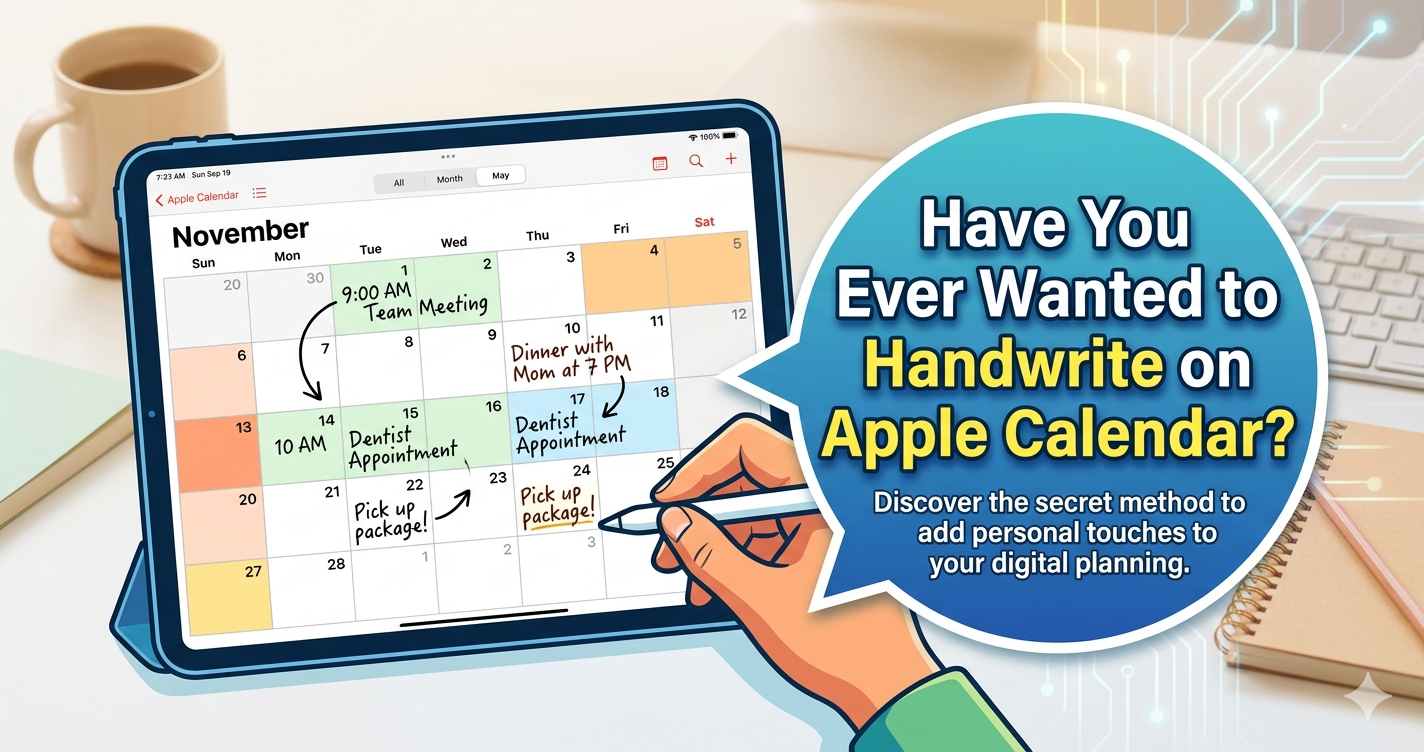
Apple Calendar is great at showing you when things happen. But what if you could pick up your Apple Pencil and actually write on it?
You’re looking at your week in Apple Calendar. The color-coded blocks are all there — meetings, deadlines, the dentist appointment you keep rescheduling. It does exactly what a digital calendar should do: it shows you what’s coming.
But something’s missing.
You want to scribble a quick note next to Tuesday’s meeting. You want to circle Friday and write “DEADLINE” in your own handwriting, the way you’d do in a paper planner. You want to sketch out a rough plan for the weekend without typing anything, without tapping into a tiny text field, without switching to a separate app.
You just want to write on your calendar.
And you can’t. Because Apple Calendar was never built for that.
Why Apple Calendar Doesn’t Support Handwriting
This isn’t a bug or an oversight. Apple Calendar is a data-driven scheduling tool. Every event is a structured object — it has a title, a start time, an end time, maybe a location and a URL. That structure is what makes syncing work across devices, what lets Siri understand your schedule, and what allows other apps to read your calendar data.
Handwriting doesn’t fit into that model. A scribbled note in the margin of Wednesday has no start time. A doodle next to your lunch plans can’t sync to your iPhone. A circled date with an arrow pointing to “IMPORTANT” is meaningful to you, but it’s meaningless to a database.
Apple made the right engineering decision. Calendar is a tool for structured time data, and it’s very good at that job.
But planning isn’t just structured time data. And that’s where the frustration comes from.
The Gap Between Scheduling and Planning
Here’s a distinction that most productivity apps ignore: scheduling and planning are not the same thing.
Scheduling is about placing events on a timeline. It answers “when.” When is the meeting? When does the flight leave? When is the project due?
Planning is about thinking through your time. It answers “how” and “what.” How am I going to prepare for Thursday’s presentation? What do I actually need to get done this week? What’s the one thing I should focus on today?
Apple Calendar handles scheduling beautifully. But planning — the messy, personal, creative process of figuring out how to spend your time — needs something more flexible. Something that lets you think with your hands.
That’s why people who plan seriously almost always end up using paper at some point. Not because paper is better technology, but because the physical act of writing activates a different kind of thinking. You don’t just record information when you write by hand — you process it. Research has consistently shown that handwriting engages the brain differently from typing, improving both comprehension and retention.
When you write “Focus on the proposal” in your own handwriting next to Tuesday’s schedule, you’re not just creating a to-do item. You’re making a commitment to yourself, in a way that typing the same words into a text field simply doesn’t replicate.
What People Actually Do (The Workarounds)
If you’ve felt this frustration, you’re not alone. People have come up with all sorts of workarounds to bridge the gap between Apple Calendar and handwriting:
The screenshot method. Take a screenshot of your Apple Calendar week view, import it into a drawing app, and annotate it with Apple Pencil. This works once, but the moment your schedule changes, your annotations are stuck on an outdated screenshot.
The side-by-side method. Open Apple Calendar in Split View alongside a note-taking app, and keep a handwritten daily plan next to your calendar. Better, but now you’re maintaining two separate systems and constantly switching between them.
The paper-beside-iPad method. Some people just keep a physical notebook next to their iPad. Honestly? This works surprisingly well. But it defeats the purpose of going digital in the first place, and you lose the ability to carry everything in one device.
The Reminders/Notes method. Use Apple’s own apps to type quick notes linked to calendar events. Functional, but no handwriting, and it fragments your planning across multiple apps.
Every one of these workarounds exists because people are trying to solve the same problem: they want their structured calendar and their freeform handwriting in the same place.
What If Your Calendar and Your Handwriting Lived Together?
This is exactly the problem that Planner for iPad was built to solve.
Planner for iPad displays your Apple Calendar events directly inside a handwriting-first planning interface. You see your real schedule — the same events, the same color coding — but the entire page is a canvas for your Apple Pencil. You can write around your events, between your events, on top of your events. You can add handwritten notes, draw arrows, circle important days, sketch out plans, and use stamps and stickers to mark priorities.
Your calendar data stays in Apple Calendar, where it syncs across all your devices and works with Siri and everything else. Planner for iPad reads that data and shows it to you in a format designed for handwriting. It’s a read-only sync — your Apple Calendar events appear in the app, but the app doesn’t write back to your calendar. This keeps things clean: Apple Calendar remains your single source of truth for scheduling, while Planner for iPad becomes your space for thinking and planning around that schedule.
It’s the difference between looking at your calendar and working with your calendar.
The Paper Planner Experience, With Your Real Schedule Inside
If you’ve ever used a paper planner — a Hobonichi, a Traveler’s Notebook, any Japanese techo — you know the feeling. You open to today’s page, and there’s space. Space to think, to write, to plan, to reflect. The page doesn’t rush you through a series of input fields. It doesn’t limit you to event titles and time slots. It just gives you room.
Planner for iPad recreates that feeling, but with one crucial advantage that paper can never offer: your Apple Calendar events are already there when you open the page. You don’t have to copy your schedule by hand. You don’t have to check your phone for meeting times. Your digital schedule and your handwritten plans coexist on the same page, naturally.
For anyone who has stared at Apple Calendar thinking “I just want to write on this” — that’s what Planner for iPad is.
Try It
Planner for iPad is available as a free download on the App Store. Your Apple Calendar events show up automatically once you grant calendar access. From there, just pick up your Apple Pencil and start writing.
Download Planner for iPad on the App Store →
This article is part of Planner for iPad Blog, where we write about digital planning, iPad productivity, and the intersection of handwriting and technology.