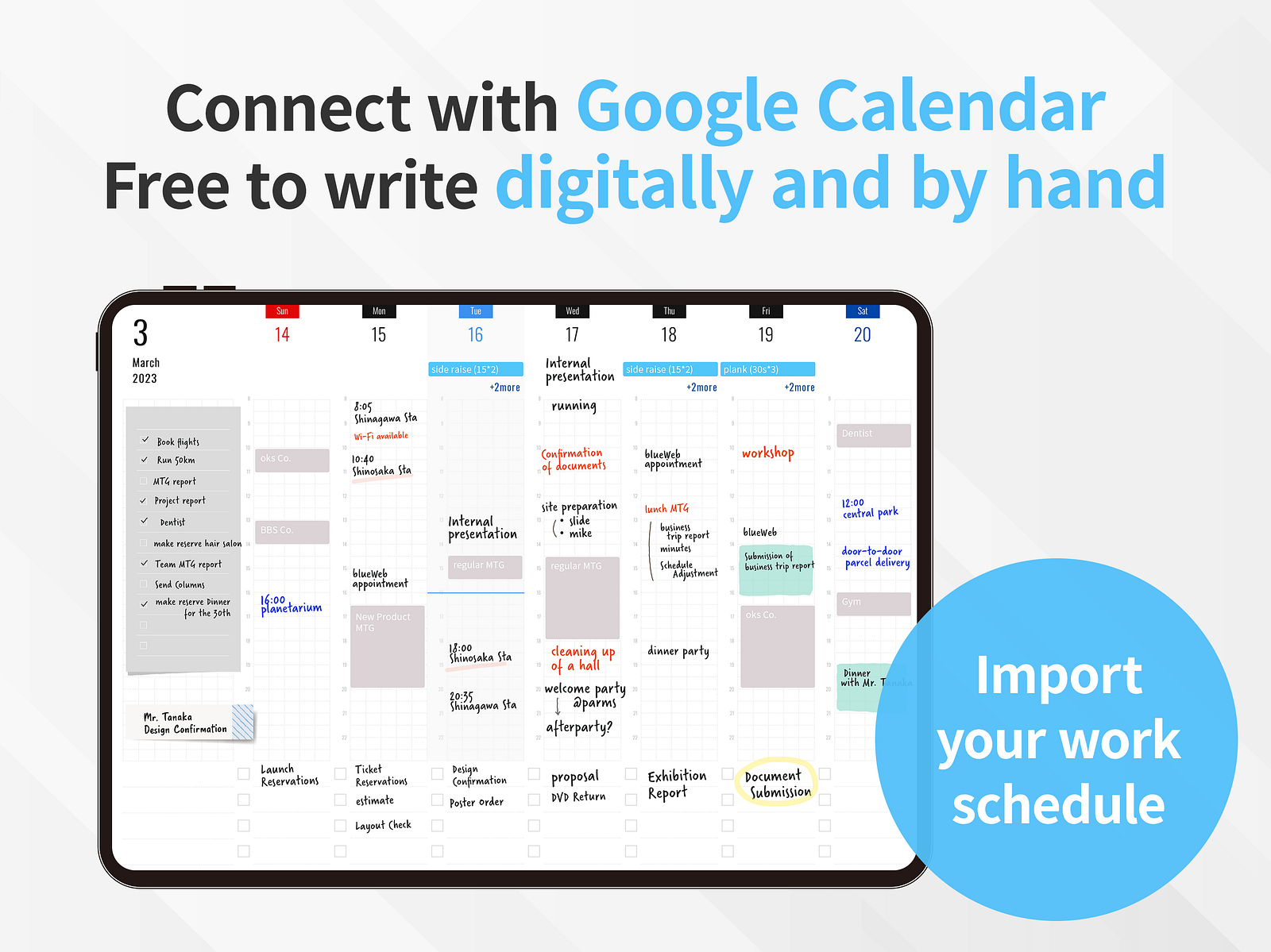
Your schedule changes constantly. Your planner should keep up. Here are the best iPad planner apps that sync with your calendar — so you never have to copy events by hand again.
The biggest frustration with digital planning on iPad is the double-entry problem. You open your planner to map out the week, then switch to your calendar app to check what’s already scheduled, then switch back to write it all in. By the time you’re done, a new meeting invite has already made your handwritten schedule out of date.
Calendar sync solves this. Instead of treating your planner and your calendar as two separate systems, the best apps pull your events directly into your planner pages — so you can see your schedule and write around it in a single view.
But not all calendar sync is created equal. Some apps offer deep, live, two-way integration. Others display your events but won’t let you interact with them. And some popular planner setups — like PDF templates in GoodNotes — don’t support calendar sync at all.
This guide focuses specifically on iPad planner apps that combine Apple Pencil handwriting with real calendar integration. We tested each one and ranked them based on how well they bridge the gap between the feel of a paper planner and the intelligence of a connected calendar.
Full disclosure: This blog is published by the team behind Planner for iPad. We’ve done our best to evaluate each app fairly, including honest assessments of where our own app falls short. You deserve to make an informed choice.
What We Looked For
Every app on this list had to meet three criteria:
- Native Apple Pencil handwriting — you can write directly on planner pages with a stylus, not just type.
- Live calendar sync — events from Apple Calendar, Google Calendar, or other providers appear inside the app automatically.
- Planner-oriented layout — the app is designed around daily, weekly, or monthly planning views, not just freeform note-taking.
We also considered ease of setup, pricing, customization options, and how well the calendar data integrates with the handwriting experience.
The Rankings
1. Planner for iPad
The fastest way to start planning with your real schedule on the page.
Planner for iPad is a purpose-built digital planner designed from scratch for iPad and Apple Pencil. There’s no PDF importing, no template setup, no configuration wizard. You open the app, and your weekly spread is right there — with your Apple Calendar events already populated on the page.
The calendar integration works through Apple Calendar, which means any calendar source that syncs to your iPad — iCloud, Google Calendar, Outlook, Yahoo, or any CalDAV account — shows up automatically in your planner. Apple Reminders are integrated too, so your tasks and your schedule live side by side.
The core experience is writing. You pick up your Apple Pencil, see your events laid out on the page, and start writing around them — adding priorities, jotting notes for meetings, blocking out focus time, or just doodling in the margins. It’s the closest thing to the experience of opening a paper planner that already knows your schedule.
One of the app’s standout features is its extensive collection of stickers and stamps — far more than you’d expect from a focused planner app. From functional labels and color-coded markers to decorative washi tape and seasonal designs, the library gives you plenty of ways to personalize your planner pages without hunting for third-party sticker packs. Multiple templates let you switch up the layout to match your planning style.
Strengths: Instant setup with zero configuration. Calendar events appear live on handwriting pages. Clean, focused interface that doesn’t overwhelm. Extensive sticker and stamp collection for personalization. Templates included. A separate iPhone viewer app lets you check your planner on the go.
Limitations: Planning and editing require iPad — the iPhone app is view-only. Fewer customization options than template-based approaches. Smaller user community compared to GoodNotes.
Best for: People who want the simplest possible path from “open app” to “plan my day with my real schedule visible.”
Pricing: Free to download with subscription for full access.
2. Pencil Planner & Calendar Pro
The veteran of handwritten planner apps, with a traditional paper-planner feel.
Pencil Planner has been around for years and has built a loyal following among Apple Pencil users who want a straightforward digital agenda. It connects to your device’s calendar through Apple Calendar integration (supporting iCloud, Google, Outlook, and other sources), and it also integrates with the Reminders app.
The layout mimics a traditional paper planner with day, week, month, and year views. Events from your calendar appear on the page, and you write over and around them. The handwriting engine supports fountain pen, colored pencil, and highlighter styles, giving you a good range of expression.
Pencil Planner syncs between iPad and iPhone, which is a notable advantage for users who want to check their planner on the go — something Planner for iPad doesn’t currently offer.
Strengths: Mature, well-tested app with years of refinement. Works on both iPad and iPhone. Multiple calendar views (day, week, month, year, year grid). Good variety of pen tools and styles.
Limitations: Some users report that development has slowed, with fewer updates in recent years. The subscription pricing model may not appeal to everyone. Customization options for templates and visual personalization are limited compared to what some users want.
Best for: Users who want a proven, paper-planner-style app that works across iPad and iPhone.
Pricing: Free trial, then annual subscription.
3. CalenDraw
A calendar-first approach with strong creative tools.
CalenDraw takes a slightly different angle. Instead of starting with a planner page and layering calendar data on top, it starts with a calendar and lets you draw on it. Your Google Calendar and Microsoft Outlook events import directly, and you write, sketch, and color-code on top of them.
The app works across iPhone, iPad, and Mac with iCloud sync, and it integrates Apple Reminders. The task management features — including checkable task lists, date-linked journal entries, and separate notebooks — make it feel more like a productivity hub than a pure planner.
One standout detail: when you handwrite tasks, CalenDraw automatically creates a new line for the next one. You can assign dates and times to handwritten tasks, and they’ll appear both in your task list and on the calendar. Home screen widgets provide quick-glance access to your schedule.
Strengths: Cross-device support (iPhone, iPad, Mac). Google Calendar and Outlook import. Task lists with handwritten input. Full-text search across calendars, notes, and tasks. Widgets.
Limitations: The calendar-centric layout may feel different from a traditional planner view. Some users have noted occasional crashes and a cramped interface on smaller screens like iPhone. Export/print functionality is still on the roadmap.
Best for: Users who think in terms of their calendar first and want a creative layer on top, especially across multiple Apple devices.
Pricing: Free with in-app purchases (Pro subscription unlocks week view, multiple notebooks, journals, and Reminders integration).
4. Penjo
A journal-meets-planner hybrid with strong creative features.
Penjo describes itself as a “Pencil-first journal and daily planner,” and that dual identity is both its strength and its distinguishing trait. Each day opens as a clean sheet — like a blank page in a physical diary — with your Apple Calendar events displayed alongside.
It supports Apple Calendar, Google Calendar, and Exchange, and iCloud sync keeps everything updated across iPad, iPhone, Mac, and even Vision Pro. The creative tools go deeper than most planner apps: background removal, stickers, instant frames, and drag-and-drop image support from other apps.
What sets Penjo apart is the daily journal focus. If your planning routine involves not just scheduling but also reflecting, logging, and documenting your day, Penjo gives you the space for that — with handwriting search that lets you find things you wrote weeks ago.
Strengths: Deep journal and planner integration. Supports Google Calendar and Exchange in addition to Apple Calendar. Works across iPad, iPhone, Mac, and Vision Pro. Powerful creative and image tools. On-device handwriting search.
Limitations: The journal-first design means the weekly and monthly planning views feel secondary. The app is relatively new and still adding features. The interface may feel unfamiliar to users expecting a traditional planner layout.
Best for: Journalers and daily diarists who also want their calendar events visible and searchable within their daily writing.
Pricing: Free version with limited features. Paid version available as one-time purchase or monthly subscription.
5. AJournal
A template powerhouse with time-tracking integration.
AJournal stands out for its template system. With over 100 built-in templates covering daily planners, project planners, budget trackers, habit trackers, and more — all fully customizable — it offers a level of layout flexibility that most dedicated planner apps can’t match.
Calendar integration works through Apple Calendar, and iCloud sync keeps your data available across iPad and iPhone. A unique feature is ATracker integration, a companion time-tracking tool with over 2 million downloads, which lets you monitor how you spend your time directly within your planner pages.
The templates are built from modular “elements” (to-do lists, calendars, habit trackers, etc.) that you can add, remove, rearrange, and configure. You can also create your own templates and save them for reuse — a significant advantage for users with specific planning workflows.
Strengths: 100+ customizable templates with modular elements. ATracker time-tracking integration. Create and save custom templates. Works on iPad and iPhone. Export to PDF or print.
Limitations: The sheer number of options can be overwhelming for users who just want to open and write. Calendar integration is less seamless than apps where events appear directly on the handwriting canvas. The learning curve is steeper than simpler alternatives.
Best for: Template enthusiasts and time-trackers who want a highly customizable planner system.
Pricing: Free version available. Premium features via subscription.
6. Rock Daily Planner
A newcomer with a strong writing-first philosophy.
Rock Daily Planner is one of the newest entries in this category, built by Astro HQ (the team behind the Astropad drawing accessories). It takes a distinctive approach: the daily view updates automatically as your Apple Calendar changes, and contextual details like local weather, sunrise, and sunset times appear alongside your schedule.
The writing experience is optimized for Apple Pencil with smooth, accurate stroke capture. Customizable to-do blocks let you arrange priorities for work and personal goals, and tags, filters, and pins help with organization. The ability to add unlimited handwritten notes to each daily planner page makes it feel genuinely paper-like.
The app also supports customizable templates, stickers, shapes, images, and custom fonts — features added in a major 2.0 update.
Strengths: Clean, writing-first design. Automatic calendar sync with real-time updates. Weather and daylight information in the daily view. Strong Apple Pencil optimization. Built by a respected accessory maker (Astro HQ).
Limitations: Requires iPadOS 26, which limits compatibility with older devices. Relatively new app with a smaller track record. No iPhone companion for viewing. Pro features require a yearly subscription ($19.99/year).
Best for: Users who prioritize the daily handwriting ritual and want contextual information (weather, daylight) alongside their calendar.
Pricing: Free to download. Pro subscription at $19.99/year for full features.
Quick Comparison Table
| App | Calendar Sources | Apple Pencil | iPhone Support | Pricing Model | Unique Strength |
|---|---|---|---|---|---|
| Planner for iPad | Apple Calendar (iCloud, Google, Outlook via CalDAV) + Reminders | Yes | Viewer only | Subscription | Zero-setup calendar + extensive stickers & stamps |
| Pencil Planner | Apple Calendar (iCloud, Google, Outlook) + Reminders | Yes | Yes | Subscription | Proven maturity, iPad + iPhone |
| CalenDraw | Google Calendar, Outlook, Apple Calendar + Reminders | Yes | Yes (+ Mac) | Freemium | Calendar-first with creative tools |
| Penjo | Apple Calendar, Google, Exchange | Yes | Yes (+ Mac, Vision Pro) | One-time or subscription | Journal-planner hybrid with image tools |
| AJournal | Apple Calendar | Yes | Yes | Freemium | 100+ templates + ATracker integration |
| Rock Daily Planner | Apple Calendar | Yes | No | Subscription ($19.99/yr) | Weather/daylight context, writing-first |
What About GoodNotes?
GoodNotes is an excellent note-taking app and the most popular platform for PDF digital planners. But it’s important to understand what it does and doesn’t do in the context of calendar sync.
GoodNotes itself has no calendar integration. Your events don’t appear in the app. If you use a PDF planner template in GoodNotes, you’re working with a static file — beautifully designed, but disconnected from your actual schedule. Every event has to be copied in by hand, and when plans change, you’re erasing and rewriting.
Some third-party PDF planner designers have created workarounds using iOS Shortcuts that link specific pages to the Calendar app, but these are manual links — not live sync. You tap a link, it opens the Calendar app, and you switch back. It’s creative, but it’s not the same as seeing your events rendered directly on your planner page.
If handwriting feel is your top priority and you don’t care about calendar sync, GoodNotes with a good PDF template remains a strong choice. But if you want your planner to know what’s on your schedule, you need one of the dedicated apps listed above.
How to Choose
Choose Planner for iPad if you want the lowest-friction way to start planning with your real calendar on the page. Open, see your events, write. Done.
Choose Pencil Planner if you want a tried-and-true app that works on both iPad and iPhone, with a traditional paper planner layout.
Choose CalenDraw if you think calendar-first and want creative tools plus cross-device support across iPhone, iPad, and Mac.
Choose Penjo if journaling and daily reflection are as important to you as scheduling, and you want robust creative tools.
Choose AJournal if you love templates and want a highly customizable system with time-tracking built in.
Choose Rock Daily Planner if you want a modern, writing-first daily experience with contextual details like weather alongside your schedule.
Final Thought
The best planner is the one you actually use. All six of these apps solve the fundamental problem of bringing your calendar into your handwriting workflow — they just approach it from different angles.
If you’ve been planning on iPad with a PDF template and constantly switching to your calendar app to check your schedule, any of these will feel like an upgrade. And if you’ve been putting off digital planning because the setup felt too complicated, the apps at the top of this list might surprise you with how simple they’ve made it.
Your calendar already knows your schedule. Your planner should too.
Last updated: April 2026