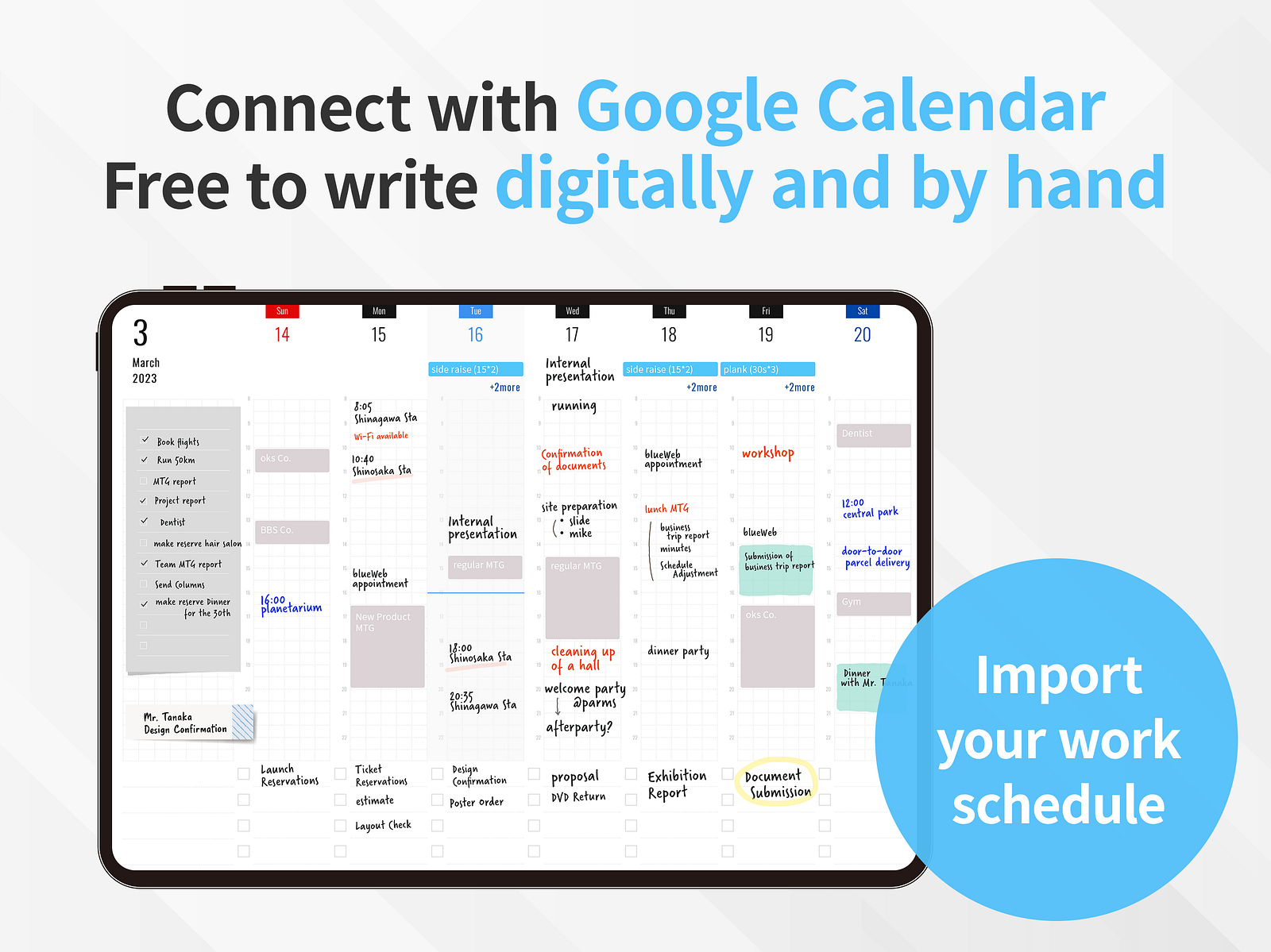
Digital planning has exploded in popularity. Open any iPad productivity community and you’ll find hundreds of people customizing their PDF planners in GoodNotes or Notability, decorating pages with stickers, and sharing their elaborate setups. It looks beautiful.
But here’s the question nobody seems to ask: Is all that setup actually helping you get things done?
As someone who’s spent years thinking about how people plan on iPad, I want to break down what’s really going on with PDF digital planners — and why I built Planner for iPad to take a fundamentally different approach.
What Are PDF Digital Planners?
PDF digital planners are pre-designed PDF files — usually with hyperlinked tabs — that you import into a note-taking app like GoodNotes, Notability, or Noteshelf. They mimic the look and feel of a paper planner: monthly spreads, weekly layouts, daily pages, habit trackers, and more.
You write on them with your Apple Pencil, flip between sections using built-in links, and customize them with digital stickers, washi tape, and color-coded systems.
The ecosystem around them is massive. Etsy alone has tens of thousands of listings. Some creators charge $30+ for a single planner file, and the template customization rabbit hole runs deep.
The Hidden Costs of PDF Planners
PDF planners look great on Instagram, but once you start using one as your actual planning system, cracks appear quickly.
Your calendar lives somewhere else
This is the big one. Your real schedule — meetings, appointments, deadlines — lives in Apple Calendar or Google Calendar. A PDF planner can’t read that data. So you’re left manually copying events from your calendar app onto your planner pages, which means you’re doing double entry every single day. Miss a sync? Now your planner is lying to you.
Your tasks live somewhere else too
Same problem with reminders and to-dos. If you use Apple Reminders, Todoist, or any task manager, none of that flows into your PDF planner. You either abandon your task manager and go all-in on the PDF (losing notifications, Siri integration, and sharing), or you maintain two systems in parallel — which defeats the purpose of having a centralized planner.
You’re locked into someone else’s layout
Bought a planner with Monday-start weeks but you prefer Sunday? Too bad. Want a slightly wider column for Wednesday because that’s your busiest day? Not possible. The template is fixed. Sure, you can buy a different template — but then you lose all the data you’ve already written.
File size bloat is real
A full-year PDF planner with daily pages has 365+ pages minimum, often 500+ with extras. These files get heavy fast, especially once you start writing on them. GoodNotes slows down. Pages take longer to load. Backups balloon in size. By October, some people’s planners are nearly unusable.
The “planning” becomes the procrastination
This is the uncomfortable truth. Many people spend more time setting up their planner — choosing stickers, color-coding categories, decorating weekly spreads — than they spend actually planning their week. The aesthetic ritual feels productive, but it isn’t. It’s procrastination dressed up as organization.
A Different Approach: Planner for iPad
I built Planner for iPad because I wanted to solve these exact problems. The core idea is simple: your planner should connect to your real life, not exist as a beautiful island.
Here’s how it works differently:
Native Apple Calendar sync
Open any day in Planner for iPad and your actual calendar events are already there. No copying. No double entry. Your meetings, all-day events, and time blocks show up automatically because the app reads directly from Apple Calendar. Change something in Calendar? It updates in Planner for iPad instantly.
This is the single biggest difference from PDF planners, and it changes everything about how planning actually feels. You open your planner and your day is already structured. You just add your handwritten notes, thoughts, and to-dos around the real schedule.
Native Apple Reminders integration
Same principle applies to tasks. Your Apple Reminders lists appear right inside the planner. You can check them off, see what’s due — all without leaving the app or maintaining a separate system.
Apple Pencil-first, no templates needed
Planner for iPad is built from the ground up for Apple Pencil. You don’t import a PDF and write on top of it — the app generates your planner pages dynamically. That means no file bloat, no slow loading, and no being locked into someone else’s layout decisions.
You just open the app and start writing. January works exactly as fast as December.
Your planner grows with your life
Because pages are generated on the fly, you never run out of space. You never need to buy next year’s planner. There’s no migration process where you abandon an old file and start fresh. Your planner is continuous.
The Real Tradeoff
Let’s be honest about what you give up. PDF planners offer nearly unlimited visual customization. If decorating your planner is genuinely part of your creative practice — if the stickers and the washi tape and the color-coding bring you joy as a hobby — then that’s legitimate. Not everything has to be optimized for productivity.
But if your goal is to actually plan your life more effectively on an iPad, the calculus is different. Here’s what matters:
| PDF Digital Planners | Planner for iPad | |
|---|---|---|
| Calendar sync | ❌ Manual copy | ✅ Automatic |
| Task integration | ❌ Separate system | ✅ Apple Reminders |
| Apple Pencil | ✅ Via note-taking app | ✅ Native |
| Page load speed | ⚠️ Degrades over time | ✅ Always fast |
| Visual customization | ✅ Unlimited | ⚠️ Focused on function |
| Template lock-in | ❌ Fixed layout | ✅ Dynamic pages |
| Annual cost | 💰 New template each year | ✅ One app |
Who Should Use What?
PDF digital planners are for you if:
You treat planning as a creative hobby. You enjoy the process of decorating and customizing. You don’t need your planner to be your source of truth for scheduling — you just want a beautiful space to reflect and journal alongside your digital calendar.
Planner for iPad is for you if:
You want one place that actually knows your schedule. You want to open your planner and start writing, not start setting up. You use Apple Calendar and Reminders and want your handwritten planning to work with those tools, not around them.
Try It Yourself
If you’ve been using a PDF planner and find yourself constantly copying events from your calendar, or if your planner file has gotten sluggish, or if you’re just tired of buying new templates every year — give Planner for iPad a try.
It’s available on the App Store. No templates to buy. No setup required. Just open it, pick up your Apple Pencil, and plan.